



There is a small tube of grey paste sitting between your processor and its cooler that most people never think about. It costs a few pounds, looks completely unremarkable, and is quietly one of the most important things keeping your PC running properly.
When it works, you never notice it. When it fails, your PC runs hot, slows down, shuts off unexpectedly, and you spend an afternoon wondering what went wrong. Here is everything you need to know.
What Is Thermal Paste?
Thermal paste is a heat-conducting material applied between your CPU and its cooler. Its job is to fill the microscopic gaps between the two metal surfaces so heat moves from the processor into the cooler as efficiently as possible.
Here is why those gaps matter. Both the top of your CPU and the base of your cooler look perfectly flat and smooth. Under a microscope, both surfaces are actually covered in tiny ridges and imperfections. Press them together and air gets trapped in those gaps. Air is a terrible conductor of heat. Thermal paste fills those same spaces with a material that conducts heat far better, giving heat a clear, uninterrupted path from the chip to the cooler.
Without paste, or with old dried-out paste that has lost its properties, your CPU cannot shed heat fast enough. It gets hotter than it should, slows itself down to prevent damage, and in serious cases shuts the whole computer off to protect itself.
How Long Does Thermal Paste Last?
Not forever, unfortunately. The compounds in the paste gradually dry out over time, and thousands of heating and cooling cycles physically pump the paste away from the centre of the chip toward the edges, leaving the hottest part of the processor with thin coverage. A thin layer of dried paste in the wrong place conducts heat about as well as air.
As a rough guide:
Standard paste pre-applied on a budget cooler or factory pre-built typically lasts two to three years. Premium paste from reputable brands lasts three to five years under normal conditions. If you use your PC heavily for gaming, video editing, or 3D rendering every day, paste degrades faster because heat cycles are more frequent. Light users browsing and writing documents get more mileage out of the same paste.
Warning Signs Your Paste Needs Replacing
Your PC usually tells you something is wrong with cooling well before any permanent damage happens.
Higher temperatures than before is the most reliable indicator. If your CPU used to idle around 35 degrees and now sits at 55 doing nothing, and nothing else has changed, degraded paste is a very likely cause. Free tools like HWiNFO or Core Temp show you CPU temperatures in real time so you can see exactly what is happening.
Fans running loudly more often is closely related. When the CPU runs hotter, the cooler works harder and the fans spin faster to compensate. If your PC sounds noticeably louder during tasks that used to be quiet, the cooling system is fighting against something.
Thermal throttling is what happens when the CPU gets too hot and automatically reduces its own performance to bring temperatures down. You notice it as sudden stuttering or slowdowns during demanding tasks, particularly after the PC has been running for twenty or thirty minutes and fully warmed up. Playing a game that ran fine six months ago and now stutters after half an hour is a classic pattern.
Unexpected shutdowns during heavy use are a more serious warning that temperatures are hitting dangerous levels and the system is protecting itself by cutting power entirely.
When to Replace It Regardless of Symptoms
Some situations call for new paste even when everything seems fine.
Any time you remove the CPU cooler for any reason, replace the paste. Old paste that has been disturbed no longer makes proper contact and should never be reused. Putting the cooler back without fresh paste is one of the most common PC maintenance mistakes and completely avoidable.
If you bought a second-hand PC or laptop and do not know its history, thermal paste is one of the first things worth replacing. Factory paste on pre-builts is often lower quality, and a machine that is two or three years old with no maintenance history is overdue.
If your PC is running hot and it is more than two or three years old, try the paste before spending money on anything else. A five-pound tube and twenty minutes of work can bring temperatures back to where they were when the machine was new.
How to Replace Thermal Paste
You need three things: a small tube of fresh thermal paste, isopropyl alcohol at 90% concentration or higher, and a lint-free cloth or a plain coffee filter.
Step 1: Shut down and cool the PC
Turn off your PC and unplug it from the wall. Leave it for at least ten minutes before opening the case. You want everything completely cool before you start.
Step 2: Remove the cooler
Unscrew the four mounting screws around the cooler in a diagonal pattern, loosening each one gradually rather than fully tightening one before moving to the next. This keeps even pressure on the CPU. Before lifting the cooler straight up, give it a gentle twist to break the seal. Never drag it sideways across the chip.
Step 3: Clean both surfaces
This step matters more than most guides suggest. Use isopropyl alcohol on a lint-free cloth and wipe all of the old paste from both the top of the CPU and the base of the cooler. Clean until both surfaces are bare metal with no residue at all. Rushing this step and leaving residue behind defeats the purpose of the fresh paste.
Step 4: Apply the new paste
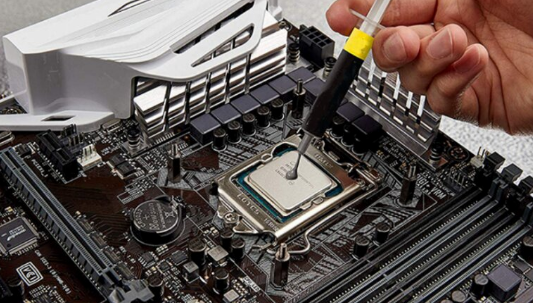
Place a pea-sized dot of fresh paste in the centre of the CPU. That is genuinely all you need. More paste does not improve cooling and can cause it to spread beyond the CPU onto the motherboard, which is a problem you do not want. Less is more here.
Step 5: Reinstall the cooler
Lower the cooler straight down onto the CPU and tighten the screws again in a diagonal pattern, gradually, keeping even pressure. The paste will spread naturally across the surface as the cooler seats itself.
Step 6: Check your temperatures
Boot the PC and let it run for a few minutes, then check your CPU temperatures using HWiNFO or a similar tool. You should see a noticeable improvement compared to before.
Which Paste Should You Buy?
For most everyday users, any paste from a reputable brand is a meaningful upgrade over old dried-out compound. Arctic MX-6, Noctua NT-H2, and Thermal Grizzly Kryonaut are all well regarded and cost between five and fifteen pounds for enough to do several applications.
One thing to avoid: silver-based or metal-based compounds unless you have done this before and know exactly what you are doing. These conduct electricity and can cause damage if they make contact with components beyond the CPU die. Standard silicon or carbon-based compounds are safer and perform excellently for normal use.
Final Thoughts
Thermal paste is one of those PC maintenance tasks that gets skipped because it is invisible and sounds complicated. It is neither. A small tube of decent paste and twenty minutes of patient work can bring a hot, slow PC back to the temperatures it ran at when it was new. If your machine runs hot, sounds like a jet engine, or slows down under load, check the paste before spending money on anything else. The answer is often sitting right there between the CPU and the cooler, dried out and forgotten.
Frequently Asked Questions
How do I check if my thermal paste has dried out without opening the PC?
You cannot see it without opening the case, but the symptoms are clear. Monitor your CPU temperature using a free tool like HWiNFO or Core Temp. If temperatures are noticeably higher than they used to be and nothing else has changed, deteriorated paste is a likely cause. High idle temperatures combined with loud fans are the clearest early warning.
Can I use too much thermal paste?
Yes. A pea-sized dot in the centre of the CPU is the right amount for most processors. More paste does not improve heat transfer and risks spreading beyond the CPU onto the motherboard. The cooler pressing down spreads the paste naturally, so there is no need to spread it yourself or apply more than you need.
Does thermal paste in the tube expire?
An unopened tube from a reputable brand lasts around three to five years. Once opened, keep the cap sealed and store it somewhere cool and dry. Exposure to air gradually dries it out, so do not leave the cap off between uses.
Do laptops need thermal paste replaced too?
Yes. Laptops generate significant heat in a very small space and the paste degrades just as it does in a desktop. Many laptops from major manufacturers ship with lower-quality factory paste. Replacing it can make a substantial difference, particularly on older laptops that run hot and throttle under load. Laptop disassembly is more involved than a desktop, so if you are not confident, a repair shop can do it quickly and cheaply.
Will replacing thermal paste void my warranty?
On a custom-built desktop, replacing thermal paste is standard maintenance and typically does not affect component warranties. On pre-built PCs and laptops, check the manufacturer's terms before opening the case, as some consider any internal access a warranty void. If the machine is out of warranty, there is nothing to lose.



Discussion (0)
Be the first to comment.