



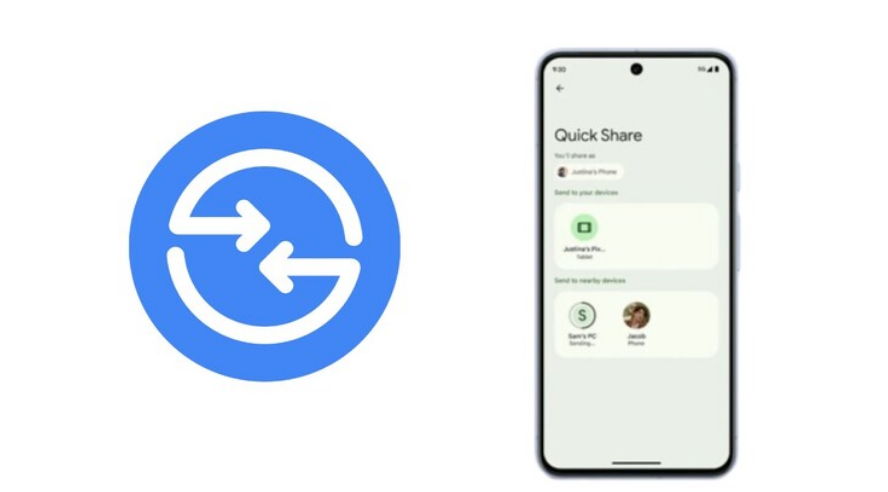
If you have an Android phone and a Windows PC, moving files between them is probably more annoying than it should be. You email files to yourself, upload to Google Drive and download again, or dig out a USB cable. None of that feels right when both devices are sitting on the same desk. Google Quick Share fixes this. It lets you wirelessly send photos, videos, documents, and folders directly from your Android phone to your Windows PC and back again, in seconds, with no cable, no cloud, and no account required for basic use. This guide explains what Quick Share is and exactly how to set it up and use it on Windows.
What Is Google Quick Share?
Quick Share is Google's wireless file sharing feature, available on Android devices since 2020 under the name Nearby Share. In 2024, Google and Samsung unified their separate sharing features under the Quick Share name, making it the standard wireless transfer tool across Android phones and Samsung Galaxy devices. For Windows, Google released a dedicated app that brings the same functionality to your PC.
The way it works is similar to AirDrop on Apple devices. Quick Share uses Bluetooth to discover nearby devices and then switches to Wi-Fi Direct for the actual transfer, which makes it significantly faster than Bluetooth alone. Files travel directly between your devices without passing through any server. Quick Share is already built into every Android phone running Android 6 and later, so no installation is needed on the phone side. For Windows, you need to download and install a small app from Google.
Quick Share works on Windows 10 64-bit and Windows 11. The two devices need to be within roughly 16 feet of each other for discovery to work, and both need Bluetooth and Wi-Fi enabled.
A Note on Samsung PCs
If you have a Samsung Galaxy Book or any other Samsung PC, you should use Samsung's own Quick Share app available from the Microsoft Store rather than Google's version. Google's Quick Share app is designed for non-Samsung Windows computers. If you install Google's version on a Samsung PC, it will redirect you to install the Samsung version instead. For all other Windows laptops and desktops, Google's app is the one to use.
How to Download and Install Quick Share on Windows
Installing Quick Share takes about two minutes.
- Open your browser and go here. Click the Download Quick Share button. This downloads the installer directly from Google.
- Run the downloaded installer file. The installation is quick and automatic with no configuration steps during setup.
- Once installed, Quick Share launches automatically and appears in your system tray. You will see a setup screen asking you to sign in or continue without an account.
Signing in with your Google account gives you the most useful experience. It allows your Windows PC and Android phone to recognize each other automatically when both are signed into the same account, meaning transfers between your own devices happen without requiring manual acceptance each time. If you prefer not to sign in, you can use Quick Share without an account, though discovery will be more manual.
- Set a name for your Windows PC. This is how it will appear on your Android phone when you are ready to transfer. Choose something descriptive like your actual device name so you can identify it easily.
- Click Done. Quick Share is now running in the background, accessible from the system tray icon.
How to Send a File From Your Android Phone to Your Windows PC
This is the most common use case and the one most people need first.
- On your Windows PC, open the Quick Share app from the system tray. In the left panel, set your visibility to Everyone or Contacts depending on your preference. Your PC needs to be visible for your phone to find it.
- On your Android phone, find the file you want to send. This works from the Photos app, Files app, or almost any app that has a share button. Tap the share icon and look for Quick Share in the share sheet. On most Android phones it appears near the top of the sharing options.
- Quick Share will scan for nearby devices. Your Windows PC should appear in the list with the name you set during setup. Tap it.
- On your Windows PC, a notification will appear asking you to accept the incoming file. Click Accept. If both devices are signed into the same Google account, the transfer may happen automatically without requiring you to accept manually.
- The file is saved to a Quick Share folder inside your Downloads folder on Windows.
How to Send a File From Your Windows PC to Your Android Phone
Sending in the other direction is equally straightforward.
- On your Android phone, open Settings and search for Quick Share. Open it and set your visibility so your phone is discoverable. You can set it to Everyone, Contacts, or Your Devices depending on who you want to be able to find you.
- On your Windows PC, open the Quick Share app. Click Select Files or drag and drop files directly into the app window.
- After selecting your files, Quick Share will scan for nearby devices. Your Android phone should appear in the list. Click it.
- On your Android phone, a prompt will appear asking whether to accept the transfer. Tap Accept. The files save to your Downloads folder on Android.
You can also send files from Windows without opening the Quick Share app separately. Right-click any file in File Explorer, look for Send with Quick Share in the context menu, and the app will open with that file ready to share.
Understanding Visibility Settings
Quick Share has four visibility options on both Windows and Android that control who can discover your device.
Everyone means any nearby device with Quick Share enabled can see you and attempt to send you files. This is the most open setting and the easiest for one-off transfers with people nearby. Your devices means only devices signed into the same Google account can see you, which is the most practical setting for transferring between your own phone and PC. Contacts means only people in your Google contacts list can discover your device. No one makes your device invisible to all Quick Share transfers.
For day-to-day use between your own phone and PC, setting both devices to Your devices is the cleanest option. Transfers between your own devices happen automatically without requiring manual acceptance each time, making the experience feel genuinely seamless.
What Quick Share Can and Cannot Transfer
Quick Share handles photos, videos, documents, audio files, and entire folders. There is no file size limit enforced by the app itself. Transfer speed depends on your local Wi-Fi and Bluetooth hardware, but most users find it fast enough for photos and medium-sized documents to transfer in a couple of seconds.
Quick Share does not transfer app data, contacts, or settings, and it is not a sync tool. It handles one-time transfers of specific files rather than keeping folders in sync across devices. For sync functionality, Google Drive or a dedicated sync tool would be more appropriate.
Quick Share vs Windows Nearby Sharing
Windows 11 has its own built-in sharing feature called Nearby Sharing, accessible under Settings, System, and Nearby Sharing. It is worth being clear about the difference. Windows Nearby Sharing only works between Windows PCs. It cannot communicate with Android phones. Google Quick Share is specifically designed for Android to Windows transfers and is an entirely separate tool. If you need to share files between two Windows computers wirelessly, Windows Nearby Sharing handles that. If you need to share between your Android phone and your Windows PC, Google Quick Share is the right tool.
Final Thoughts
Google Quick Share on Windows is one of those tools that makes you wonder why you ever put up with emailing files to yourself. Once it is set up and both your phone and PC are signed into the same Google account, transferring a file between them takes about ten seconds. There is nothing to configure each time, no upload wait, and no size limit to worry about. If you regularly move photos, documents, or any other files between your Android phone and your Windows PC, installing Quick Share is one of the most genuinely useful small upgrades you can make to your daily workflow.
Frequently Asked Questions
Is Google Quick Share free to use?
Yes. Google Quick Share is completely free. There is no subscription, no paid tier, and no storage limits. Files transfer directly between your devices without using any cloud storage or incurring any data costs beyond your local Wi-Fi usage.
Does Quick Share work without a Google account?
Yes, you can use Quick Share on Windows without signing in to a Google account by choosing the Use without an account option during setup. However, signing in unlocks the most useful feature: automatic transfers between your own devices without requiring manual acceptance each time.
How far apart can devices be for Quick Share to work?
Both devices need to be within approximately 16 feet or 5 meters of each other for Quick Share to discover and connect them. Bluetooth is used for discovery, so physical distance and obstacles like walls can affect reliability.
Why is my phone not showing up in Quick Share on Windows?
Make sure both Bluetooth and Wi-Fi are enabled on both devices. Check that the Android phone's visibility is set to Everyone, Contacts, or Your Devices rather than No one. On the Windows side, make sure the Quick Share app is open and your PC is set to a visible mode. Bringing the devices closer together can also help with initial discovery.
What is the difference between Google Quick Share and Samsung Quick Share?
Google Quick Share is designed for non-Samsung Windows PCs and works with any Android phone. Samsung Quick Share is a separate app designed specifically for Samsung Galaxy Book PCs and Samsung Android devices. If you have a Samsung PC, use Samsung's version from the Microsoft Store. If you have any other Windows PC, use Google's version from android.com.



Discussion (0)
Be the first to comment.