



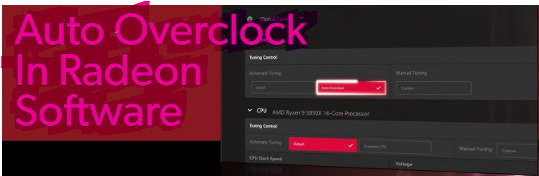
If you use an AMD graphics card, you may have noticed the Auto Overclock feature in AMD Adrenalin. This tool automatically increases your GPU’s clock speeds to improve performance without requiring manual tuning.
Auto Overclock is designed for users who want better gaming performance but do not want to manually adjust GPU settings. It analyzes your hardware and applies safe performance boosts to the graphics card.
What Is Auto Overclock in AMD Adrenalin?
Auto Overclock is a built-in feature in AMD Software: Adrenalin Edition that automatically increases the clock speeds of your graphics card. Clock speed determines how fast the GPU processes graphical tasks.
When Auto Overclock is enabled, the software attempts to push the GPU beyond its standard factory speeds while maintaining stability.
This helps your system extract additional performance from the graphics card without requiring advanced technical knowledge.
How Auto Overclock Works
Auto Overclock works by automatically adjusting the GPU’s performance limits and clock speeds based on your hardware capabilities.
The process typically includes:
- Increasing the GPU core clock speed
- Adjusting power limits
- Testing stability of the graphics card
The goal is to achieve higher performance while staying within safe operating limits.
Benefits of Auto Overclock for Gaming Performance
Using Auto Overclock in AMD Adrenalin can provide several performance improvements.
Higher Frame Rates
Overclocking increases GPU processing speed, which can improve frames per second (FPS) in games.
Better Performance in Demanding Games
Modern games often require significant graphics processing power. Auto Overclock can help improve performance in graphics-heavy titles.
Easy Performance Boost
Manual overclocking can be complicated. Auto Overclock simplifies the process by applying optimized settings automatically.
No Advanced Configuration Required
Users do not need to understand voltage tuning, clock adjustments, or GPU power limits.
Types of Auto Overclock Options in AMD Adrenalin
AMD Adrenalin may provide several automatic performance options depending on your GPU.
These options may include:
- Auto GPU Overclock – increases GPU clock speeds
- Auto VRAM Overclock – boosts memory clock speeds
- Auto CPU Overclock – available for some Ryzen systems
Each option targets a different part of the system for performance improvement.
How to Enable Auto Overclock in AMD Adrenalin
You can enable the feature directly through AMD Adrenalin software.
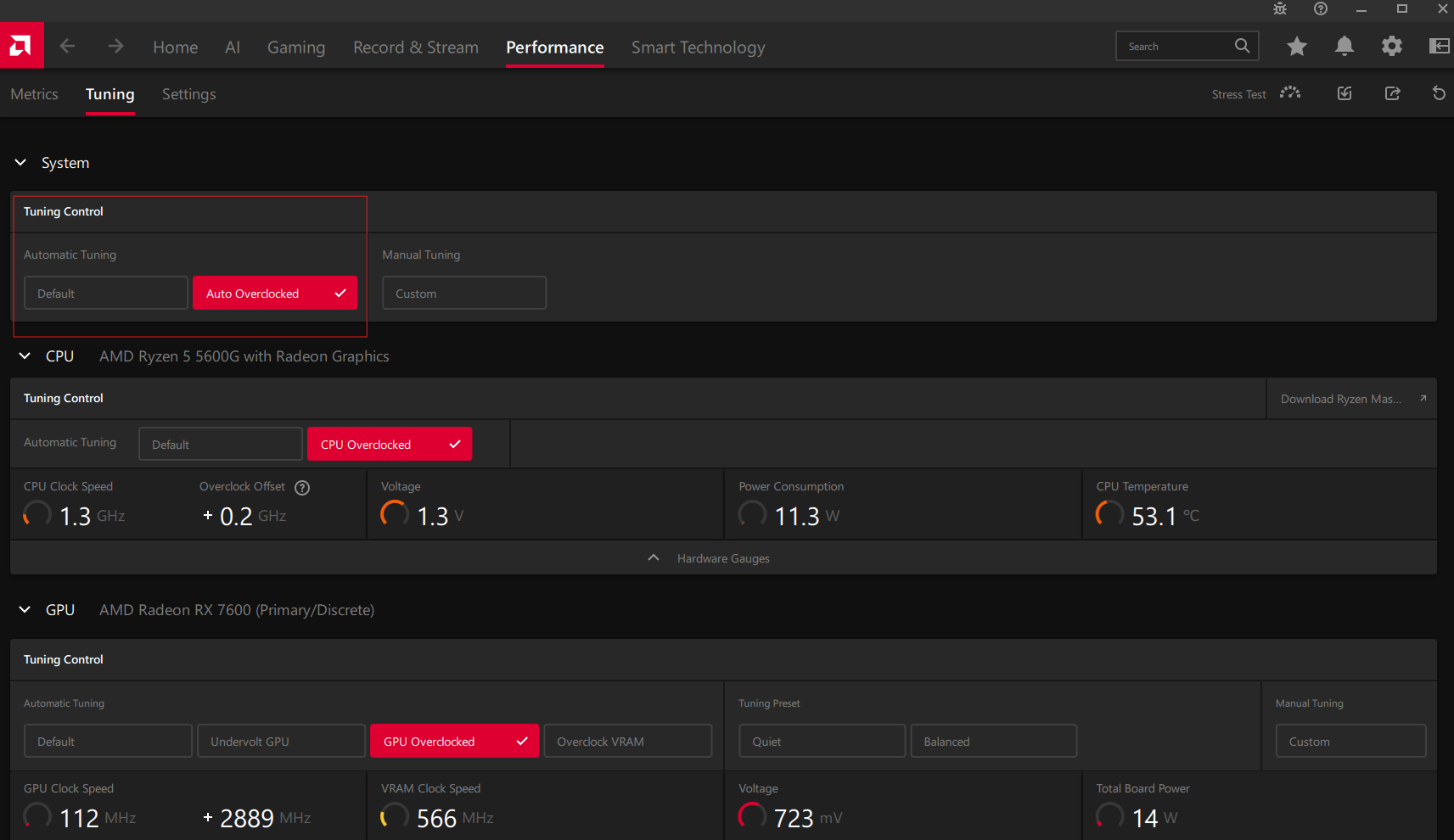
Step 1: Open AMD Adrenalin
Right-click on the desktop and select AMD Software: Adrenalin Edition.
Step 2: Open the Performance Tab
Click the Performance tab in the top menu.
Step 3: Select Tuning
Open the Tuning section and enable Automatic Tuning.
Step 4: Choose Auto Overclock
Select the Auto Overclock GPU option and apply the changes.
The software will automatically adjust your GPU settings.
Drawbacks of Auto Overclock
Although Auto Overclock can improve performance, there are some potential downsides.
Possible drawbacks include:
- Increased GPU temperatures
- Higher power consumption
- Potential system instability in rare cases
These issues are usually minimal because the software applies conservative settings, but monitoring temperatures is still recommended.
Final Thoughts
Auto Overclock in AMD Adrenalin is a convenient feature that helps users gain extra performance from their graphics cards without manual tuning. By automatically increasing clock speeds, the feature can improve gaming performance and deliver smoother frame rates.
However, because overclocking pushes hardware beyond standard settings, it may increase temperatures and power usage. Monitoring system stability and cooling is recommended when using Auto Overclock.
FAQs
What does Auto Overclock do in AMD Adrenalin?
It automatically increases GPU clock speeds to improve performance.
Does Auto Overclock increase FPS?
Yes. It can improve frame rates in some games.
Is Auto Overclock safe?
Yes. AMD designs it to stay within safe limits, but temperatures should still be monitored.
Can I disable Auto Overclock?
Yes. You can turn it off in the AMD Adrenalin performance settings.

Discussion (0)
Be the first to comment.