



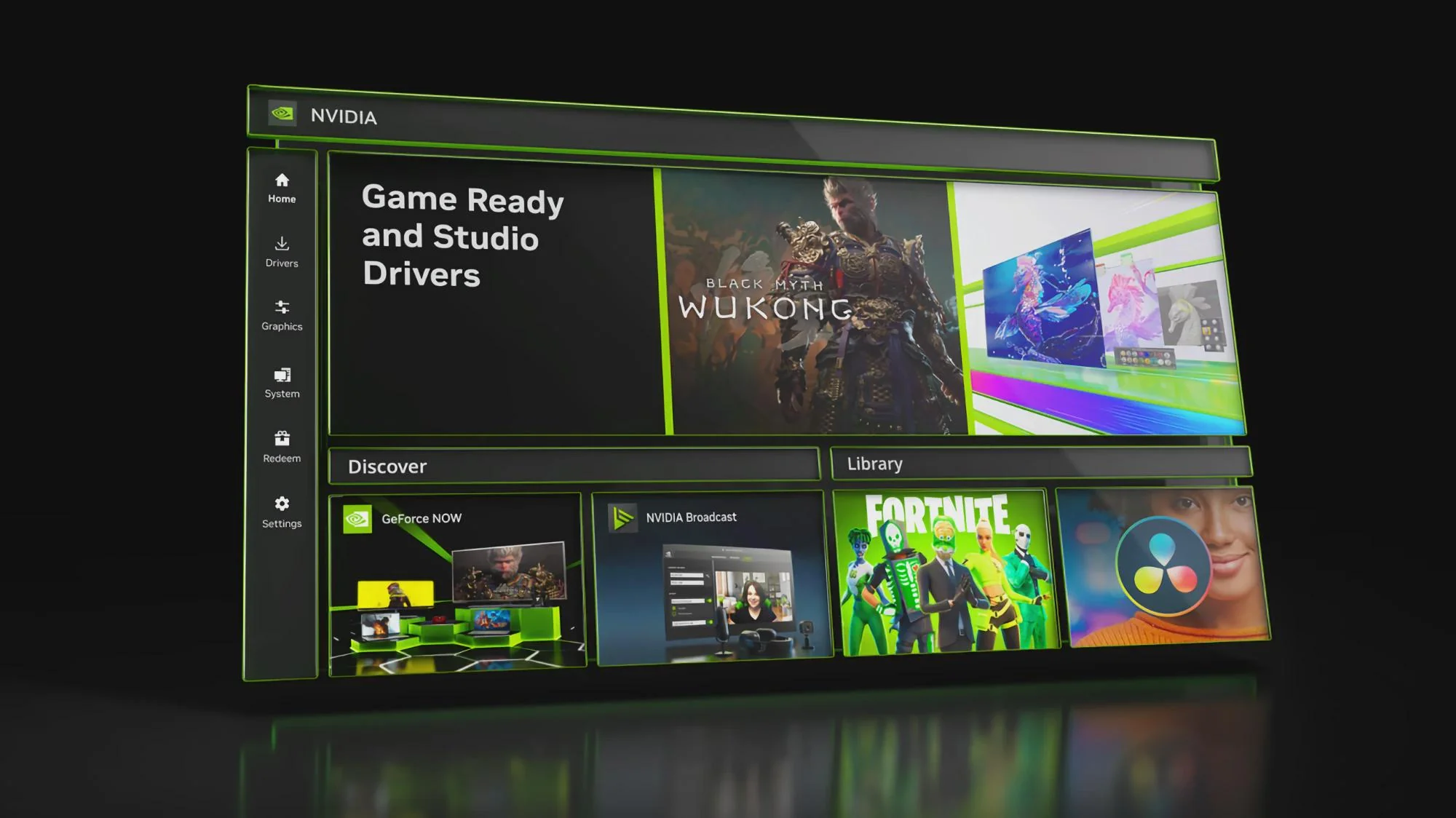
NVIDIA has released version 11.0.8 of its desktop application, adding 240 frames per second ShadowPlay recording, new multi monitor controls, wider DLSS Override support, and several stability improvements.
The headline feature allows compatible systems to record gameplay at up to 240 FPS. However, it is limited to GeForce RTX 40 series and RTX 50 series graphics cards. Owners of older RTX models will continue using the existing capture options.
Recording at such a high frame rate is mainly useful for competitive players, video creators, and anyone who wants extremely smooth source footage for slow motion editing. Most people recording casual gameplay will not need 240 FPS because it creates larger video files and places additional demands on the graphics card, processor, and storage drive.
The option can be found by opening the NVIDIA overlay with Alt + Z, selecting Settings, and entering the Video Capture menu.
The main changes in NVIDIA App 11.0.8
| Updated area | What has changed |
|---|---|
| ShadowPlay recording | Capture gameplay at up to 240 FPS |
| Supported graphics cards | GeForce RTX 40 and RTX 50 series |
| Multi monitor controls | Taskbar restriction and window expansion options |
| DLSS Override | Added to more supported games |
| Optimal Settings | Expanded automatic game configuration |
| Recording reliability | Fixed failures caused by special characters |
| General performance | Additional stability improvements |
The new recording feature will be most practical when a game already runs at a very high frame rate. Capturing at 240 FPS does not make a game smoother if the computer produces fewer frames.
Storage speed and capacity are also important. High frame rate footage can consume space quickly, particularly when recorded at 1440p or 4K. Creators planning longer sessions should confirm that their selected drive has enough free capacity and can maintain the required write speed.
New display controls improve multi monitor management
The update adds two options previously associated with NVIDIA’s traditional display controls.
You can now restrict the Windows taskbar to one display when using a multi monitor setup. This can help create a cleaner desktop and prevent the taskbar from appearing across screens where it is not needed.
Another option allows windows to be maximised across every connected monitor. This may be useful for simulation games, productivity applications, monitoring software, and other tools designed to use a wide desktop area.
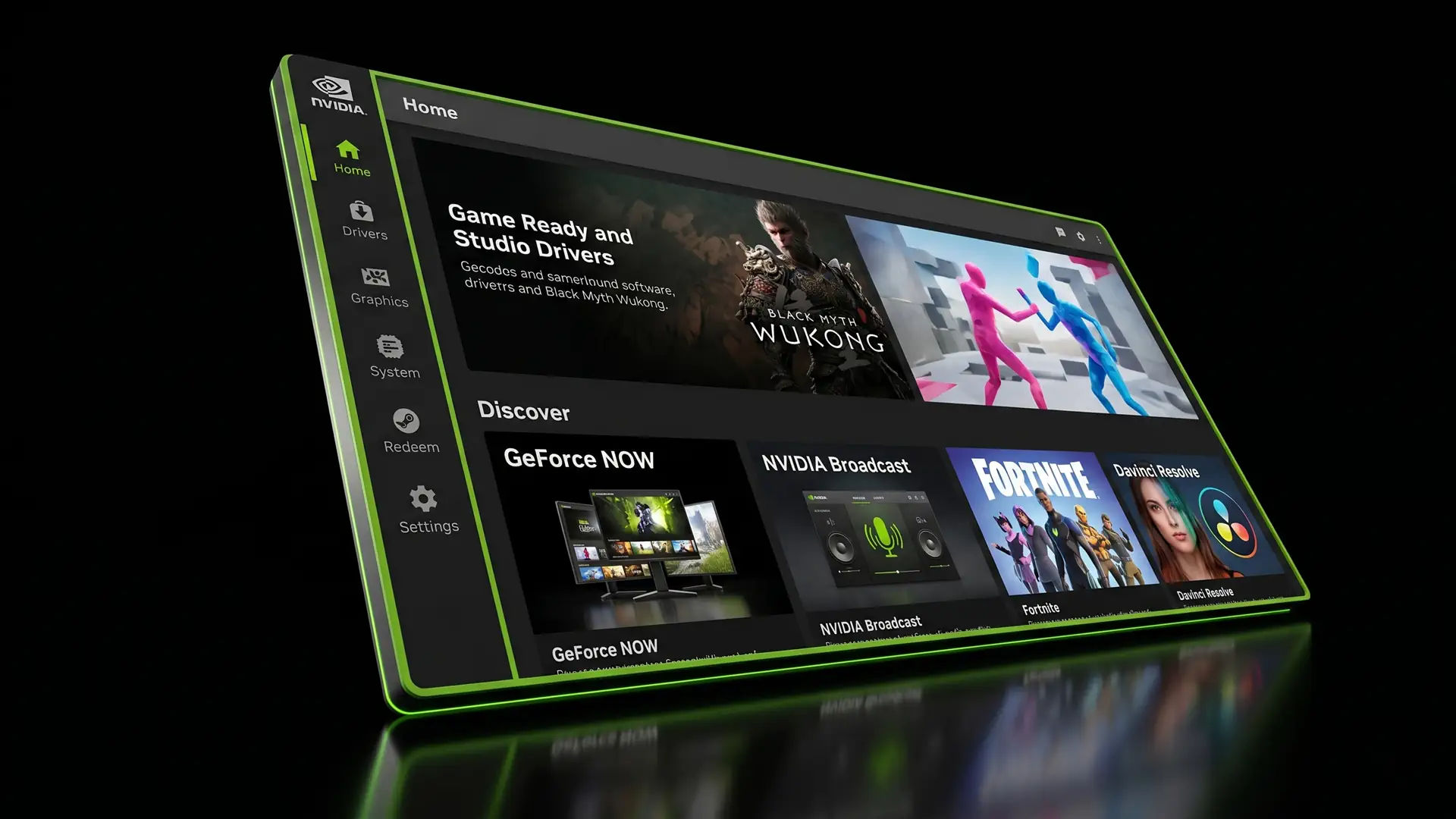
Both settings can be found under System, Displays, and Surround inside the application.
These changes continue NVIDIA’s work to move older Control Panel functions into its newer application. The company has gradually expanded the software to handle graphics settings, driver updates, game optimisation, display controls, recording, and performance monitoring in one place.
More games receive DLSS Override and Optimal Settings support
Version 11.0.8 expands DLSS Override and automatic Optimal Settings compatibility across a larger group of games.
Notable additions include Death Stranding 2: On the Beach, Resident Evil Requiem, Crimson Desert, Marathon, and Pragmata. Pragmata receives support for both DLSS Override and Optimal Settings.
DLSS Override allows compatible systems to replace certain in game DLSS settings with newer options available through the application. The exact controls depend on the title, graphics card, and installed driver.
Optimal Settings analyses the computer’s hardware and applies recommended graphics options for supported games. It can provide a useful starting point, although the automatic configuration may not match every player’s preference for image quality or frame rate.
You can still change individual settings inside each game after applying the recommended profile.
ShadowPlay recording receives an important bug fix
The update resolves a problem that could prevent ShadowPlay from recording games whose titles included special characters.
This was a relatively specific issue, but it could make recording completely unavailable in affected titles. Version 11.0.8 also includes wider stability fixes intended to improve reliability across the application.
The update should install automatically for most systems. You can also check manually by opening the application, selecting Settings, and visiting the Updates section.
The 240 FPS recording option is the most notable addition, but it serves a specialised audience. For most players, the expanded game support, improved recording reliability, and new display controls may provide more practical everyday benefits.
Discussion (0)
Be the first to comment.