



There are plenty of tools designed for brainstorming, planning, and collaboration. Most of them try to be everything at once, and end up feeling cluttered.
Microsoft Whiteboard takes a different approach. It starts with something very simple: a blank canvas.
And then it builds just enough around that to make it useful without getting in your way.
What Microsoft Whiteboard Actually Is
At its core, Microsoft Whiteboard is a digital canvas where you can:
- Write notes
- Sketch ideas
- Add shapes and diagrams
- Collaborate with others in real time
It’s designed to feel like a physical whiteboard, but without the limitations of space or permanence.
There are no fixed pages. No strict structure. Just an open area where ideas can grow naturally.
Why It Feels Different From Other Tools
Most productivity tools force you into a format.
- Documents → structured
- Spreadsheets → rigid
- Presentations → linear
Whiteboard doesn’t.
It lets you:
- Think visually
- Move things around freely
- Build ideas without worrying about format
That freedom is what makes it useful.
Where It Actually Shines
Microsoft Whiteboard becomes valuable in situations where ideas are still forming.
Brainstorming Sessions
Instead of typing lists, you can:
- Sketch connections
- Group ideas
- Rearrange thoughts instantly
It feels closer to thinking out loud than writing.
Team Collaboration
Multiple people can:
- Add content at the same time
- See changes instantly
- Build on each other’s ideas
This makes remote collaboration feel more natural.
Planning and Mapping
You can create:
- Flowcharts
- Mind maps
- Project outlines
Without needing a dedicated tool for each.
How It Works in Real Use
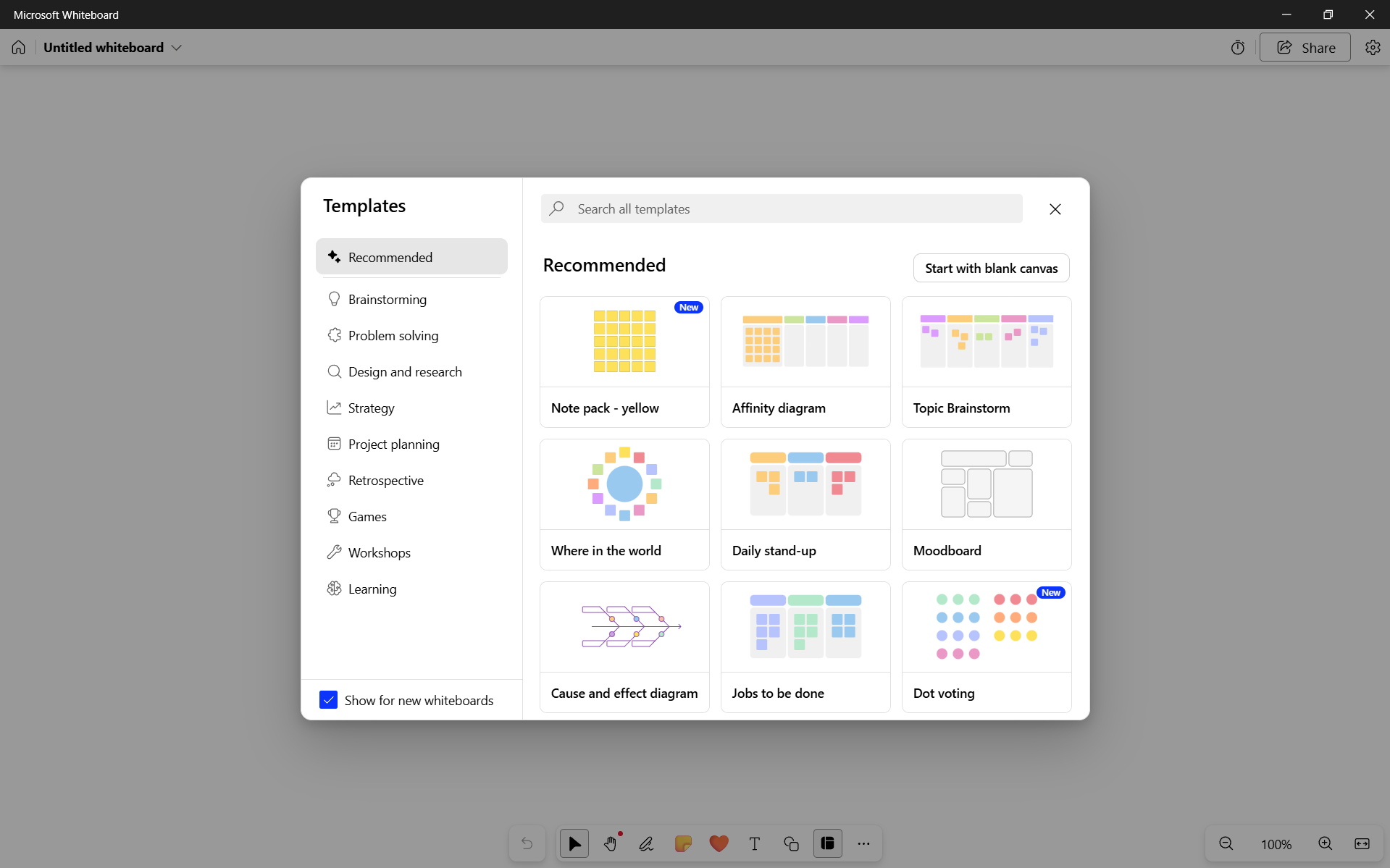
When you open Microsoft Whiteboard, you’re not given a template. You’re given space.
You can start by:
- Writing with a mouse, stylus, or keyboard
- Adding sticky notes
- Dropping in shapes or images
From there, you build your board however you want.
And importantly, you can always:
- Move things
- Resize them
- Reorganize without friction
The Collaboration Experience
This is where Whiteboard stands out.
When working with others:
- Everyone can edit simultaneously
- Changes appear in real time
- There’s no “version confusion”
It feels less like sending files and more like working together on the same surface.
Where It Falls Short
Whiteboard is not trying to replace everything.
It’s not ideal for:
- Detailed documentation
- Final presentations
- Structured reporting
At some point, ideas need to move into:
- Word
- PowerPoint
- Excel
Whiteboard is for the early stage, not the final output.
Real-World Insight
Most people don’t need more tools. They need less friction when thinking.
That’s what Whiteboard solves.
Instead of:
- Formatting
- Organizing too early
- Worrying about structure
You just:
- Put ideas down
- Move them around
- Let them evolve
And that’s often where better ideas come from.
When You Should Use It
Microsoft Whiteboard works best when:
- You’re starting something new
- You’re working with others
- You need visual thinking, not structured output
If your work is already defined and structured, other tools are better.
The Subtle Advantage
One thing people don’t notice immediately is how forgiving it is.
You can:
- Change direction
- Rearrange everything
- Start over without losing context
That flexibility makes it easier to explore ideas without committing too early.
Final Thoughts
Microsoft Whiteboard is not a complex tool, and that’s exactly why it works.
It doesn’t try to replace your workflow. It supports the part of it that most tools ignore, the messy, early stage where ideas are still forming.
And once you get used to that, it becomes something you reach for more often than you expect.
FAQs
What is Microsoft Whiteboard used for
Brainstorming, collaboration, and visual planning.
Is it free to use
It’s included with Microsoft accounts and some Microsoft 365 plans.
Can multiple people use it at the same time
Yes, real-time collaboration is supported.
Does it replace tools like PowerPoint or Word
No, it’s meant for early-stage idea development.
Can I use it with a stylus
Yes, it works well with touch and pen input devices.



Discussion (0)
Be the first to comment.