




Fast Startup is one of those features in Windows 11 that most users don’t think about until something behaves unexpectedly.
It promises faster boot times, but it also changes how your system actually shuts down and starts. So the real question is not just whether it’s on or off, but whether it should be.
What Fast Startup Actually Does
Fast Startup is a hybrid between:
- A full shutdown
- And hibernation
When enabled, Windows:
- Saves part of the system state (kernel and drivers)
- Shuts down partially
- Reloads that saved state on the next boot
This makes startup faster because Windows doesn’t start from scratch.
How to Check If Fast Startup Is On or Off
There’s no obvious toggle on the surface. You need to check it in power settings.
Steps:
- Open Control Panel
- Go to Hardware and Sound > Power Options
- Click Choose what the power buttons do
- Click Change settings that are currently unavailable
- Look for:
- Turn on fast startup (recommended)
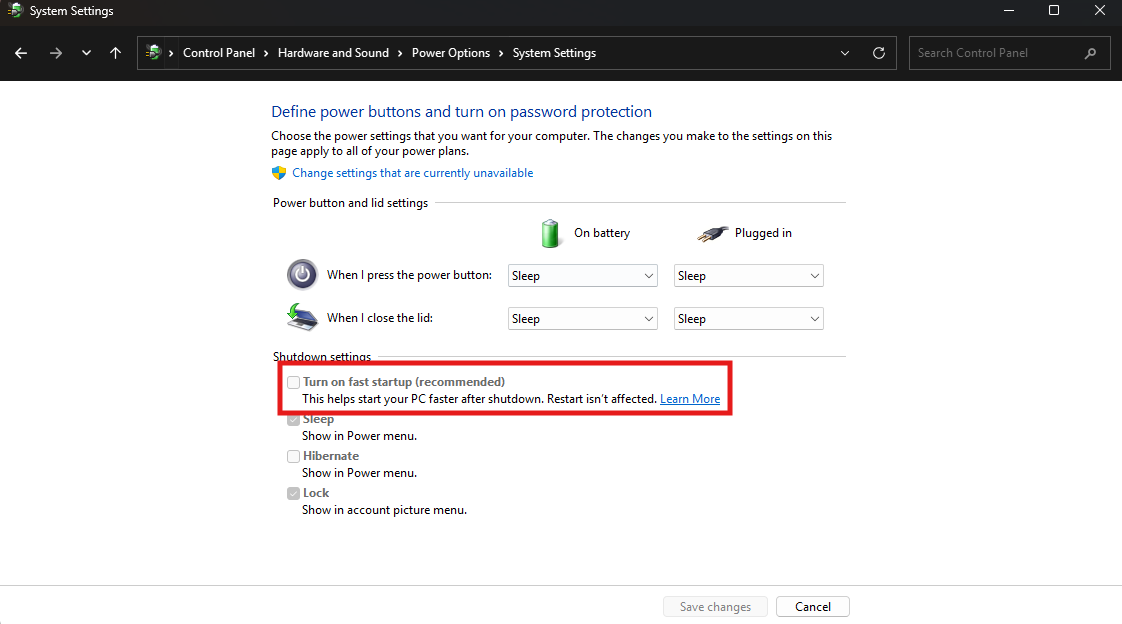
If the box is checked → Fast Startup is ON
If unchecked → Fast Startup is OFF
Why Fast Startup Is Enabled by Default
Microsoft enables it because:
- It reduces boot time noticeably on HDDs
- It improves perceived performance
- It works well for most standard users
On modern SSD systems, the difference is smaller but still present.
When Fast Startup Is Actually Useful
Fast Startup works best if:
- You want quicker boot times
- You shut down your PC frequently
- You don’t change hardware often
For typical everyday usage, leaving it ON is fine.
When You Should Turn It Off
This is where things get practical.
Disable Fast Startup if you experience:
Boot or Restart Issues
- System not fully resetting
- Updates not applying correctly
Driver or Hardware Problems
- Devices not initializing properly
- External hardware behaving inconsistently
Dual Boot Systems
- Can cause file system conflicts
- Not recommended when using multiple OS
Troubleshooting Scenarios
- Full shutdown is needed for accurate diagnostics
Real-World Insight
Fast Startup is not always obvious in behavior.
- “Shutdown” is not a full shutdown
- “Restart” is still a full reboot
This is why many issues disappear after a restart but not after a shutdown.
Understanding this difference explains a lot of “random” problems.
Does Fast Startup Affect Performance?
Not during normal use.
- It only affects boot behavior
- No impact on gaming or daily performance
The trade-off is between:
- Speed
- And system cleanliness during boot
Should You Keep It On or Off?
Keep it ON if:
- Your system is stable
- You want faster startup
- You don’t face driver issues
Turn it OFF if:
- You troubleshoot often
- You face inconsistent behavior
- You use advanced setups
Final Thoughts
Fast Startup in Windows 11 is useful, but not essential.
It’s designed for convenience, not control. For most users, it works well. But when issues appear, disabling it is often one of the simplest fixes.
The key is understanding that it changes what “shutdown” actually means.
FAQs
How do I know if Fast Startup is enabled?
Check the setting in Power Options under Control Panel.
Does Fast Startup improve performance?
Only boot time, not overall system performance.
Is Fast Startup safe?
Yes, but it can cause issues in some scenarios.
Should I disable Fast Startup?
Only if you face problems or need full shutdown behavior.
Does restart use Fast Startup?
No, restart always performs a full boot.



Discussion (0)
Be the first to comment.