




Yahoo Mail is accessible through any browser on desktop or through the Yahoo Mail app on iPhone and Android. Here is how to reach your inbox, understand the current interface, and keep it organised.
Accessing Yahoo Mail on Desktop
Go to mail.yahoo.com in any browser. Enter your Yahoo email address and click Next. Enter your password and click Sign In. Your inbox opens immediately.
If you have two-step verification enabled, a prompt appears asking you to confirm your identity through a verification code sent to your phone or an authenticator app. Enter the code to proceed.
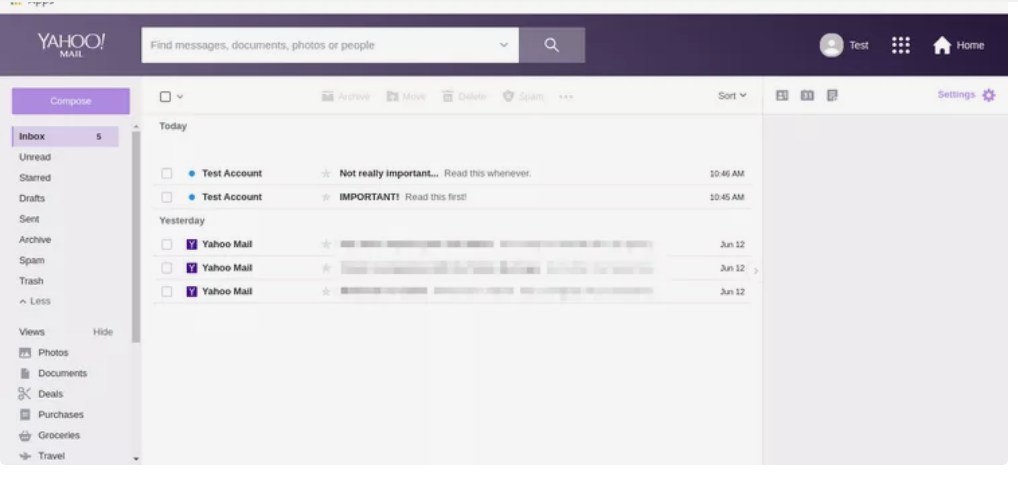
Your inbox loads with your most recent emails at the top. The left sidebar shows your folder list including Inbox, Sent, Drafts, Spam, and Trash, along with any custom folders you have created.
Accessing Yahoo Mail on Mobile
Download the Yahoo Mail app from the App Store on iPhone or Google Play on Android. Open the app and tap Sign In. Enter your email address and password. Your inbox appears immediately after signing in.
If you are already signed in from a previous session, the app opens directly to your inbox.
Understanding the 2026 Yahoo Mail Interface
Yahoo Mail updated its interface significantly in 2025 and 2026. The inbox now uses a Smart Tabs system that automatically sorts incoming emails into categories. Understanding these tabs prevents you from missing emails that land outside the main inbox view.
Primary shows your most important emails. Yahoo's algorithm prioritises messages from frequent contacts and emails it determines are most relevant to you. This is the default view when you open the inbox.
Offers collects promotional emails, discounts, and deal notifications. These are moved here automatically to keep the Primary inbox cleaner.
Newsletters captures subscription emails and mailing list content separately from personal correspondence.
Social contains notifications from social media platforms, forums, and apps.
All shows every email regardless of which tab it was sorted into. If you cannot find a specific email in Primary, click All to see the complete unfiltered inbox.
If the Smart Tabs system creates more complexity than it solves for you, you can disable it. Click the Settings gear icon in the top right corner, select More Settings, and look for the Tabs option under Viewing Email. Turning off tabs returns Yahoo Mail to a single inbox view with all emails in one stream.
Searching Your Inbox
The search bar at the top of the Yahoo Mail interface searches your entire mailbox. Type a sender name, subject line keyword, or any phrase from the email body. Press Enter. Results appear immediately across all folders.
To refine a search, click the filter icon next to the search bar after running a search. You can filter results by date range, folder, read or unread status, and whether the email has attachments.
Creating Folders to Organise Your Inbox
Custom folders help you move emails out of the inbox while keeping them accessible. In the left sidebar on desktop, scroll to the Folders section and click New Folder. Type a name and press Enter. The folder appears in your sidebar.
To move an email into a folder, right-click the email and select Move. Choose the destination folder from the list. On mobile, tap and hold the email, then tap Move.
Setting Up Filters to Sort Emails Automatically
Filters automatically route incoming emails to specific folders based on rules you define. This prevents specific senders or topics from cluttering the Primary inbox.
Click the Settings gear icon and select More Settings. Click Filters in the left menu. Then click on Add new filters. Give the filter a name and set the conditions, such as emails from a specific sender or emails with a particular subject line keyword. Choose the action, such as moving matching emails to a specific folder. Click Save.
Yahoo Mail supports up to 500 filters, which is enough for extensive inbox automation.
The Storage Limit Change Worth Knowing
As of July 2025, Yahoo reduced the free storage limit from 1TB to 20GB. This change affects all free accounts. Once you reach 20GB, Yahoo stops delivering new emails until you free up space or upgrade to a paid plan. Managing inbox size has become more important than it was previously.
To check your current storage usage, click the Settings gear icon and select More Settings. Your storage usage appears at the bottom of the settings sidebar.
Frequently Asked Questions
Why are some of my emails not showing in the Yahoo Mail inbox?
The Smart Tabs system may have sorted them into Offers, Newsletters, or Social rather than Primary. Click the All tab to see every email in your inbox without filtering. If an email is still missing, check the Spam folder as Yahoo's spam filter occasionally captures legitimate emails incorrectly.
Can I use Yahoo Mail without the Smart Tabs?
Yes. Go to Settings, More Settings, and find the Tabs option under Viewing Email. Disabling tabs consolidates all emails into a single inbox view. The setting applies immediately and can be reversed at any time.
How do I change the view from newest to oldest or sort differently?
Click the Sort dropdown at the top of the email list in the inbox. Options include sorting by date, sender, and subject. The default is newest first but you can switch to oldest first or sort alphabetically by sender.
Does Yahoo Mail work with other email accounts?
Yes. Yahoo Mail can aggregate emails from Gmail, Outlook, AOL, and other providers into a single inbox. Go to Settings, More Settings, and click Mailboxes. Click Add mailbox and follow the prompts for the email provider you want to add.



Discussion (0)
Be the first to comment.