



Voice input in browsers is usually an afterthought. It works, but it feels like dictation layered on top of a text box. The voice mode in Comet Browser is different.
Triggered by Alt + Shift + V, it is built as a direct input layer for the AI, not just a typing replacement. Once you understand how it behaves, it becomes one of the fastest ways to interact with Comet.
What Voice Mode in Comet Actually Is
Voice mode in Comet is a native speech-to-AI input system.
When you activate it:
- Your speech is captured through the microphone
- It is converted into structured text
- The prompt is automatically sent to Comet’s AI
Unlike standard dictation, you are not just filling a text box. You are directly issuing commands or queries to the browser’s AI layer.
How to Activate Voice Mode
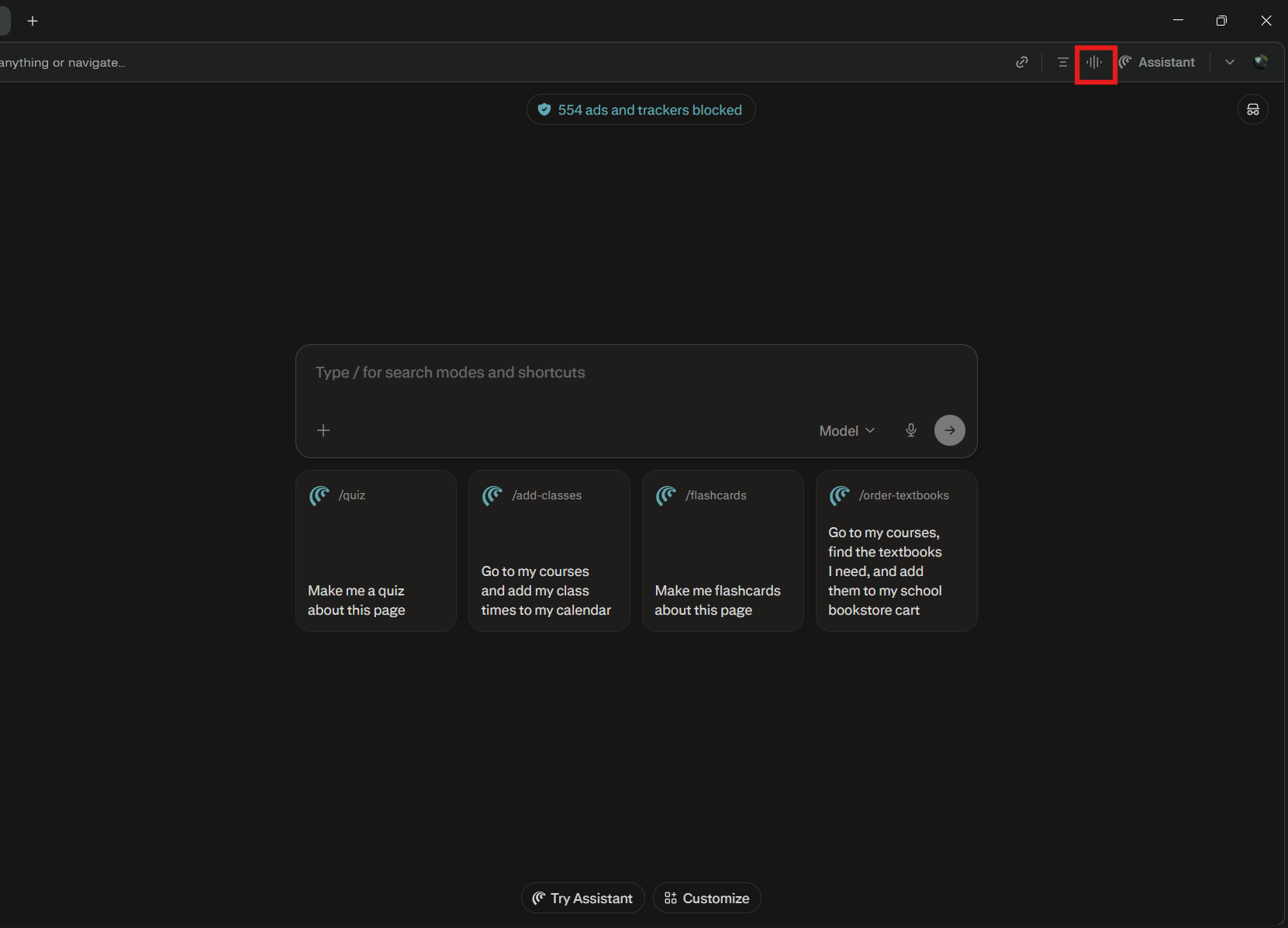
The easiest way is to use the aforementioned icon to trigger voice mode
The shortcut is simple:
- Press Alt + Shift + V
- A voice overlay appears
- Start speaking immediately
There is no manual “send” step. Once you stop speaking, Comet processes the input.
If nothing happens, check:
- Microphone permissions in your browser
- System-level mic access
- Whether Comet is in focus
How It Works Behind the Scenes
While it feels simple, the workflow is layered:
- Speech capture from your microphone
- Speech-to-text conversion
- Intent interpretation (this is where it differs from basic dictation)
- Execution inside Comet
That third step is important. Comet tries to understand what you mean, not just what you said.
For example:
- “Summarize this page” → Executes on the current tab
- “Compare these two articles” → Uses context from open tabs
This is why it feels more intelligent than typical voice typing.
What You Can Do with It
Voice mode is most effective when used for actions, not just text input.
1. Ask Questions While Browsing
Instead of typing queries, you can ask naturally:
- “What is the key takeaway from this page?”
- “Explain this in simpler terms”
This keeps your workflow uninterrupted.
2. Perform Page-Level Actions
Comet understands context from your current tab:
- “Summarize this page”
- “Highlight important points”
- “What are the pros and cons here?”
This is where voice becomes genuinely useful.
3. Compare and Research
If you have multiple tabs open:
- “Compare this with the previous tab”
- “Which one is better and why?”
This removes the need to manually structure prompts.
4. Quick Commands and Navigation
You can use voice for:
- Searching
- Refining queries
- Asking follow-up questions
It works well for short, focused inputs.
Real-World Usage: Where It Actually Helps
Voice mode is not something you will use for everything. But in certain scenarios, it is noticeably better than typing.
Passive Browsing
When you are reading or watching something, you can ask questions without breaking focus.
Multitasking
If your hands are occupied or you are switching between tasks, voice input is faster than typing.
Quick Exploration
Instead of refining search queries manually, you can just speak follow-ups naturally.
Reducing Friction
Over time, the biggest benefit is not speed. It is less interruption in your workflow.
Tips to Use It Effectively
Voice mode works best when you adjust how you speak.
- Speak naturally, not like rigid commands
- Keep prompts short and clear
- Pause briefly after speaking
- Avoid background noise
For example, instead of:
“Please provide a detailed summary of the current webpage”
Just say:
“Summarize this page”
The simpler the input, the better the output.
Limitations You Should Know
Despite being well integrated, it has clear boundaries.
- It is input-only (no voice responses yet)
- Accuracy depends on microphone quality
- Long or complex prompts can be inconsistent
- Requires stable internet for processing
It is not a full voice assistant like ChatGPT voice mode, which supports conversation.
Comet Voice Mode vs Traditional Dictation
The difference is important:
- Traditional dictation → Converts speech to text
- Comet voice mode → Converts speech into actionable AI prompts
That extra layer of intent interpretation is what makes it useful beyond basic typing.
Should You Use It?
You should use voice mode if:
- You frequently browse and research
- You want faster, low-friction interaction
- You prefer speaking over typing for quick tasks
You may not use it much if:
- You write long, detailed prompts
- You need precise formatting
- You work in noisy environments
It is best treated as a complement to typing, not a replacement.
Final Thoughts
The Alt + Shift + V voice mode in Comet Browser is one of those features that feels minor at first but becomes genuinely useful with regular use.
It does not try to replace traditional interaction. Instead, it removes small points of friction that add up over time.
Used in the right context, it makes browsing feel more fluid, more direct, and slightly closer to how you naturally think and ask questions.
FAQs
What does Alt + Shift + V do in Comet?
It activates the built-in voice input mode.
Is this just voice typing?
No, it converts speech into AI commands, not just text.
Can Comet respond with voice?
No, it currently supports voice input only.
Does it work on all systems?
It depends on browser support and microphone permissions.
Is it better than typing?
For quick tasks and browsing, yes. For detailed inputs, typing is still better.



Discussion (0)
Be the first to comment.