



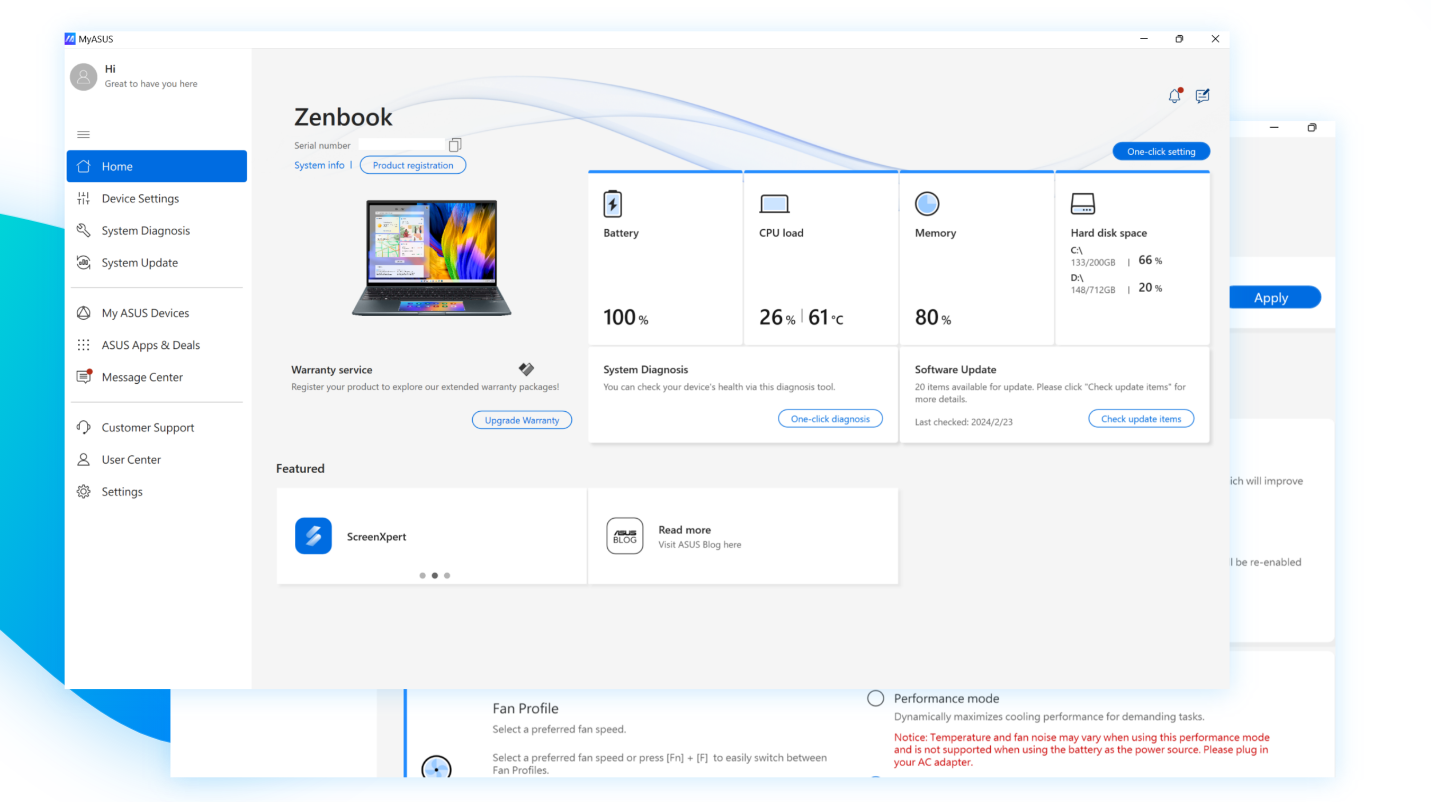
MyASUS is a built-in utility designed for ASUS laptops and desktops. It helps users manage updates, optimize performance, run diagnostics, and access ASUS support services in one place.
This guide explains how to use the MyASUS app on ASUS computers running Windows 10 and Windows 11.
What Is MyASUS
MyASUS is an official ASUS application that allows you to:
- Update drivers and BIOS
- Run hardware diagnostics
- Optimize system performance
- Check warranty status
- Contact ASUS support
- Enable battery health settings
Most ASUS laptops come with MyASUS pre-installed.
How to Open MyASUS
To open the app:
- Click Start
- Type MyASUS
- Select the app from the search results
If it is not installed, download it from the Microsoft Store.
Update Drivers and BIOS
Keeping drivers updated ensures better performance.
Steps:
- Open MyASUS
- Click System Update
- Select Check for updates
- Install available updates
Restart your PC after installing updates.
Run Hardware Diagnostics
To check hardware health:
- Open MyASUS
- Go to Customer Support
- Select System Diagnosis
- Choose components to test
- Battery
- Storage
- Memory
- Wi-Fi
- Start diagnostic test
The app will report any detected issues.
Enable Battery Health Charging
MyASUS allows you to limit battery charging to extend lifespan.
Steps:
- Open MyASUS
- Go to Customization
- Select Battery Health Charging
- Choose charging mode
- Full capacity mode
- Balanced mode
- Maximum lifespan mode
Balanced or lifespan mode helps preserve battery health.
Adjust Fan and Performance Modes
Some ASUS models allow performance tuning.
Steps:
- Open MyASUS
- Go to Customization
- Select performance profile
- Performance mode
- Balanced mode
- Silent mode
Choose based on your workload.
Check Warranty and Support
To view warranty details:
- Open MyASUS
- Go to Customer Support
- Check device information and warranty status
You can also submit support requests directly.
Link to MyASUS Feature
Some models include Link to MyASUS for phone integration.
This feature allows:
- File transfer between phone and PC
- Screen sharing
- Phone notifications on PC
Ensure your phone app is installed and connected.
Fix MyASUS Not Working
If the app fails to open:
- Update Windows
- Reset the app in Settings
- Reinstall from Microsoft Store
- Restart your PC
Always use the official Microsoft Store version.
Is MyASUS Necessary
MyASUS is not mandatory, but it simplifies system management. You can manually update drivers through ASUS support website if preferred.
Final Thoughts
The MyASUS app is a helpful tool for ASUS users. It centralizes updates, diagnostics, battery settings, and support features in one interface. Regularly checking for updates and running diagnostics helps maintain system performance and reliability on Windows 10 and Windows 11.
FAQs
Is MyASUS free
Yes, it is free for ASUS device owners.
Can I uninstall MyASUS
Yes, but you will need to manage updates manually.
Does MyASUS update BIOS
Yes, it can provide BIOS updates if available.
Does MyASUS work on Windows 11
Yes, it supports both Windows 10 and Windows 11.
Is MyASUS safe to use
Yes, it is an official ASUS application.


Discussion (0)
Be the first to comment.