



If you run large AI models on a powerful desktop but also work from a laptop, you already know the frustration. The heavy models live on one machine, but you are sitting at another. LM Studio solves this cleanly with a feature called LM Link. It lets you load models on one device and use them from any other device you own, as if they were running locally. No port forwarding, no VPN configuration, no public exposure. This guide explains what LM Link is, how it works, and how to get started.
What Is LM Link?
LM Link is a feature built into LM Studio that creates an end-to-end encrypted connection between two or more devices running LM Studio or its headless counterpart, llmster. Once your devices are linked, models running on a remote machine appear directly in your local model loader alongside your local models. You pick one, load it, and use it exactly as you would a model sitting on your own hardware.
The feature is built in partnership with Tailscale, using mesh VPN primitives to establish secure private connections between your devices. Neither LM Studio nor Tailscale can see your prompts, responses, model lists, or chat history. Everything travels through an encrypted tunnel that neither party can read. Your devices are also never exposed to the public internet, which makes LM Link meaningfully different from simply binding a server to 0.0.0.0 and hoping nothing goes wrong.
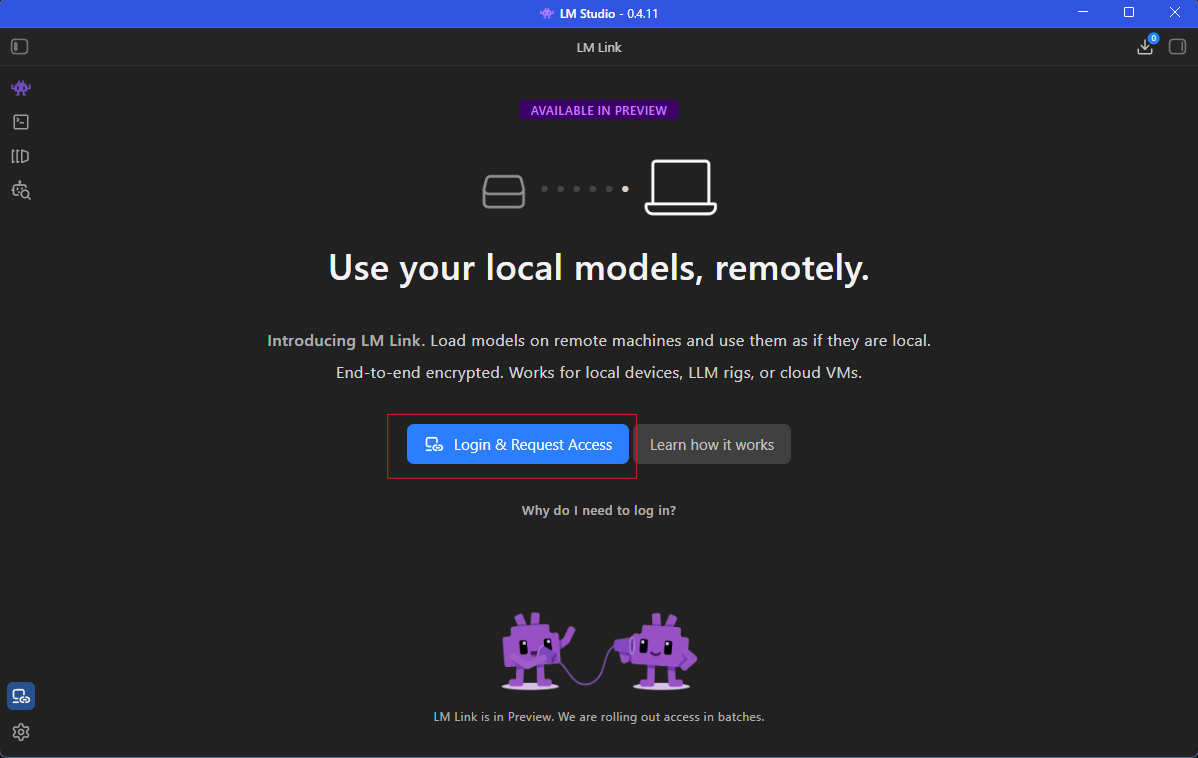
As shown in the LM Studio interface, LM Link is currently available in Preview. You need to log in and request access to join the rollout, which is being expanded in batches.
Why LM Link Matters
The practical problem LM Link solves is one that almost every local AI user hits. You have a desktop with a GPU that can comfortably run 70B parameter models. You also have a laptop you carry everywhere. Without something like LM Link, you have two options. You run small, underpowered models on the laptop, or you manually set up network access and deal with security risks and configuration overhead.
LM Link removes all of that. Your powerful machine does the heavy lifting. Your lightweight device connects to it and gets the full model experience without running any inference locally. The chats stay on your device. The processing happens on whichever machine has the compute.
This applies equally well to teams. A shared workstation with a strong GPU can serve multiple team members using LM Link, all of them getting access to large models without each needing to maintain local copies or negotiate network access manually.
How to Get Started With LM Link
Getting LM Link running between two machines takes a few minutes once you have access.
Step 1: Install LM Studio on Both Devices
Download and install LM Studio on every device you want to include in your Link. If one of your machines is a headless server or you prefer terminal-only operation, install llmster instead. It is LM Studio's core without the graphical interface, designed specifically for servers and cloud VMs.
Step 2: Log In and Request Access
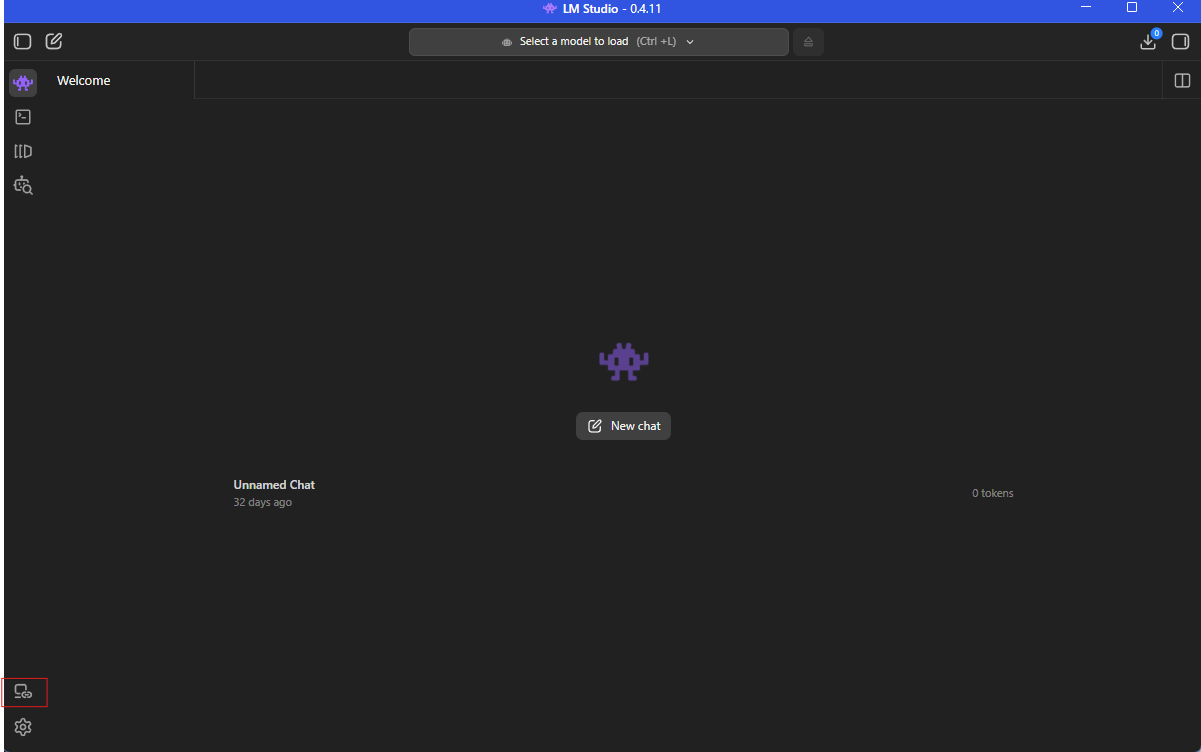
On the LM Link page inside LM Studio, click Login and Request Access as shown in the interface. LM Link is currently in Preview and access is being rolled out in batches. Once you have access, sign in using the same account on every device you want to connect.
Step 3: Enable LM Link on Each Device
On each machine, go to Settings and find the LM Link section. Toggle Enable LM Link to on. On any machine where you want to allow other devices to load models remotely, also enable the Allow loading models on this machine option. This controls which devices in your Link can act as model hosts.
Step 4: Devices Discover Each Other Automatically
Once LM Link is enabled and you are signed in on multiple devices, they discover each other automatically through Tailscale's private network infrastructure. No IP addresses to enter, no firewall rules to configure. Within moments, linked devices appear in your network and their models become accessible.
Step 5: Load and Use Remote Models
Open the model loader in LM Studio on your local device. You will now see both your local models and models marked as Linked from your remote machines. Select a remote model, load it, and use it exactly as you would any local model. The model runs on the remote hardware. Your prompts and responses travel over the encrypted tunnel.
What You Can Connect
LM Link works across a range of setups. The most straightforward use case is linking a desktop and a laptop within a home network. But the connection works across networks too, meaning your laptop can reach your home desktop even when you are somewhere else entirely, as long as both machines are online and LM Studio is running.
It also works for more advanced configurations. A cloud VM or a dedicated LLM server running llmster can be added to your Link and accessed from any of your devices. Teams can connect a shared GPU workstation and give every member access to large models without anyone having to manage networking themselves.
Any tool that already connects to LM Studio's local API at localhost:1234, including Claude Code, Codex, and the LM Studio SDK, can use remote models through LM Link without any additional configuration. The remote models appear local, so existing integrations work as-is.
LM Link vs Exposing the Server to the Network
LM Studio also has a simpler option for local network access: enabling the server on the local network setting, which binds the API server to your machine's IP address so other devices on the same Wi-Fi can connect. That approach works for basic same-network scenarios but has meaningful limitations.
It only works when both devices are on the same network. It requires knowing and manually entering the host machine's IP address in whatever tool you are connecting from. And it exposes the API endpoint to every device on the network, which is less controlled than LM Link's device-specific authentication.
LM Link is the better choice when you need cross-network access, encrypted connections, easy device management, or want remote models to appear as first-class options in the model loader rather than requiring manual configuration.
Free Tier and Limits
LM Link is free to use for up to two users with five devices each, giving you ten total devices on the free tier. Paid options for additional users and devices are expected once LM Link moves out of Preview. For most individuals and small teams, the free tier covers everything they need.
Final Thoughts
LM Link is one of the more genuinely useful additions to LM Studio in recent memory. The problem it solves is real, the implementation is clean, and the security model is thoughtfully designed. If you have ever wished you could use the models on your powerful desktop from a lighter device without the overhead of setting up a proper server, LM Link is the answer. Request access, install LM Studio on your devices, sign in with the same account, and your remote models become local in minutes.
Frequently Asked Questions
Does LM Link expose my machine to the internet?
No. LM Link uses Tailscale mesh VPN primitives to create private encrypted connections between your devices. Your machines are never exposed to the public internet. Neither LM Studio nor Tailscale can see your prompts, responses, or model data.
Do both devices need to be on the same network for LM Link to work?
No. LM Link works across different networks, making it possible to access your home desktop from a laptop anywhere in the world, as long as both machines are online and LM Studio or llmster is running on the host device.
Can I use LM Link with coding tools like Claude Code?
Yes. Any tool that connects to LM Studio's local API at localhost:1234 can use remote models through LM Link without additional configuration. Remote models appear as local options, so integrations with tools like Claude Code and Codex work without changes.



Discussion (0)
Be the first to comment.