



Frame generation works best when your game already runs smoothly before the feature is enabled. Aim for a native frame rate of around 60 FPS or higher, enable the correct latency reduction technology for your GPU, use a variable refresh rate display where possible and avoid treating generated frames as a fix for poor performance.
The final FPS number shown by a performance overlay does not represent the game’s true responsiveness. Frame generation inserts artificial frames between normally rendered ones, improving visible smoothness without accelerating game logic, input processing or the underlying render rate.
A game running natively at 70 FPS and displaying 120 FPS with frame generation can feel excellent. A game starting at 30 FPS and reaching 60 FPS through generated frames may look smoother, but it will still respond like a low frame rate experience and may show noticeable visual artifacts.
The safest rule is simple. Optimise the game first, then use frame generation to improve an experience that already feels responsive.
| Game type | Recommended baseline before frame generation | General advice |
|---|---|---|
| Competitive shooters | 144 FPS or higher | Keep frame generation disabled |
| Fighting and rhythm games | Locked native target, usually 60 FPS | Avoid unless the game handles it correctly |
| Racing games | 80 FPS or higher | Useful if steering remains responsive |
| Fast first person shooters | 80 FPS or higher | Suitable with a strong baseline |
| Open world RPGs | 50 to 60 FPS | One of the best uses for standard 2X generation |
| Cinematic action games | 50 to 60 FPS | Usually works well |
| Strategy and simulation games | 50 FPS or higher | More tolerant of added latency |
How to check your baseline frame rate before enabling frame generation
Disable frame generation and test the game in an area that represents its heaviest normal workload.
Do not measure performance only while standing still in a quiet room. Move through a busy city, enter combat, drive at speed or visit an area containing complex lighting and large numbers of characters.
Look at the native frame rate and frame time consistency. A stable 60 FPS usually provides a better starting point than an average of 75 FPS that frequently drops to 35 FPS.
Frame generation cannot repair the following problems:
- Shader compilation stutter
- Asset streaming pauses
- Severe CPU bottlenecks
- Unstable frame pacing
- Insufficient video memory
- Background software conflicts
Lower demanding graphics settings before enabling the feature. Ray tracing, path tracing, shadows, reflections and volumetric effects are often the best places to begin.
Temporal upscaling can also improve the baseline. DLSS Super Resolution, FSR upscaling and XeSS Super Resolution render the game at a lower internal resolution before reconstructing the final image.
Once the game feels responsive without generated frames, enable frame generation and compare the result.
How to choose between standard and multi frame generation
Standard 2X frame generation normally inserts one generated frame between two rendered frames.
Multi frame generation goes further by inserting several artificial frames for every normally rendered frame. This can produce very high displayed frame rates on 240Hz, 320Hz and faster monitors.
The higher FPS number does not mean input responsiveness increases at the same rate.
For example, a game displaying 240 FPS through heavy multi frame generation may still respond according to an underlying render rate closer to 60 FPS. The output can look extremely fluid while controls feel less immediate than true native 240 FPS.
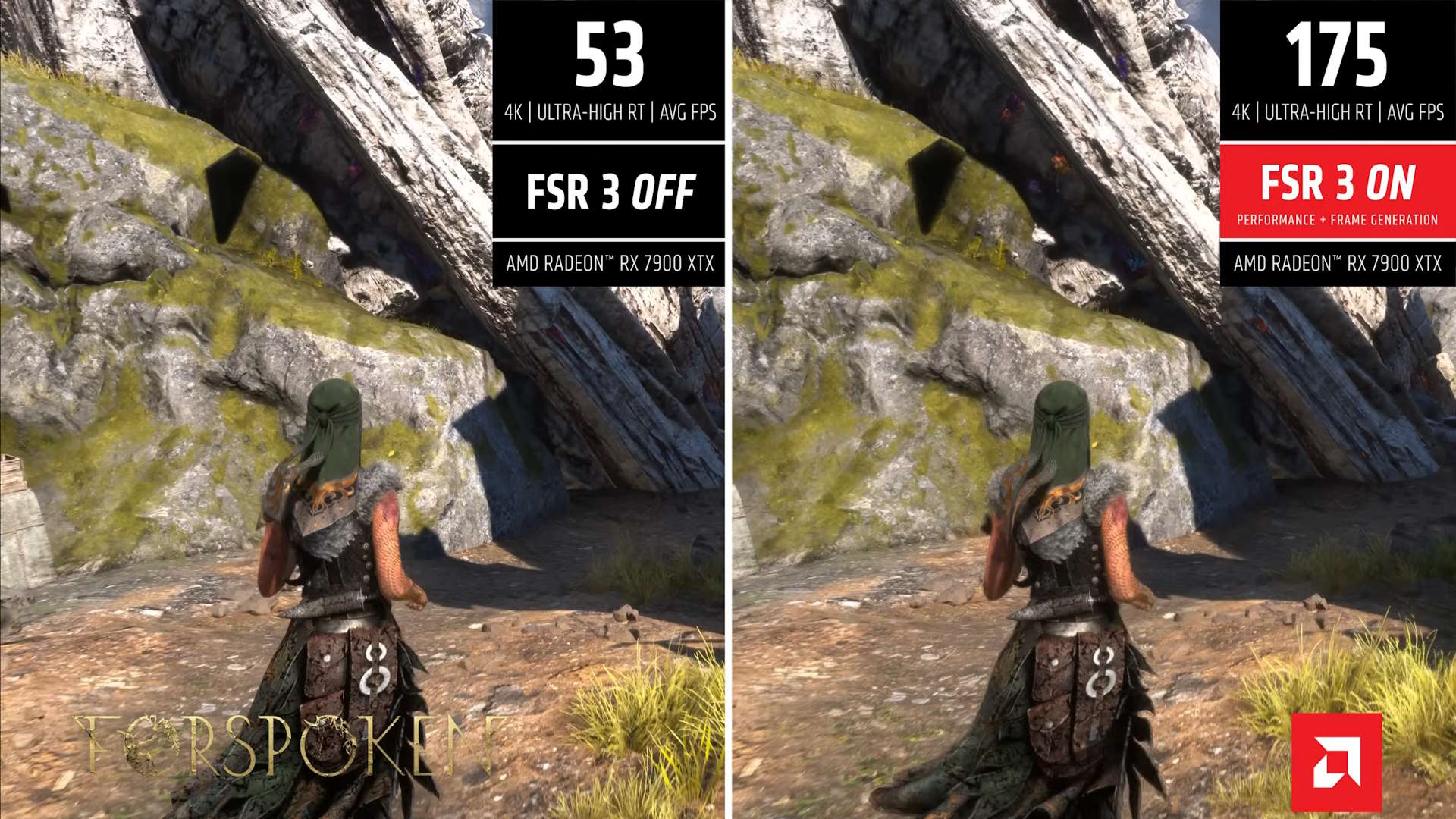
Multi frame generation also requires additional GPU processing. Higher multipliers can reduce the native frame rate before generated frames are added.
Use standard 2X generation when your baseline is close to 60 FPS in slower single player games. For 3X, 4X or higher modes, begin comfortably above 60 FPS whenever possible.
Lower a few graphics settings before increasing the multiplier. Maintaining real rendered frames is more important than maximising the displayed counter.
How to configure NVIDIA DLSS Frame Generation
NVIDIA offers game integrated DLSS Frame Generation, Multi Frame Generation and the driver level Smooth Motion feature.
Use the game’s native DLSS implementation whenever it is available. It has access to motion vectors, depth information and other engine data, allowing it to produce better frames than a driver level method.
Recommended NVIDIA settings are:
| Setting | Recommended configuration |
|---|---|
| Hardware Accelerated GPU Scheduling | On |
| G-SYNC or G-SYNC Compatible | On |
| V-Sync in NVIDIA App or Control Panel | On |
| In-game V-Sync | Off in most implementations |
| NVIDIA Reflex | On |
| Reflex Boost | Use when available and stable |
| External frame limiter | Avoid with conventional DLSS generation |
Hardware Accelerated GPU Scheduling is required for DLSS Frame Generation and Multi Frame Generation.
NVIDIA Reflex is also essential because it reduces system latency by controlling the CPU and GPU render queue. Many games enable it automatically when DLSS Frame Generation is selected.
Avoid third party frame caps with standard DLSS Frame Generation because they can damage frame pacing and increase latency.
Dynamic Multi Frame Generation requires separate handling. NVIDIA allows it to target the monitor’s maximum refresh rate or a custom target through the NVIDIA App. It can conflict with conventional frame limiters and V-Sync behaviour, so follow the available in-app configuration and test each game carefully.
Smooth Motion should be used only when a game lacks native frame generation. It supports compatible DirectX 11, DirectX 12 and Vulkan games, but it does not receive the same detailed engine information as integrated DLSS.
How to configure AMD FSR Frame Generation
Use native FSR Frame Generation when the game supports it. The in-game version can use engine data and generally produces better results than AMD Fluid Motion Frames.
Enable Radeon Anti-Lag 2 when available. It is designed to reduce the latency added by interpolation, especially when the GPU is heavily loaded.
AMD’s recommended display settings depend on frame time stability.
| Situation | Recommended setup |
|---|---|
| Stable frame times | FreeSync or VRR on, V-Sync on |
| Unstable frame times | VRR on, V-Sync off may feel smoother |
| Baseline below 60 FPS | Lower settings before enabling generation |
| Anti-Lag 2 supported | Enable it |
| Windows 11 | Enable Hardware Accelerated GPU Scheduling |
| Unexpected micro-stutter | Test without overlays and capture tools |
FSR Frame Generation can run without Hardware Accelerated GPU Scheduling, but AMD recommends enabling it in Windows 11.
Restart the computer after changing the setting.
Some overlays, recording tools and software injectors can interfere with access to the swap chain. Disable them temporarily if FSR Frame Generation produces unusual stutter.
AMD Fluid Motion Frames 2.1 is a driver level alternative for games without native support. It works across DirectX 11, DirectX 12, Vulkan and OpenGL.
Use AFMF with a strong native frame rate and a FreeSync display. Turn V-Sync off in both the driver and the game.
AFMF should not be used to transform a game running at 30 FPS into a high refresh rate experience. It is a fallback for games that already perform well.
How to configure Intel XeSS Frame Generation
Intel XeSS 3 includes Super Resolution, standard Frame Generation, Multi Frame Generation and Xe Low Latency.
Intel lists 40 FPS as the minimum input frame rate for frame generation, but recommends 60 FPS for better latency, image quality and fluidity.
Treat 40 FPS as an emergency floor rather than an ideal target.
| Intel setting | Recommendation |
|---|---|
| XeSS Frame Generation 2X | Begin at 60 FPS or higher |
| XeSS Multi Frame Generation | Start comfortably above 60 FPS |
| Xe Low Latency | Keep enabled |
| VRR and V-Sync | Test combinations for each game |
| Motion blur | Reduce or disable |
Xe Low Latency is required for XeSS Frame Generation and Multi Frame Generation. The feature will not operate correctly without a functioning XeLL implementation.
Standard XeSS 2X generation can work on supported Intel, AMD and NVIDIA hardware with the required shader support. XeSS Multi Frame Generation remains limited to compatible Intel graphics hardware.
Intel supports fixed refresh, V-Sync and variable refresh rate display configurations, so the best combination may vary between games.
How to use variable refresh rate with generated frames
A variable refresh rate monitor is the best display companion for frame generation.
G-SYNC, FreeSync and VESA Adaptive Sync allow the monitor to adjust its refresh cycle to the game’s changing output. This reduces tearing and can hide small frame delivery variations.
VRR does not correct poor game performance.
If the native frame rate repeatedly collapses, the generated output will remain uneven. The camera may appear fluid between stalls, but shader or traversal stutters will still interrupt the experience.
Follow this order when tuning a game:
- Fix major stutters and stability problems.
- Lower graphics settings to improve native performance.
- Enable temporal upscaling where needed.
- Confirm that controls feel responsive.
- Enable frame generation.
- Enable the appropriate latency reduction feature.
- Adjust VRR and V-Sync.
- Check image quality and frame pacing.
Starting with frame generation before addressing the underlying problems often produces a high FPS counter with poor controls and inconsistent motion.
How to prevent VRAM problems with frame generation
Frame generation consumes additional video memory.
The GPU needs storage for source frames, motion data, optical flow information, neural network resources and presentation buffers.
The exact requirement depends on resolution and implementation. FSR 3.1 Frame Generation, for example, may use roughly 124MB at 1080p, 214MB at 1440p and 457MB at 4K before additional swap chain requirements are included.
This can become important on graphics cards with 8GB of VRAM or less.
When a game is already close to its memory limit, enabling frame generation may force important data into slower system memory. The result can include stutter, delayed texture loading, severe performance loss or failure to activate the feature.
Reduce texture quality, ray tracing, output resolution or other memory intensive settings when VRAM usage is close to the limit.
Frame generation should be disabled when enabling it makes the frame time graph less stable.
How to identify frame generation artifacts
Generated frames are predictions, so they can contain errors.
Look closely at the following areas:
- Crosshairs
- Subtitle text
- Mini maps
- Health bars
- Character nameplates
- Thin objects
- Fast moving weapons
- High contrast edges
- Reflections
- Rapid camera turns
UI elements are particularly difficult because they remain fixed while the world moves behind them.
Reduce or disable motion blur when using frame generation. Blur designed for a lower native frame rate can appear excessive when several artificial frames are inserted.
Test the game during fast movement rather than judging quality from a slow camera pan.
A lower frame generation multiplier may provide a cleaner image if higher modes create distracting artifacts.
When you should keep frame generation disabled
Do not use frame generation in competitive shooters or esports games where fast input response matters more than visible smoothness.
A generated 240 FPS image cannot provide the same latency as native 240 FPS.
Use normally rendered frames, lower settings and enable Reflex, Anti-Lag 2 or Xe Low Latency instead.
Frame generation is also a poor choice for fighting games and rhythm games unless the developer has designed the implementation around their fixed timing requirements.
Keep it disabled when:
- Native performance is below 40 FPS.
- The game suffers from major stuttering.
- The CPU is severely limiting performance.
- Controls already feel delayed.
- VRAM is exhausted.
- UI artifacts are distracting.
- The display is limited to 60Hz.
- You are playing competitively.
A 60Hz monitor provides limited room to display the extra frames, making the latency cost harder to justify.
Discussion (0)
Be the first to comment.