




There’s a small feature in Windows 11 that most people either never notice or never fully trust: Dynamic Lock.
On paper, it sounds simple. Your PC locks itself when you walk away. In practice, whether it feels useful depends entirely on how you use your device.
This guide focuses on both sides. How to enable or disable it, and when it genuinely makes sense to rely on it.
What Dynamic Lock Actually Does
Dynamic Lock uses a paired Bluetooth device, usually your phone, to determine whether you’re near your PC.
- If your device moves out of range
- Windows assumes you’ve stepped away
- Your system locks automatically
There’s no camera tracking or motion detection involved. It’s purely based on Bluetooth signal presence.
What It Does Not Do
Understanding its limits is important.
Dynamic Lock:
- Does not unlock your PC when you return
- Does not detect exact distance
- Does not lock instantly
There is usually a short delay before the system locks.
How to Turn On Dynamic Lock
Before enabling it, you need to pair a Bluetooth device.
Step 1: Pair Your Phone
- Open Settings
- Go to Bluetooth & devices
- Turn on Bluetooth
- Pair your phone with your PC
Once paired, you can enable Dynamic Lock.
Step 2: Enable Dynamic Lock
- Go to Settings > Accounts > Sign-in options
- Scroll to Dynamic Lock
- Check:
- Allow Windows to automatically lock your device when you’re away
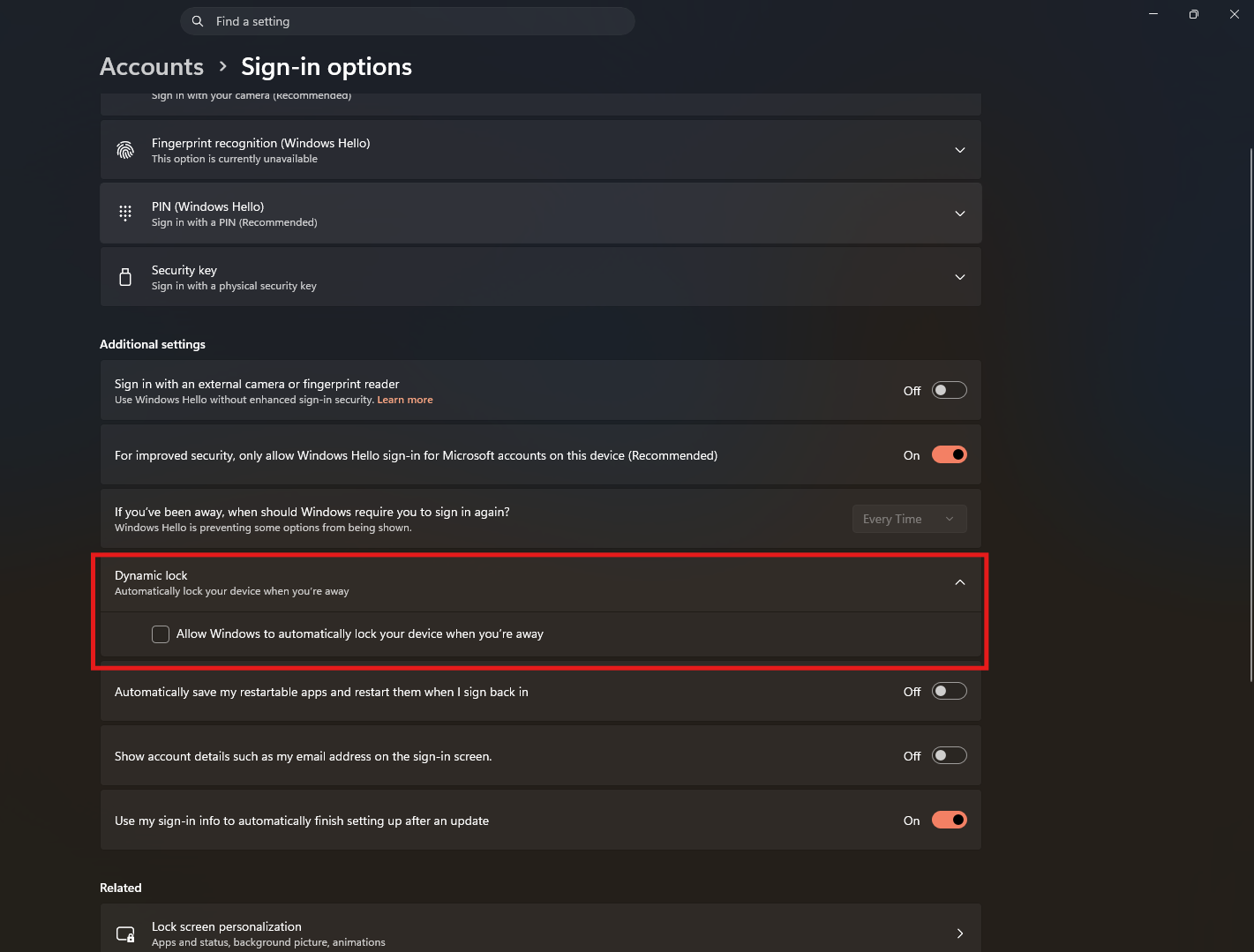
That’s it. The feature starts working immediately.
How to Turn It Off
If you decide it’s not useful:
- Go to Settings > Accounts > Sign-in options
- Uncheck the Dynamic Lock option
Your system will stop locking automatically.
How It Feels in Real Use
Dynamic Lock is not precise. It’s approximate.
What you’ll notice:
- It doesn’t lock the moment you leave
- It may take a short delay (usually around 30 seconds or more)
- Sometimes it won’t trigger if you’re still technically in Bluetooth range
This is normal behavior, not a fault.
When Dynamic Lock Actually Helps
It works best in simple, predictable environments.
Good Use Cases
- You work in an office or shared space
- You frequently step away from your desk
- You want a backup layer of security
In these cases, even a delayed lock is better than forgetting entirely.
When It Feels Unnecessary
Dynamic Lock adds little value if:
- You already lock your PC manually (Win + L)
- You rarely leave your device unattended
- You expect instant, precise behavior
It’s not meant to replace manual control. It complements it.
Real-World Insight
Most people who try Dynamic Lock fall into two groups:
- Those who forget about it entirely because it works quietly
- Those who disable it because it doesn’t feel immediate enough
The difference comes down to expectations.
If you treat it as a backup safety net, it works well.
If you expect precision, it feels inconsistent.
Limitations You Should Be Aware Of
- Depends entirely on Bluetooth reliability
- Range can vary depending on environment
- No customization for timing or sensitivity
It’s intentionally simple, which also limits control.
Should You Use Dynamic Lock
Use it if:
- You want passive security without extra effort
- You occasionally forget to lock your system
- You work in shared environments
Skip it if:
- You prefer manual control
- You expect instant locking behavior
- You don’t rely on Bluetooth devices
Final Thoughts
Dynamic Lock in Windows 11 is one of those features that works best when you don’t think about it.
It won’t replace good habits, but it can cover the gaps when you forget.
And that’s really its purpose. Not control, but convenience with a layer of security in the background.
FAQs
Does Dynamic Lock unlock my PC automatically
No, it only locks the device.
How does Dynamic Lock detect when I leave
It uses Bluetooth connection with a paired device.
Why doesn’t it lock instantly
Because it waits for the Bluetooth signal to drop consistently.
Is Dynamic Lock reliable
Generally yes, but not perfectly precise.
Should I rely on it completely
No, it’s best used as a backup, not a replacement for manual locking.



Discussion (0)
Be the first to comment.