




If you spend a lot of time using Gemini on your Windows PC, dark mode can make a real difference. It is easier on the eyes, especially in low-light environments. It also reduces screen glare during long sessions. The good news is that turning on Gemini dark mode on Windows PC takes less than a minute. This guide walks you through exactly how to do it, how to switch back to light mode, and what to know about how Gemini handles your theme preference.
How Gemini Dark Mode Works on PC
Gemini has its own built-in dark theme setting. You can switch it on or off directly from the Gemini web app on any browser. You do not need to change any Windows system settings to make it work.
By default, Gemini matches the color scheme of your device. If your Windows PC is set to dark mode in system settings, Gemini will open in dark mode automatically. If your system is set to light mode, Gemini will open in light mode.
However, you can override this from inside Gemini itself. Once you change the theme inside Gemini, it saves your preference for that specific browser and device. The next time you open gemini.google.com on the same browser, it will remember your choice.
One important thing to note before you start. You must be signed into your Google account on Gemini to access theme settings. The option will not appear if you are not signed in.
How to Turn On Gemini Dark Mode on Windows PC
Follow these steps to enable dark mode in Gemini on your Windows PC.
- Open your browser on your Windows PC. This works on any browser including Chrome, Edge, and Firefox. Go to gemini.google.com and sign in to your Google account if you have not already.
- Look at the bottom left corner of the Gemini interface. You will see a Settings and help option. Click on it. A small menu will appear with a few options.
- In that menu, look for Dark theme. You will see a toggle next to it. Click the toggle to turn dark mode on. The Gemini interface will switch to dark mode immediately. No page refresh is needed.
That is all it takes. Gemini will now stay in dark mode every time you open it on that browser and device.
How to Switch Gemini Back to Light Mode on PC
If you want to go back to light mode at any point, the process is exactly the same.
- Go to Gemini and sign in.
- Click Settings and help in the bottom left corner.
- Find the Dark theme toggle and click it again to turn it off. Gemini will switch back to light mode straight away.
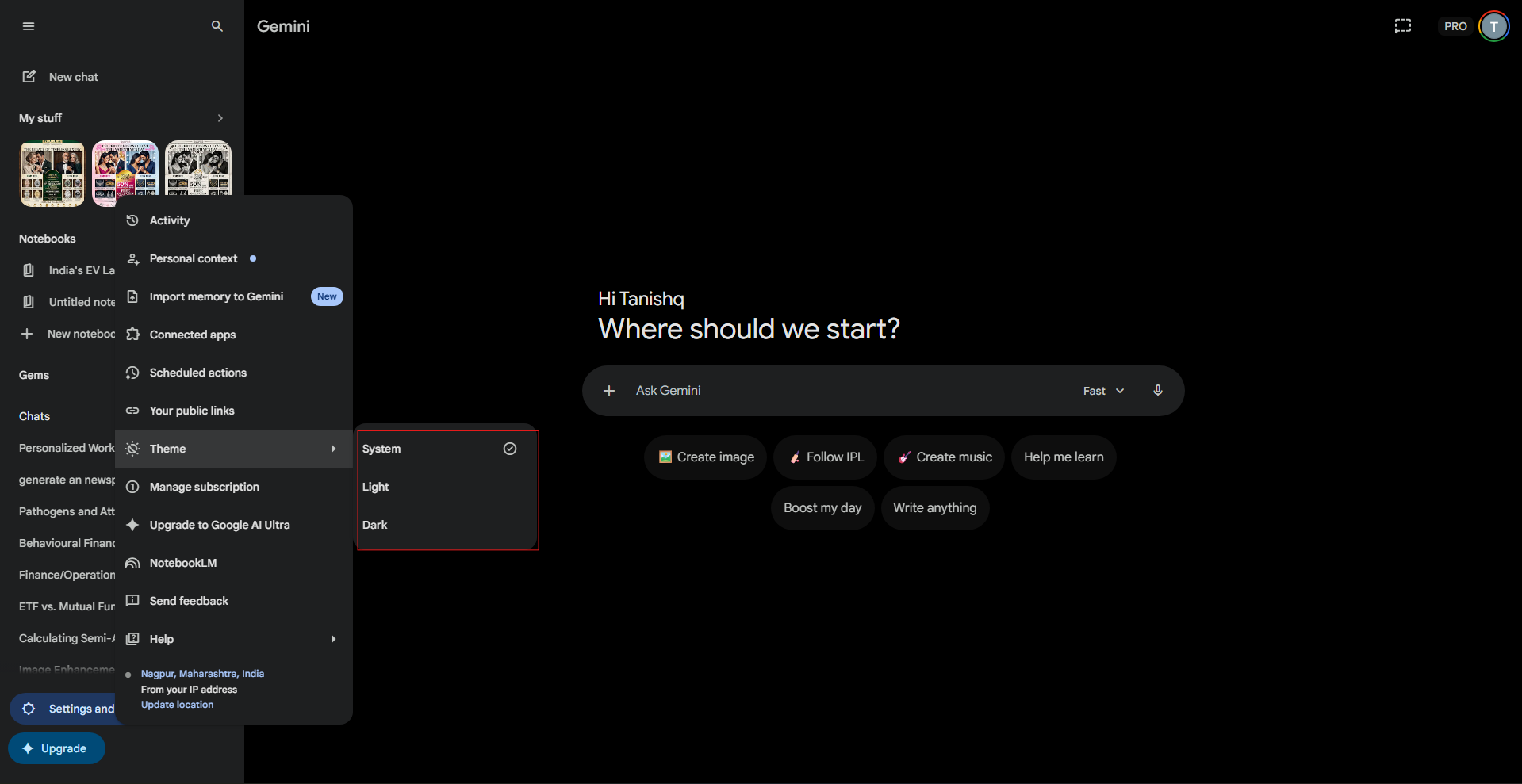
You can toggle between dark and light mode as many times as you like. Your last choice is always saved automatically.
How Windows System Theme Affects Gemini
It is worth understanding how your Windows system theme and Gemini's own dark mode setting interact with each other.
When you first visit gemini.google.com without having set a theme preference before, Gemini reads your Windows display settings and matches them. If Windows is in dark mode, Gemini opens dark. If Windows is in light mode, Gemini opens light.
Once you manually change the theme inside Gemini settings, that choice overrides the Windows system setting for Gemini. From that point on, Gemini uses your saved preference regardless of what your Windows theme is set to.
This means you can have Windows running in light mode and Gemini running in dark mode at the same time, or the other way around. The two settings are independent of each other once you make a manual choice inside Gemini.
If you clear your browser cookies or switch to a different browser, Gemini will go back to matching your Windows system theme until you set a preference again.
Does Dark Mode in Gemini Affect Other Google Products?
No. The dark theme setting inside Gemini only applies to the Gemini web app at gemini.google.com. It does not change the theme of Gmail, Google Drive, Google Docs, or any other Google product you use.
Each Google product has its own separate theme setting. If you want dark mode across Gmail or other Workspace apps, you need to enable it individually in each product's settings.
Tips for Getting the Most Out of Gemini Dark Mode on PC
Dark mode is most useful in certain situations. If you work in a dimly lit room, dark mode significantly reduces the contrast between your screen and the surrounding environment. This makes extended sessions more comfortable and reduces eye strain over time.
If you work during the day in a brightly lit space, light mode often performs better. It tends to be easier to read in high-ambient-light environments because the contrast between text and background is higher.
Some users prefer to match Gemini's theme to their Windows system setting so everything feels consistent. Others prefer to keep Gemini in dark mode regardless of their system settings. Neither approach is wrong. It comes down to what works best for your working environment and personal preference.
If you use Gemini across multiple browsers on the same Windows PC, remember that the dark mode setting is saved per browser. You may need to enable it separately in each browser you use.
Final Thoughts
Turning on Gemini dark mode on Windows PC is simple and takes only a few seconds. Open gemini.google.com, click Settings and help in the bottom left, and toggle on Dark theme. Gemini saves your preference automatically so you do not need to change it every time. If you ever want to switch back, the same toggle turns it off just as easily.
Frequently Asked Questions
How do I turn on dark mode in Gemini on my Windows PC?
Go to Gemini and sign in to your Google account. Click Settings and help in the bottom left corner of the screen. Find the Dark theme toggle and click it to turn dark mode on. Gemini will switch immediately and save your preference for future visits on the same browser.
Does Gemini dark mode follow my Windows system theme?
Yes, by default Gemini matches your Windows system theme when you first visit it. If you manually change the theme inside Gemini settings, your choice overrides the system setting. Gemini will then use your saved preference regardless of what your Windows theme is set to.
Will turning on dark mode in Gemini affect Gmail or other Google apps?
No. The dark theme setting in Gemini only applies to the Gemini web app. It does not affect Gmail, Google Drive, Google Docs, or any other Google product. Each Google product has its own separate theme setting that you need to change individually.
Does Gemini remember my dark mode preference?
Yes. Once you turn on dark mode inside Gemini settings, it saves your preference for that specific browser and device. The next time you open gemini.google.com on the same browser, it will open in dark mode automatically.
What if the dark mode toggle is not showing in Gemini settings?
The dark mode toggle only appears when you are signed into your Google account on gemini.google.com. If you are not signed in, the Settings and help menu will not include the Dark theme option. Sign in first and then check settings again.



Discussion (0)
Be the first to comment.