




Windows consumes data in the background constantly. Updates download silently. Apps sync without asking. Telemetry phones home. Delivery Optimisation shares your bandwidth with strangers on the internet. None of this announces itself, and none of it waits for a convenient time.
The good news is that Windows has built-in tools to see exactly which apps are responsible and stop the ones that are not earning their bandwidth. Here is how to use them properly.
Step 1: Find Out Which Apps Are Actually Using Your Data
Before restricting anything, you need to know what is worth restricting. Guessing wastes time. The data usage screen shows you exactly what the problem is.
Open Settings and go to Network and Internet, then Advanced Network Settings, then Data Usage. At the top of the page, select your current connection from the dropdown. Below it, a list of every app that has used data in the past 30 days appears, sorted by consumption.
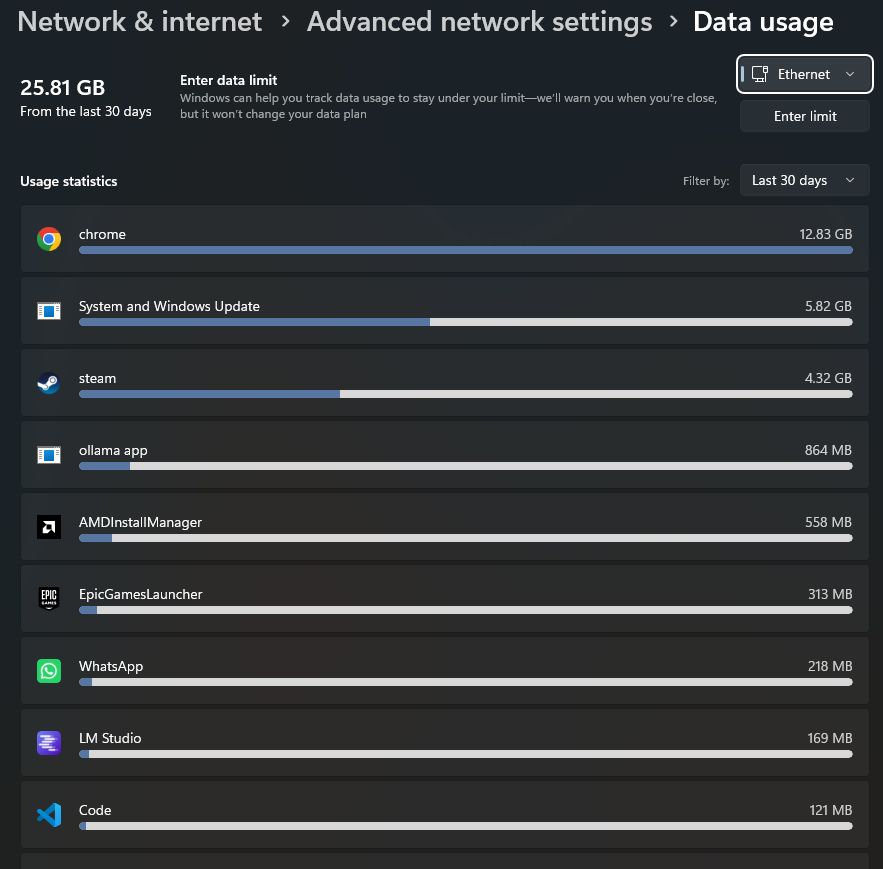
Read this list carefully. Windows itself, Microsoft Edge, and the Windows Update Delivery Optimisation service frequently sit near the top even on machines where the user has done very little. Third-party apps like Steam, Spotify, and cloud backup clients also commonly appear with surprising totals.
Note the top three to five consumers. These are your targets for the steps that follow. Everything below them is background noise that does not justify individual attention.
You can also filter this view by the last 24 hours or last 7 days using the dropdown at the top right of the page. If you noticed your data disappearing suddenly rather than gradually, the 24-hour view points directly to the cause.
Step 2: Restrict Background App Permissions for High-Consumption Apps
Windows Store apps, which include many pre-installed apps and apps downloaded from the Microsoft Store, can be stopped from running in the background entirely. This is the most direct way to cut background data consumption per app.
On Windows 11
Open Settings and go to Apps, then Installed Apps. Find an app you identified in Step 1. Click the three-dot menu next to it and select Advanced Options. Under Background App Permissions, change the setting from Power Optimised or Always to Never.
Never means the app executes no code and uses no data when you are not actively looking at it. It does not delete the app or affect what happens when you open it. The app simply stops running when you are not using it.
Work through every high-consumption app you identified in Step 1 and set them all to Never unless there is a specific reason they need to run continuously. Messaging apps that need to receive notifications, calendar apps that need to sync for reminders, and security apps all have legitimate reasons to run in the background. A game launcher, a music app you use manually, or a shopping app does not.
On Windows 10
Open Settings and go to Privacy, then Background Apps. Toggle individual apps off using the switches next to each one, or turn off Let Apps Run in the Background at the top to restrict all of them simultaneously.
What This Does Not Cover
Background permissions only control Microsoft Store apps. Traditional desktop applications installed from the internet, including browsers, Steam, creative software, and most third-party tools, are not listed here and cannot be restricted this way. For those, the approach is different and covered in the next step.
Step 3: Restrict Desktop App Background Data Using Advanced Tools
Desktop applications bypass the background permissions system. They run as they choose. Restricting them requires either changing their own internal settings or using Windows Firewall to cut off their internet access when you choose.
Using Each App's Own Settings First
This is the cleanest approach because it works with the application rather than around it.
Steam downloads game updates in the background continuously. Open Steam, go to Settings, then Downloads, and set a download restriction schedule. Set it to only download during off-peak hours you specify. Also turn off Allow Downloads During Gameplay if you have not already.
OneDrive syncs files continuously by default. Right-click the OneDrive icon in the system tray, go to Settings, then Sync and Backup. Remove folders you do not need to sync automatically, or go to Network and set an upload speed cap that prevents OneDrive from saturating your connection.
Spotify pre-caches music in the background. Open Spotify, go to Settings, and under Audio Quality turn off Streaming quality auto-adjust and set Cache Size to a lower value. Also turn off Download Storage if you are not using offline mode.
Windows Update Delivery Optimisation shares your update files with other devices on the internet by default, consuming upload bandwidth you may not want to donate. Go to Settings, then Windows Update, then Advanced Options, then Delivery Optimisation. Toggle Allow Downloads From Other PCs to Off entirely, or restrict it to Devices on my local network only.
Using Windows Firewall for Complete Control
For any desktop application you want to block from the internet entirely outside of sessions you control, Windows Firewall is the precise tool.
Press the Windows key, type Windows Defender Firewall, and open it. Click Advanced Settings on the left side. In the panel that opens, click Outbound Rules, then New Rule on the right.

Select Program, then browse to the executable file of the application you want to restrict. Select Block the Connection. Name the rule clearly so you can find and remove it later. The application loses internet access immediately and cannot resume background data use until you delete the rule.
This approach is best used for applications you know do not need the internet while closed, such as game launchers between gaming sessions, or productivity tools that sync only when you open them.
Using NetBalancer for Real-Time Per-App Control
If you want ongoing visibility and control beyond what Windows provides natively, NetBalancer is the most capable free tool for this. It shows real-time bandwidth usage per application, lets you set priority levels so low-priority apps like update services yield bandwidth to high-priority apps like video calls, and lets you set hard data limits per process.
Download NetBalancer from netbalancer.com. Once installed, the main window lists every active process alongside its current upload and download speed in real time. Right-click any process to set its network priority to Low, which causes Windows to deprioritise its traffic when anything more important needs the connection. Setting Steam, Windows Update, and backup services to Low ensures they never compete with foreground applications for bandwidth.
Frequently Asked Questions
Will restricting background apps break notifications?
For apps set to Never in background permissions, notifications that rely on background processing may stop arriving until you open the app. Email apps, messaging apps, and calendar reminders are the most common cases. For these apps, Power Optimised is the better setting, which lets Windows decide when to allow brief background activity rather than cutting it off completely. Reserve Never for apps where you are comfortable checking manually when you want to use them.
How do I find which process is using bandwidth right now?
Open Resource Monitor by pressing Windows and R, typing resmon, and pressing Enter. Go to the Network tab. This shows every active process currently transmitting data, with real-time upload and download speeds updated every second. This is more useful than the 30-day summary in Settings when you want to catch something happening right now rather than reviewing historical usage.
Does setting a connection as Metered stop all background data?
No. Metered connection reduces background data by pausing optional Windows updates and telling well-behaved apps to limit their activity. It does not block data completely. Critical security updates can still download on metered connections. Third-party desktop apps generally ignore the metered signal entirely unless their developers specifically built support for it. The steps above give more reliable and targeted results than relying on the metered connection setting alone.



Discussion (0)
Be the first to comment.