



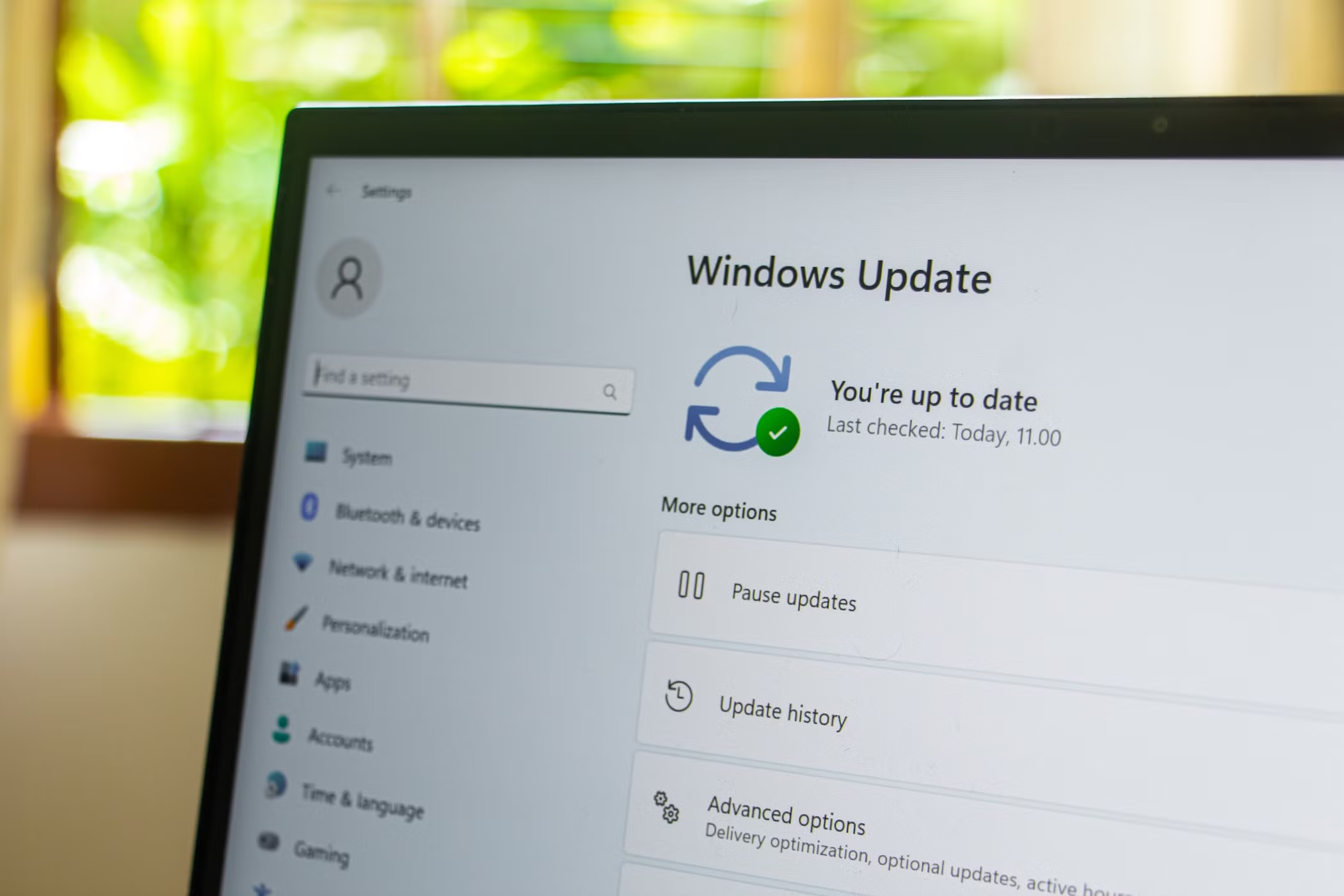
Automatic Maintenance in Windows 11 is one of those features that works quietly in the background. You don’t see it, you don’t interact with it, and most of the time, that’s a good thing.
But every now and then, it becomes noticeable. Maybe your system slows down slightly, or something starts running when you’re in the middle of work. That’s usually when people go looking for a way to control it.
The truth is, you can start or stop it easily. The more important question is when it actually makes sense to do so.
What Automatic Maintenance Is Really Doing
Automatic Maintenance is not a single process. It’s a collection of routine system tasks bundled together.
It typically handles:
- System updates
- Security scans
- Disk optimization
- Diagnostics and minor fixes
Instead of running these tasks randomly throughout the day, Windows groups them into a scheduled session when your system is idle.
That’s why you rarely notice it.
Why It Sometimes Feels Like It’s “In the Way”
Even though Windows tries to be smart about timing, it doesn’t always get it right.
You might notice it when:
- You’re using your PC at an unusual time
- Your system never stays idle long enough
- Background tasks overlap with your work
In these cases, it feels less like maintenance and more like interference.
How to Start Automatic Maintenance Manually
If you prefer to control when it runs, you can start it yourself.
This is useful when you want everything handled at a convenient time instead of randomly later.
Steps
- Open Control Panel
- Go to System and Security > Security and Maintenance
- Expand the Maintenance section
- Click Start maintenance
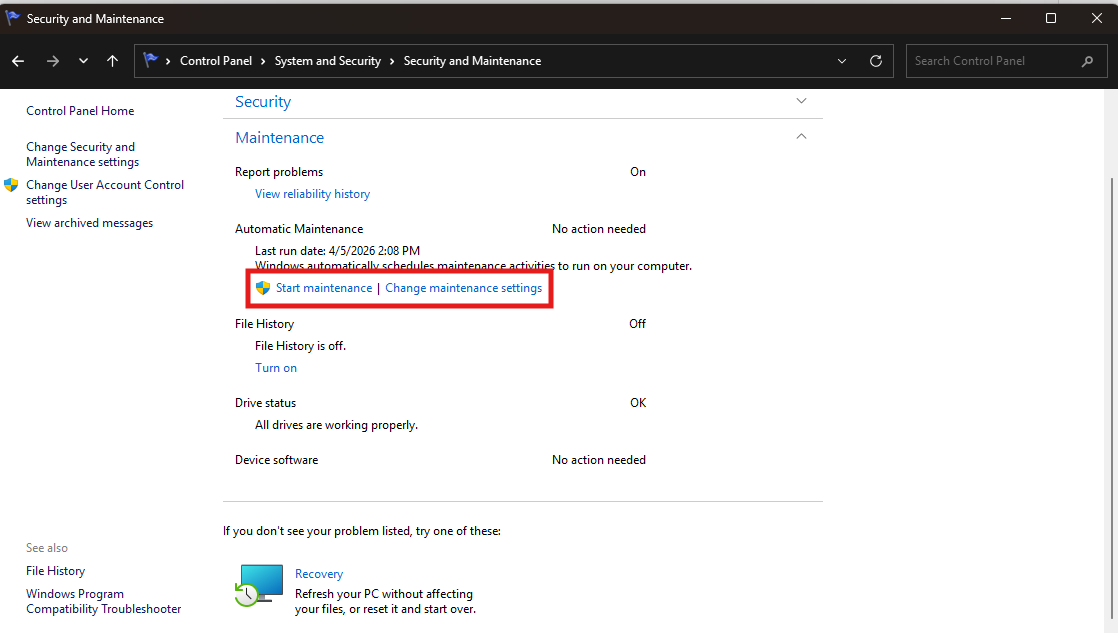
Once triggered, Windows begins its maintenance cycle immediately.
When Starting It Manually Actually Helps
You don’t need to do this often, but it’s useful in specific situations.
- Before shutting down for the day
- After delaying updates for a while
- When your system feels slightly off or sluggish
Running it on your terms prevents it from kicking in at a worse time later.
How to Stop Automatic Maintenance
If it starts at the wrong moment, you don’t have to wait it out.
Steps
- Open Control Panel
- Go to System and Security > Security and Maintenance
- Expand Maintenance
- Click Stop maintenance
It stops immediately.
What Happens When You Stop It
This is where people tend to overthink things.
Stopping maintenance does not:
- Break anything
- Cancel updates permanently
- Affect system health
It simply pauses the current session.
Windows will try again later when the system is idle.
When It Makes Sense to Stop It
Stopping maintenance is useful when:
- You’re doing something performance-heavy
- You notice lag during important tasks
- It starts at an inconvenient time
In short, when your current work matters more than background upkeep.
The Part Most People Misunderstand
Automatic Maintenance is not something you need to “manage” regularly.
Windows is already designed to:
- Run it at the right time
- Avoid interrupting you
- Handle system upkeep automatically
Trying to control it too often usually adds more effort than value.
Real-World Insight
Most users fall into one of two patterns:
- They ignore it completely and everything works fine
- Or they try to micromanage it and gain nothing
The sweet spot is simple:
- Let Windows handle it
- Step in only when timing becomes inconvenient
That’s it.
What You Should Avoid Doing
Some guides suggest disabling maintenance entirely. That’s not a good idea.
You risk:
- Missing important updates
- Skipping security scans
- Letting minor issues build up over time
It’s not worth it.
Final Thoughts
Automatic Maintenance in Windows 11 is designed to stay out of your way, and most of the time, it succeeds.
Knowing how to start or stop it gives you control when you need it, but it’s not something you should constantly adjust.
Let it do its job.
Step in when timing matters.
That balance is where it works best.
FAQs
What does Automatic Maintenance do
It runs updates, scans, and optimization tasks in the background.
Is it safe to stop it
Yes, it will resume later automatically.
Should I run it manually
Only if you want to control when it happens.
Can I disable it completely
Not recommended, it affects system stability and updates.
Why does it run when I’m using my PC
Because Windows didn’t find enough idle time earlier.



Discussion (0)
Be the first to comment.