



Sharing your Wi-Fi password sounds simple until you actually have to do it. Long passwords, mixed characters, and repeated typing make it unnecessarily tedious.
In Windows 11, you can turn your Wi-Fi credentials into a QR code, so anyone can connect instantly by scanning it.
It’s one of those small features that feels trivial until you start using it regularly.
What This Feature Actually Does
Instead of telling someone your password, you:
- Generate a QR code from your saved Wi-Fi network
- Let others scan it using their phone
- They connect automatically
It’s the same system you’ve probably seen on routers or public networks, just generated directly from your PC.
When This Is Actually Useful
This feature makes the most sense in real, everyday situations:
- Guests visiting your home
- Sharing Wi-Fi in an office or workspace
- Connecting multiple devices quickly
- Avoiding password exposure
It’s faster and cleaner than manually sharing credentials.
How to Share Wi-Fi via QR Code in Windows 11
The option is built into network settings, but not immediately obvious.
Step-by-step
- Open Settings
- Go to Network & Internet > Wi-Fi
- Click Manage known networks
- Select your connected network
- Click View Wi-Fi security key
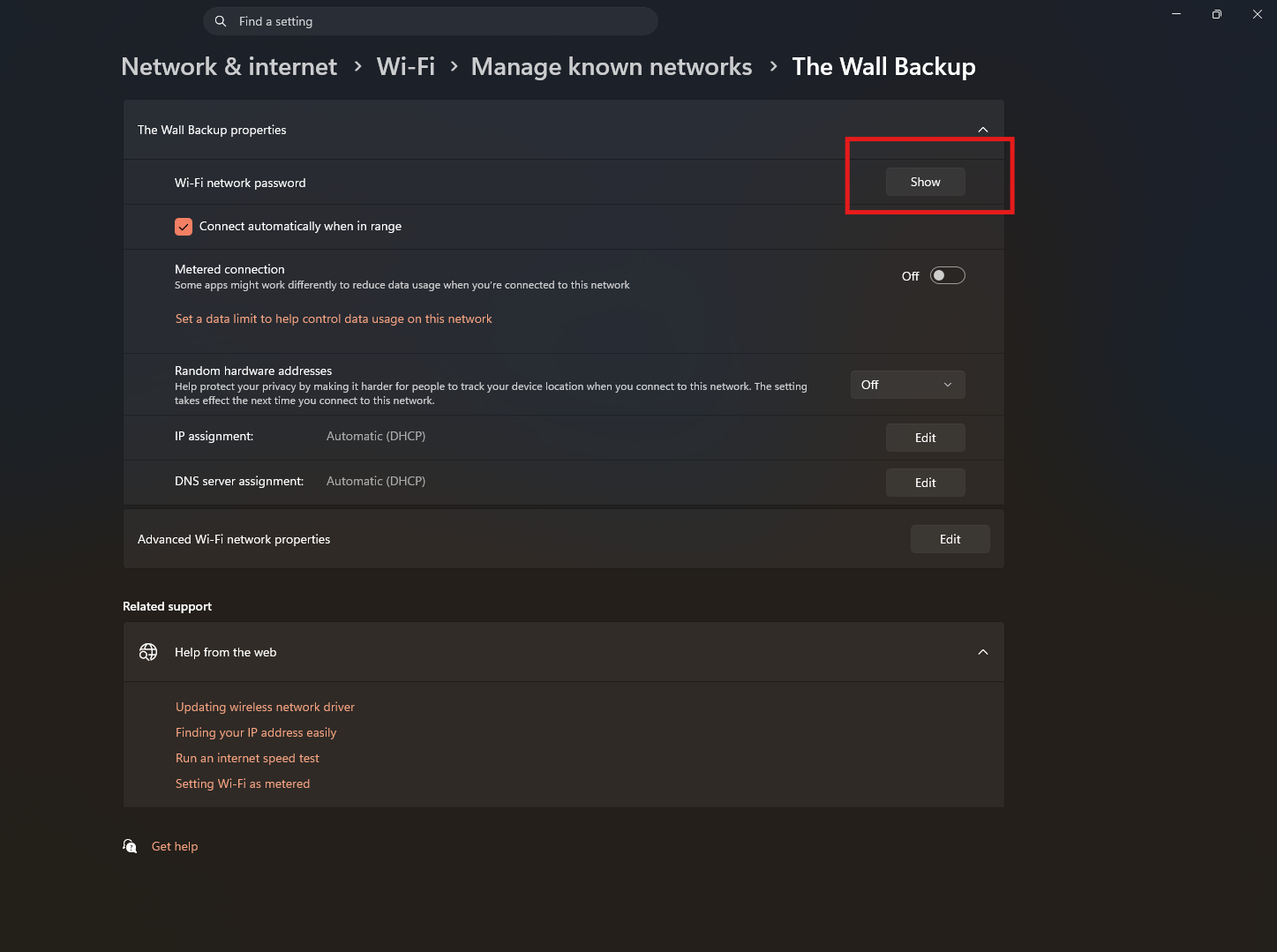
From here, depending on your Windows version:
- You may see a QR code option directly
- Or an option to generate/share via QR
Once generated:
- A QR code appears on screen
- Others can scan it to connect instantly
What If You Don’t See the QR Option
This is where most people get confused.
Not all builds of Windows 11 expose this feature clearly.
In that case, you can still:
- View the Wi-Fi password
- Generate a QR code manually using built-in or simple methods (like field code or tools)
The functionality exists, but availability depends on updates.
How It Works on the Receiving Device
On most smartphones:
- Open the camera app
- Point it at the QR code
- Tap the prompt
The device connects automatically.
No need to:
- Enter passwords
- Select network manually
It’s seamless.
Security Perspective (What You Should Know)
This method is convenient, but it changes how you share access.
What It Does Well
- No need to reveal the password directly
- Reduces typing errors
- Quick and controlled sharing
What to Be Careful About
- Anyone with the QR code can connect
- If shared widely, access is no longer restricted
So treat the QR code like you would treat your password.
Real-World Insight
Most people underestimate how useful this is until they try it.
Instead of:
- Repeating passwords
- Correcting mistakes
- Dealing with connection issues
You just:
- Show the QR code
- Let others scan
It turns a small but annoying task into something effortless.
When This Feature Matters Most
You’ll appreciate it more if:
- You have a complex Wi-Fi password
- You frequently share your network
- You manage multiple devices
If you rarely share your network, it’s still useful, just less often.
Limitations to Be Aware Of
- Availability depends on Windows version
- No advanced control over QR code sharing
- Cannot restrict access once shared
It’s simple by design, which also means limited control.
Final Thoughts
Sharing Wi-Fi via QR code in Windows 11 is a small feature that solves a very real annoyance.
It doesn’t change your network. It just removes friction from accessing it.
And like most good features, once you start using it, you won’t go back to typing passwords manually.
FAQs
Can I share Wi-Fi without revealing the password
Yes, using a QR code.
Do all Windows 11 versions support this
Not all versions show the option directly.
How do others connect using the QR code
They scan it with their phone camera.
Is this secure
Yes, but anyone with the QR code can access the network.
Can I revoke access after sharing
Only by changing your Wi-Fi password.



Discussion (0)
Be the first to comment.