




Every time you log into a website using Discord, connect a game to your profile, or add a bot to your server, that app gets granted access to parts of your account. Most people do this without giving it much thought and then never revisit it. The problem is that access does not expire on its own. Those apps remain authorized indefinitely, able to read your profile, see your server memberships, and in some cases act on your behalf until you explicitly remove them.
Over time, a Discord account can accumulate dozens of connected apps from games you no longer play, services you stopped using, and bots that are long gone from servers you have since left. Clearing them out takes a few minutes and is one of the most straightforward things you can do to keep your account secure.
What Authorized Apps Can Actually Do
When you authorize an app, you grant it a specific set of permissions. Discord shows these during the authorization process, though most people click through without reading them. Common permissions include reading your username and avatar, accessing your email address, seeing which servers you are in, and in some cases joining servers or reading messages on your behalf.
A legitimate app only uses what it needs. The risk comes when an app is abandoned by its developer, sold to someone else, or quietly compromised. At that point, whatever access you granted is available to whoever now controls that app. Regularly reviewing and trimming your authorized apps list removes that exposure.
How to Deauthorize Apps on Discord Desktop
Step 1: Open User Settings
Open Discord and click the gear icon in the bottom left corner next to your username. This opens User Settings.
Step 2: Go to Authorized Apps
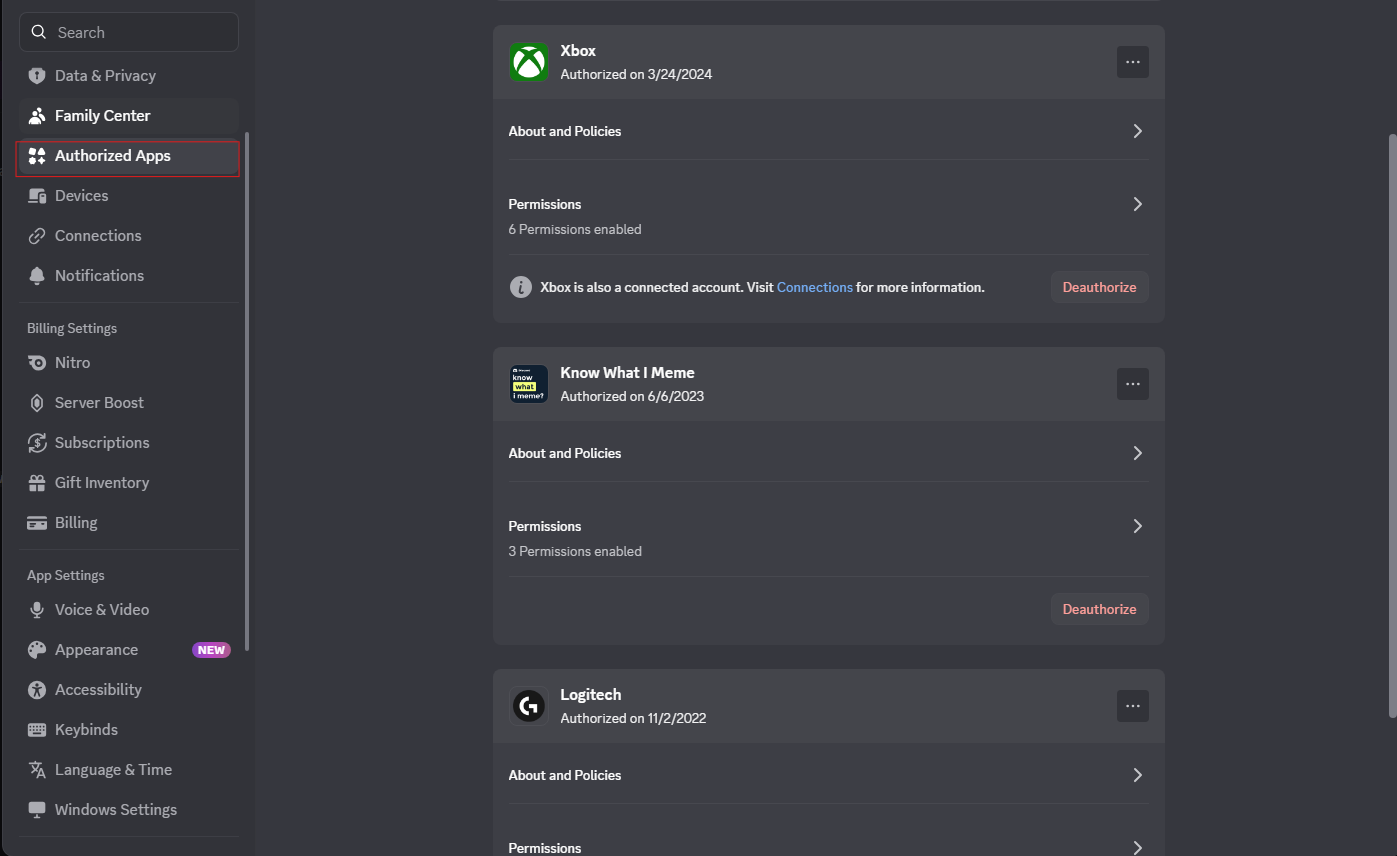
Scroll down the left sidebar until you see Authorized Apps. Click it. Discord will display a full list of every app currently connected to your account, along with the date you authorized it and the specific permissions it holds.
Step 3: Review Each App
Go through the list and identify anything you do not recognize, no longer use, or do not remember authorizing. Pay attention to the permissions column. An app that has access to your email address or server memberships has more reach than one that only reads your basic profile.
Step 4: Deauthorize the App
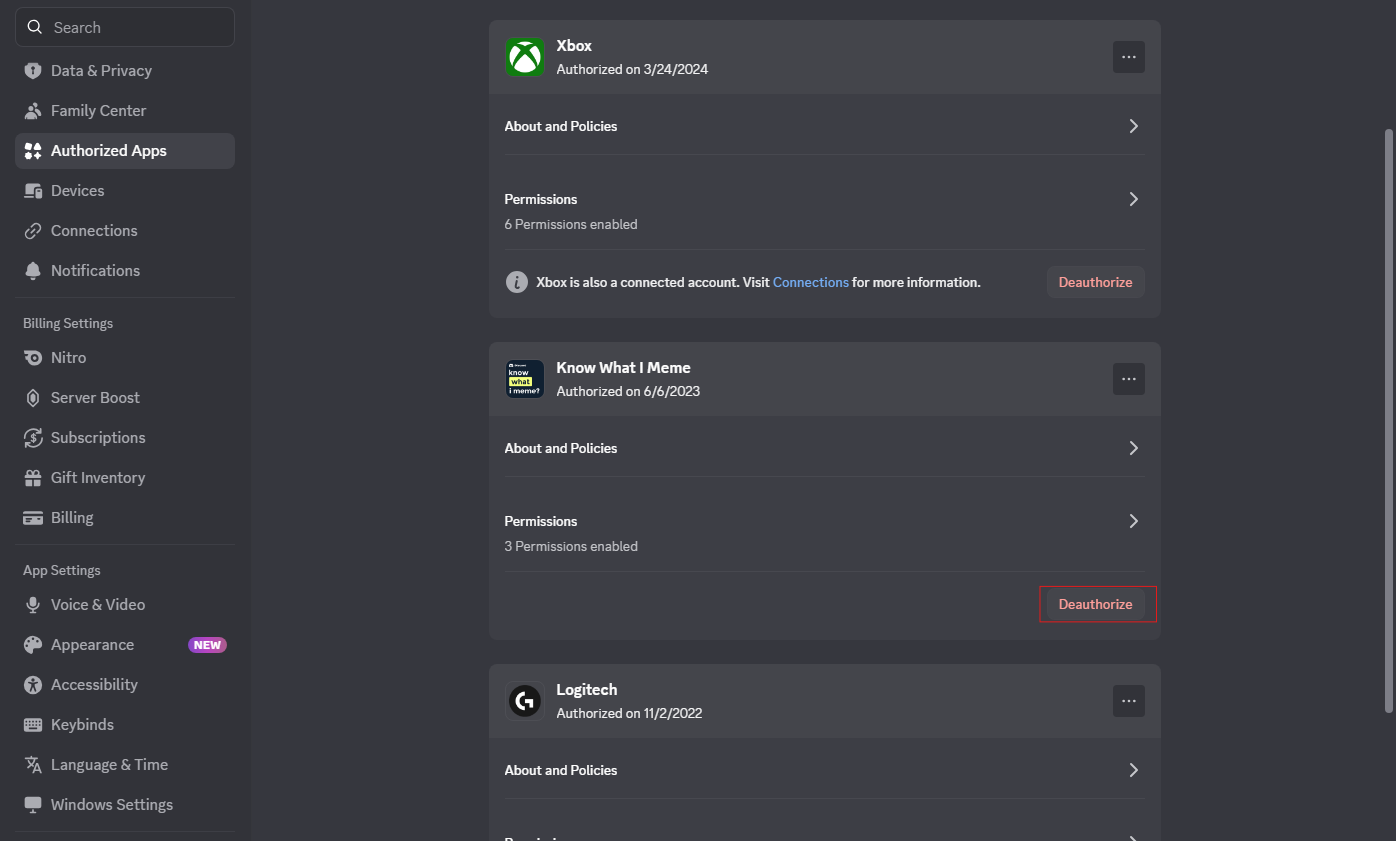
Click the Deauthorize button next to any app you want to remove. Discord will ask you to confirm. Click Yes to complete the removal. The app is immediately stripped of its access and disappears from your list. You can repeat this for as many apps as you want in a single session.
What Happens After You Deauthorize an App
Removing an app cuts off its access immediately. It can no longer read your profile, see your servers, or take any action through your account. If you later want to use that app again, you simply authorize it again from scratch and it will request permissions the same way it did the first time.
Deauthorizing an app from your account does not remove a bot from any server. If a bot is operating in your server and you want it gone, you need to kick it from the server separately through Server Settings. The two actions are independent of each other.
How Often You Should Do This
There is no strict rule, but going through your authorized apps every few months takes less than five minutes and keeps your list from growing into something unmanageable. If you have ever had a security scare, received a suspicious message through Discord, or noticed anything unusual in your account activity, reviewing and clearing authorized apps should be one of the first things you do alongside changing your password and checking your active sessions.
Frequently Asked Questions
Can an authorized app read my private messages?
Not unless you specifically granted it that permission during authorization. Most apps request basic profile access only. The permissions each app holds are listed next to its entry in your Authorized Apps page, so you can see exactly what each one can access.
Will deauthorizing an app remove the bot from my server?
No. Deauthorizing an app removes its access to your personal account. If you also want to remove a bot from a server, you need to go to Server Settings, open Integrations or Members, find the bot, and kick it from there.
What if I do not recognize an app on the list?
Deauthorize it. If you do not remember authorizing it and cannot identify what it is, removing it is the right call. If it turns out to be something you need, you can authorize it again later. An unrecognized app with broad permissions is a potential security risk and is not worth leaving connected on the off chance you might need it someday.
Does removing an authorized app delete my data from that app?
No. Deauthorizing an app stops it from accessing your Discord account going forward, but it does not delete any data the app already collected while it was authorized. If you want your data removed from a specific service, you need to contact that service directly or use their account deletion process.



Discussion (0)
Be the first to comment.