




If you want to start coding, learning how to run Kotlin language on Windows is a great first step. Kotlin is a modern programming language widely used for Android development, backend systems, and general-purpose programming.
The good part is that setting up Kotlin on Windows is straightforward. You can run Kotlin either through the command line or using an IDE like IntelliJ IDEA.
What Is Kotlin?
Kotlin is a programming language developed by JetBrains. It is fully compatible with Java and runs on the Java Virtual Machine (JVM).
It is commonly used for:
- Android app development
- Backend development
- Desktop applications
- Learning modern programming concepts
Kotlin is known for being concise, safe, and easy to learn.
What You Need Before Running Kotlin
Before you run Kotlin on Windows, make sure you have:
- Java Development Kit (JDK) installed
- Internet connection
- A code editor or IDE (optional but recommended)
Kotlin requires Java to run, so installing JDK is essential.
Method 1: Run Kotlin Using IntelliJ IDEA (Recommended)
This is the easiest way for beginners.
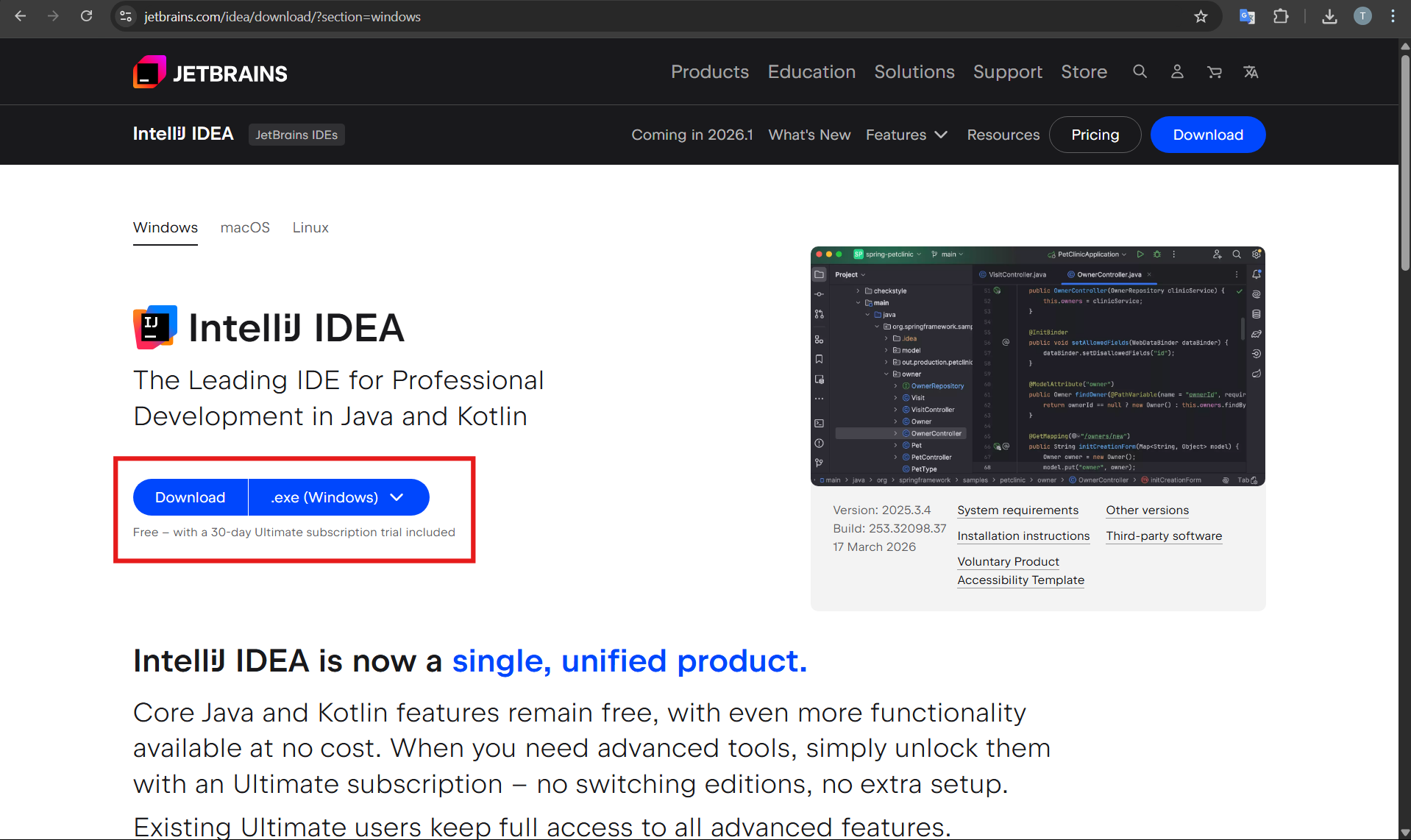
1: Install IntelliJ IDEA
- Go to the JetBrains website
- Download IntelliJ IDEA Community Edition
- Install and open it
2: Create a New Kotlin Project
- Click New Project
- Select Kotlin
- Choose JVM
- Click Create
3: Write Kotlin Code
In your main file, add:
fun main() {
    println("Hello, Kotlin!")
}
Step 4: Run the Program
- Click the Run button
- Output will appear in the console
This method is simple and beginner-friendly.
Method 2: Run Kotlin Using Command Line
If you prefer a lightweight setup, you can use the command line.
1: Install JDK
- Download JDK from Oracle or OpenJDK
- Install it
- Set the JAVA_HOME environment variable
2: Install Kotlin Compiler
- Download Kotlin from the official website
- Extract the files
- Add the bin folder to system PATH
3: Write a Kotlin File
Create a file named:
hello.kt
Add the code:
fun main() {
    println("Hello, Kotlin!")
}
Step 4: Compile the Code
Open Command Prompt and run:
kotlinc hello.kt -include-runtime -d hello.jar
Step 5: Run the Program
Run the compiled file:
java -jar hello.jar
You will see the output printed.
Which Method Should You Choose?
- Use IntelliJ IDEA if you are a beginner
- Use Command Line if you want a lightweight setup
- Use IDE for larger projects
Most users prefer IntelliJ for ease of use.
Common Issues and Fixes
If Kotlin does not run, check:
- JDK is installed correctly
- PATH variables are set properly
- File names are correct
- Commands are typed correctly
Restarting your system can also help.
Final Thoughts
Learning how to run Kotlin language on Windows is easier than it seems. Whether you use IntelliJ IDEA or the command line, you can start writing and running Kotlin programs in just a few steps.
For beginners, using an IDE is the best option, while advanced users may prefer the command-line approach for flexibility.
FAQs
Do I need Java to run Kotlin?
Yes. Kotlin runs on the Java Virtual Machine, so JDK is required.
Which IDE is best for Kotlin?
IntelliJ IDEA is the most popular and recommended option.
Can I run Kotlin without installing anything?
You can use online compilers, but for real development, local setup is better.
Is Kotlin easy to learn?
Yes. Kotlin is beginner-friendly and more concise than Java.



Discussion (0)
Be the first to comment.