




File Explorer in Windows 11 has changed more than most people realize. On the surface, it looks cleaner. Underneath, a lot of familiar controls have been simplified, hidden, or moved.
For many users, especially those used to older versions of Windows, the newer interface feels less efficient. That’s where restoring the legacy Folder Options experience becomes relevant.
This isn’t about nostalgia. It’s about control.
What “Legacy Folder Options” Actually Means
In older versions of Windows, Folder Options gave you direct access to:
- File visibility settings
- Folder behavior customization
- Advanced Explorer configurations
Most of these still exist in Windows 11, but:
- They are less visible
- Spread across different menus
- Slightly harder to access quickly
Restoring the “legacy” experience usually means bringing back quicker access and familiar workflows, not replacing File Explorer entirely.
The Simplest Way: Access the Classic Folder Options Dialog
The legacy interface is not gone. It’s just not obvious.
Method 1: Through File Explorer
- Open File Explorer
- Click the three-dot menu in the top bar
- Select Options
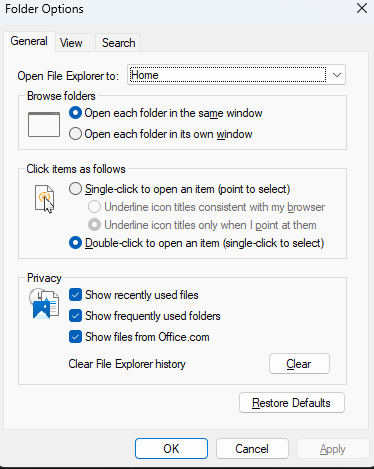
This opens the classic Folder Options window.
From here, you can access:
- General settings
- View configurations
- Search behavior
This is the same dialog that existed in earlier Windows versions.
A Faster Method (Direct Access)
If you want quicker access:
Use Run Command
- Press Windows + R
- Type:
control folders
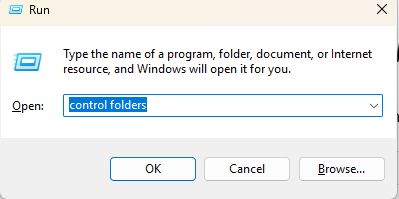
- Press Enter
This opens Folder Options instantly, bypassing menus.
For frequent use, this is the better approach.
What You Can Actually Control Here
Once inside Folder Options, the most useful settings are under the View tab.
This is where advanced users spend most of their time.
Common Adjustments
- Show hidden files and folders
- Show file extensions
- Disable “Hide protected system files” (use carefully)
- Change folder opening behavior
These are not new features. They are just easier to access in this interface.
Why People Prefer the Legacy Experience
The newer File Explorer design prioritizes simplicity.
That works for:
- Casual users
- Basic file navigation
But it can slow things down if you:
- Frequently change folder settings
- Work with different file types
- Need quick access to advanced options
The legacy dialog puts everything in one place, which reduces friction.
Can You Fully Restore the Old Explorer UI?
This is where expectations need to be clear.
You can:
- Access legacy Folder Options
- Use advanced settings
- Improve workflow
You cannot:
- Fully revert File Explorer to a Windows 10-style interface natively
- Restore all legacy UI elements without third-party tools
So this is about functionality, not appearance.
Real-World Insight
Most users don’t need to “restore” anything. They just need to know where things moved.
Once you:
- Pin the Run command
- Or remember the Options menu
You effectively regain the same level of control as before.
The system hasn’t removed capability. It has just changed visibility.
When This Actually Matters
You’ll notice the difference if you:
- Work with hidden/system files
- Manage large file structures
- Prefer precise control over Explorer behavior
If you only browse files occasionally, the default interface is usually enough.
What to Avoid
Some guides suggest:
- Registry tweaks
- Third-party Explorer replacements
These can work, but they also:
- Add complexity
- Introduce risk
For most users, the built-in Folder Options dialog is sufficient.
Final Thoughts
The “legacy” Folder Options in Windows 11 hasn’t been removed. It’s just less visible.
Once you know how to access it quickly, you regain the control that many users feel is missing in the newer interface.
It’s not about going backward. It’s about keeping efficient tools accessible in a modern system.
FAQs
Is the old Folder Options removed in Windows 11
No, it’s still available through File Explorer or Run command.
How do I open Folder Options quickly
Use Windows + R and type “control folders.”
Can I restore the old File Explorer completely
Not natively. Only specific features can be accessed.
Are these settings safe to change
Yes, but be careful with system file visibility options.
Do I need third-party tools for this
No, the built-in options are enough for most users.



Discussion (0)
Be the first to comment.