



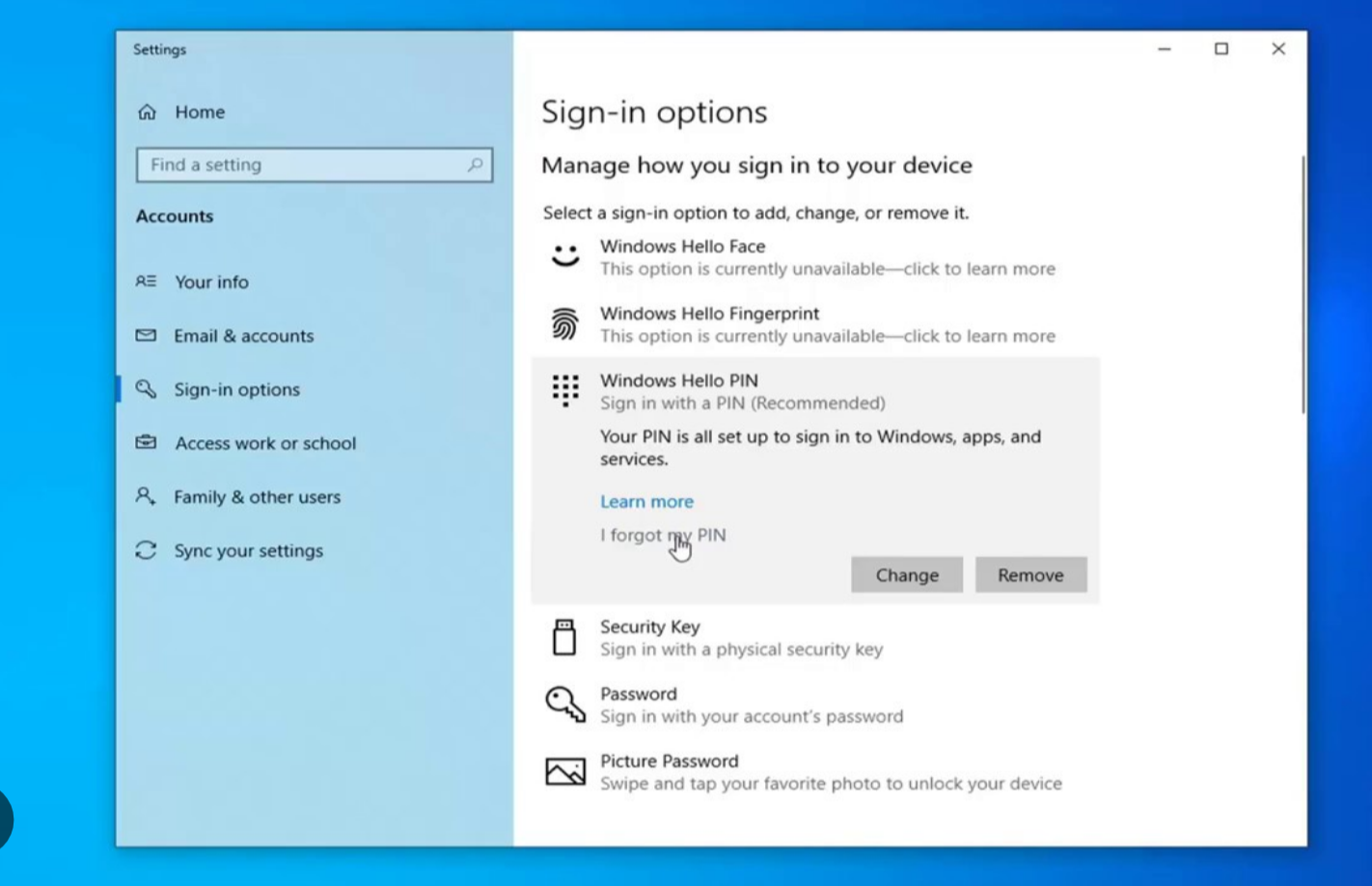
Your Windows PIN is a secure and convenient way to sign in to your computer. Unlike a password, a PIN is device-specific and stored locally, which makes it more secure in certain scenarios.
If you want to change your existing PIN or reset it because you forgot it, this guide will walk you through the process step by step.
What Is a Windows PIN
A Windows PIN is part of Windows Hello. It allows you to sign in using:
- A numeric PIN
- An alphanumeric PIN (optional)
- Biometrics such as fingerprint or face recognition
The PIN is tied to your device and not shared across other devices.
How to Change Your Windows 10 PIN
If you remember your current PIN and just want to update it:
- Press Windows + I to open Settings
- Go to Accounts
- Click Sign-in options
- Select Windows Hello PIN
- Click Change
- Enter your current PIN
- Enter your new PIN
- Confirm the new PIN
- Click OK
Your PIN will now be updated.
How to Reset Your PIN If You Forgot It
If you do not remember your current PIN:
- On the sign-in screen, click I forgot my PIN
- Or go to Settings > Accounts > Sign-in options
- Click Windows Hello PIN
- Select I forgot my PIN
- Sign in with your Microsoft account password
- Follow the verification steps
- Create a new PIN
You may be asked to verify your identity via email or SMS.
How to Remove Your Windows PIN
If you want to remove your PIN completely:
- Open Settings
- Go to Accounts
- Click Sign-in options
- Select Windows Hello PIN
- Click Remove
- Confirm your account password
You will then use your password to sign in instead.
Note: In some Windows versions, passwordless sign-in must be disabled before removing the PIN.
What If the PIN Option Is Not Available
If you cannot change or remove your PIN:
- Make sure you are signed in with a Microsoft account
- Disable passwordless account settings
- Update Windows
- Restart your PC
Corrupted PIN data may also require deleting the NGC folder (advanced users only).
Security Tips for Choosing a PIN
- Avoid simple combinations like 1234
- Use at least 6 digits
- Enable alphanumeric PIN for stronger security
- Combine PIN with Windows Hello biometric options
A strong PIN improves device security.
Does This Work on Windows 11
Yes. The steps are similar:
- Open Settings
- Go to Accounts
- Select Sign-in options
- Manage Windows Hello PIN
The interface may look slightly different, but the process remains the same.
Final Thoughts
Changing or resetting your Windows 10 PIN is simple through the Sign-in options menu. Whether you forgot your PIN or just want to update it, Windows provides secure recovery options using your Microsoft account.
These steps also apply to Windows 11 with minor interface differences.
FAQs
Is a Windows PIN safer than a password
It is device-specific and not transmitted online, which adds security.
Can I use letters in my Windows PIN
Yes, enable the alphanumeric option when setting up the PIN.
What happens if I forget my PIN
You can reset it using your Microsoft account credentials.
Can I remove my PIN completely
Yes, through Sign-in options.
Does changing PIN affect other devices
No, the PIN is unique to each device.

Discussion (0)
Be the first to comment.