



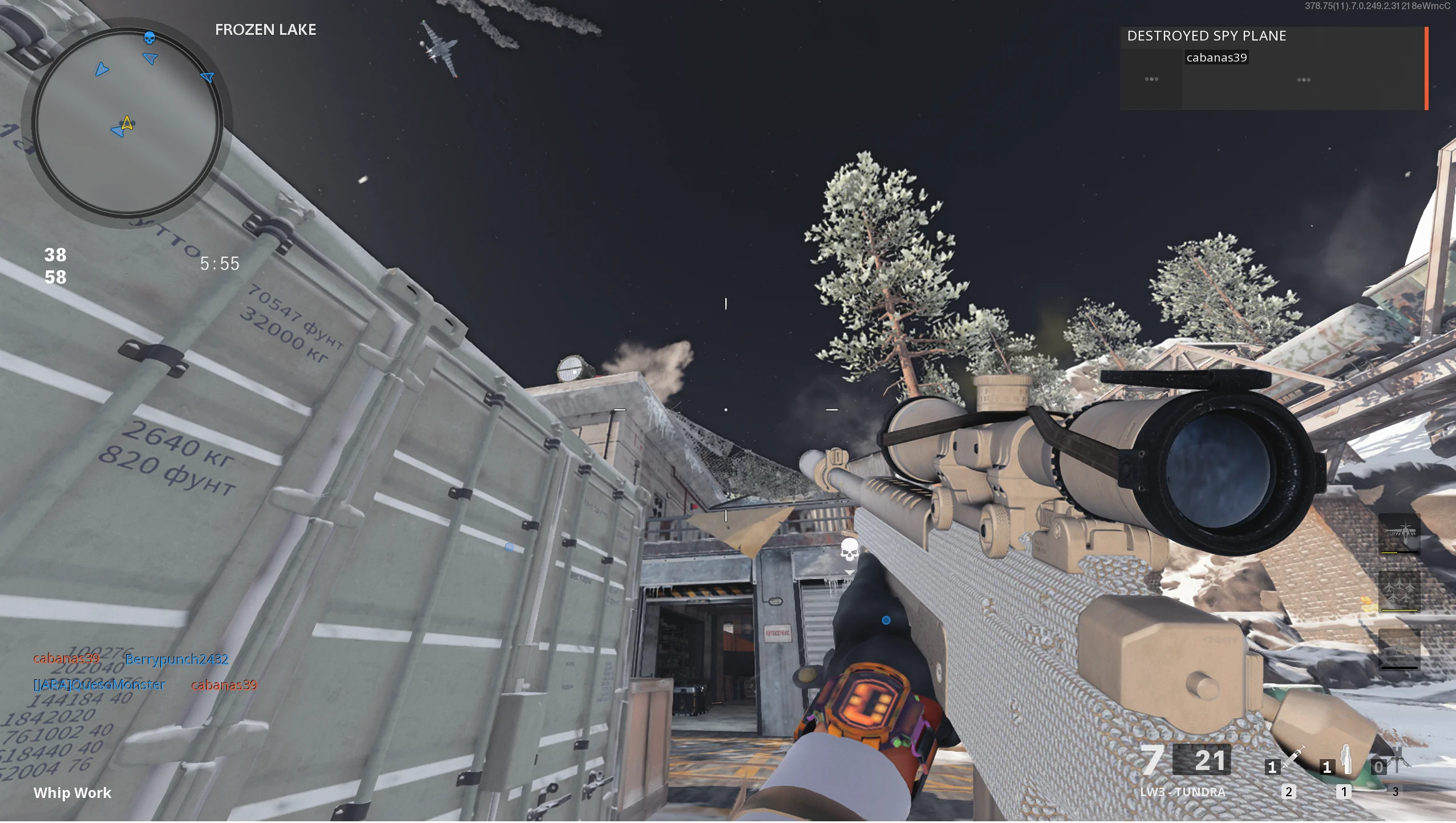
Call of Duty: Black Ops Cold War still suffers from a long running PC texture problem that can cause environments, skies and other surfaces to render incorrectly. There is no confirmed permanent fix, but lowering graphics settings, disabling the HD texture pack, reducing VRAM usage and turning off upscaling can make the problem happen much less often.
The issue has gained more attention since Black Ops Cold War joined Xbox Game Pass, bringing a new group of PC players into the six year old game.
The glitch can affect the campaign, multiplayer and Zombies. When it appears, textures may become extremely low resolution, environmental details can disappear and even the sky may fail to render correctly.
| Setting | Recommended change |
|---|---|
| Overall graphics quality | Medium |
| HD texture pack | Disable in game |
| VRAM target | Try 80% |
| DLSS or other upscaling | Turn off |
| Ray tracing | Disable if required |
| Background GPU workloads | Minimize |
| Render resolution | Adjust manually if performance drops |
How to reduce the Black Ops Cold War texture problem
The first step is to lower the game's graphics settings to medium.
Modern graphics cards may be capable of running Black Ops Cold War at much higher settings, but reducing the workload appears to help limit the texture issue. The problem is commonly suspected to involve memory management, although there is no confirmed technical explanation or official permanent solution.
You should also disable the HD texture option.
The HD texture files do not appear to provide enough visual improvement to justify the additional memory load when this problem is present. On the Game Pass version, the texture pack may remain installed as part of the game's large installation size, but you can still make sure it is not enabled in the graphics settings.
Disabling the HD textures can make a noticeable difference, particularly when combined with medium settings.
Lower the targeted VRAM usage
Black Ops Cold War includes a setting that controls how much of your graphics card's video memory the game should try to use.
Reducing this target may help if the texture problem is connected to VRAM pressure or poor memory management.
An 80% target is a reasonable place to start.
This is especially relevant if your graphics card has a smaller amount of VRAM, although the issue can also appear on high end GPUs with considerably more memory.
There is no single value guaranteed to work on every PC, so it may be worth testing the available settings.
Turn off DLSS and other upscaling
Disabling upscaling can also reduce the frequency of texture corruption.
On NVIDIA systems, turning off DLSS alongside reducing graphics quality has reportedly produced better results than changing graphics settings alone.
If disabling DLSS also requires you to turn off ray tracing features, that may further reduce GPU and memory pressure.
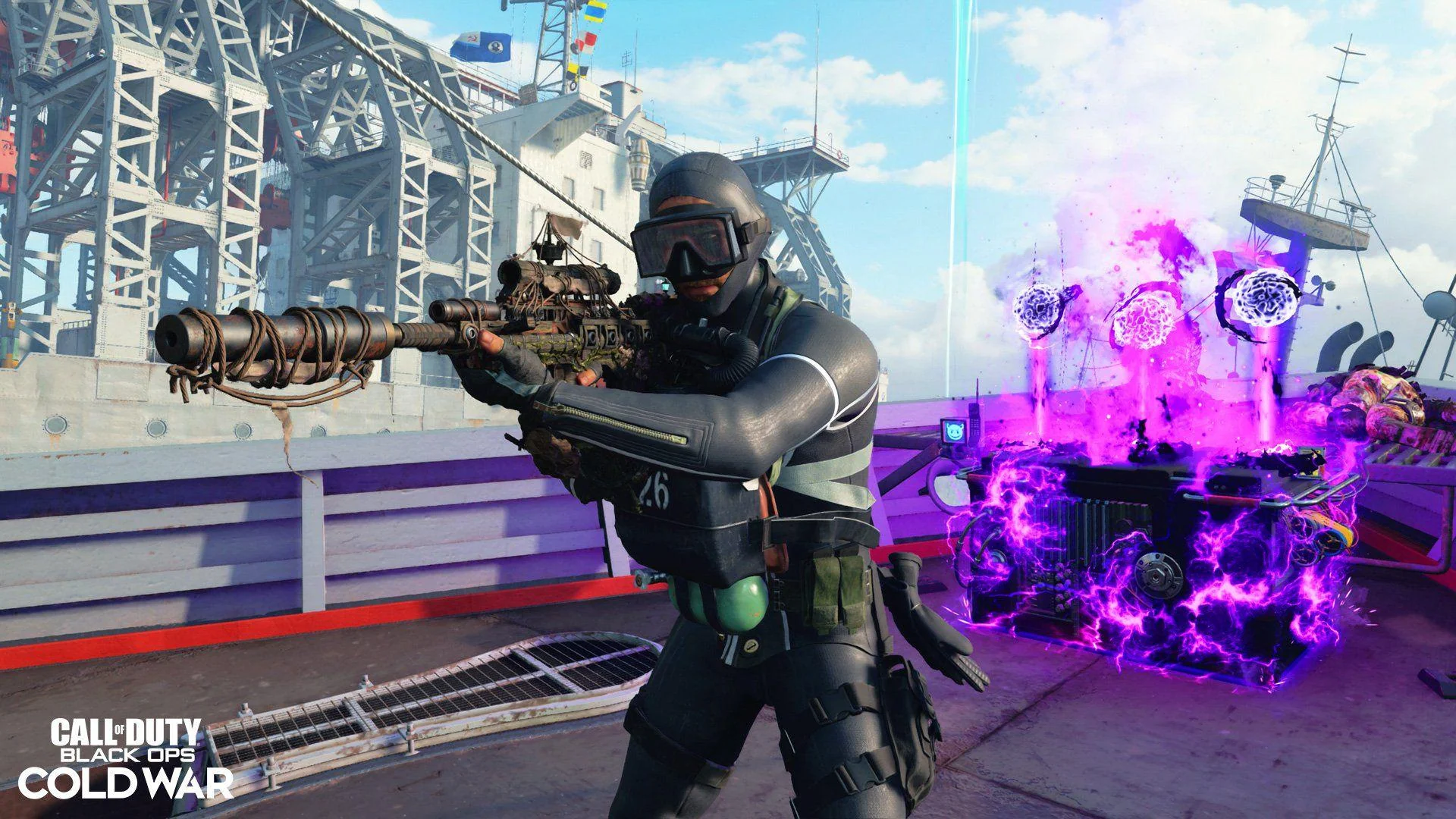
Black Ops Cold War launched in 2020 and is not especially demanding by current standards, so many relatively modern graphics cards should be capable of running it at native resolution without an upscaler.
If performance becomes too low, adjusting the game's render resolution manually may be a better compromise.
Reduce other GPU workloads while playing
Another useful step is to avoid running GPU intensive applications in the background.
Video playback in a browser, hardware accelerated applications and other programs using the graphics card can consume additional VRAM and GPU resources.
If you normally watch videos while playing, try disabling hardware acceleration in your browser or closing unnecessary applications entirely.
This does not repair the underlying bug, but reducing competing GPU workloads may make the game more stable.
A permanent fix remains unlikely
The texture problem has existed on PC for years and has been reported on both AMD and NVIDIA graphics cards.
Changing drivers does not appear to provide a consistent fix, which makes the problem difficult to attribute to one GPU manufacturer.
More advanced workarounds involving page files and configuration changes have also circulated, but these are more intrusive and may not be necessary if simpler graphics adjustments reduce the issue.
For most players, the best approach is to start with medium settings, disable HD textures and upscaling, set the VRAM target around 80%, and keep background GPU usage low.
These changes will not guarantee that the texture glitch disappears completely. However, they can reduce a problem that may otherwise appear several times during a short gaming session and make Black Ops Cold War considerably easier to play on PC.


Discussion (0)
Be the first to comment.