



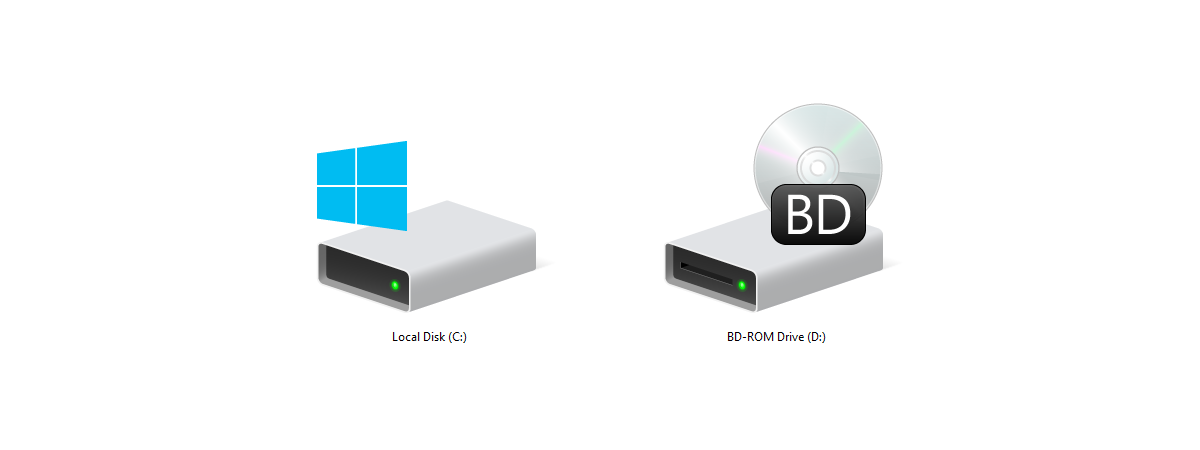
Running out of space on one drive while another sits unused is a common problem in Windows 11. Merging partitions fixes this by reallocating space where you actually need it.
But here’s the part most guides gloss over: Windows doesn’t truly “merge” partitions. It deletes one partition and extends another into that space. Once you understand that, the process becomes much clearer and safer.
What Merging Partitions Really Means
When you merge partitions:
- One partition is deleted
- Its space becomes unallocated
- Another partition is extended into that space
So if you’re merging D: into C:, you are effectively removing D: and expanding C:.
This is why data backup is not optional.
Before You Start (Don’t Skip This)
A clean merge depends on three conditions:
- Backup all data from the partition you will delete
- Ensure partitions are adjacent (next to each other)
- Confirm you are not touching system or recovery partitions
If the partitions are not adjacent, the built-in tool will not work.
Method 1: Merge Partitions Using Disk Management (Built-in)
This is the most reliable method for standard setups.
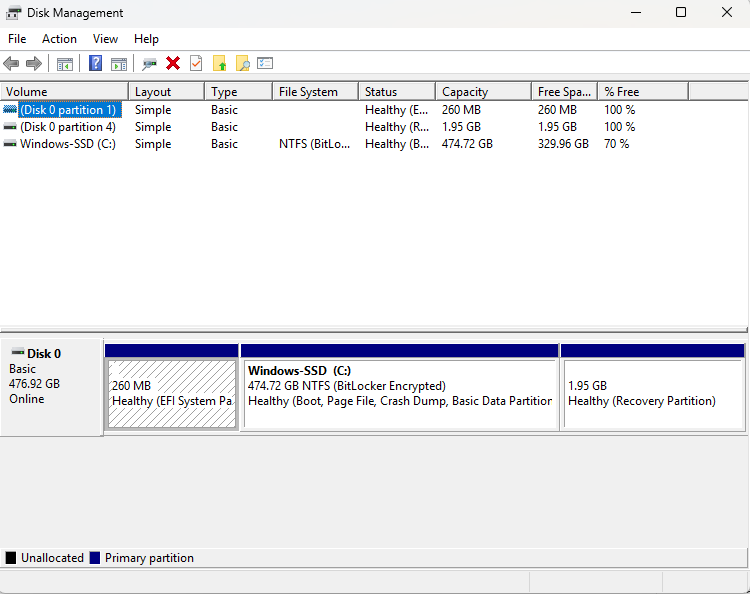
Step 1: Open Disk Management
- Right-click Start
- Select Disk Management
You’ll see a visual layout of all partitions.
Step 2: Delete the Secondary Partition
- Right-click the partition you want to merge (e.g., D:)
- Click Delete Volume
This converts it into Unallocated space.
Step 3: Extend the Primary Partition
- Right-click the partition you want to expand (e.g., C:)
- Click Extend Volume
- Follow the wizard
Once done, the space is combined into a single partition.
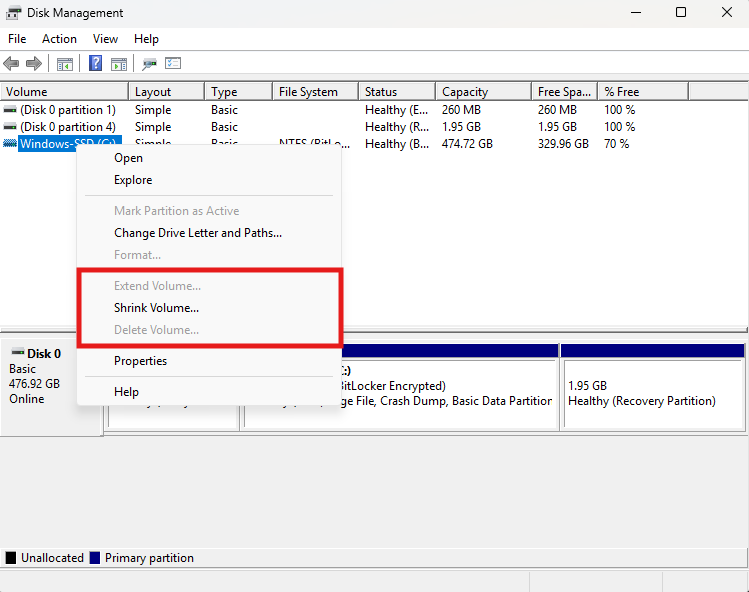
Why “Extend Volume” Is Sometimes Greyed Out
This is where most people get stuck.
Windows only allows extension when:
- The unallocated space is immediately to the right of the target partition
It will not work if:
- Another partition sits in between
- The layout is fragmented
This is not a bug. It’s a design limitation.
Method 2: When Disk Management Fails
If your partitions are not adjacent, you need tools that can move partitions, not just extend them.
Common options:
- MiniTool Partition Wizard
- EaseUS Partition Master
These tools allow you to:
- Reposition partitions
- Merge without manual deletion (in some cases)
- Handle more complex layouts
Use them carefully, but they solve what Windows cannot.
Real-World Scenario (What Most People Actually Do)
Typical case:
- C: drive is almost full
- D: drive has free space
The correct approach:
- Backup D:
- Delete D:
- Extend C:
This is the simplest and most effective use of partition merging.
What You Cannot Do
This is where expectations need to be realistic:
- You cannot merge partitions without affecting data using built-in tools
- You cannot merge non-adjacent partitions without third-party software
- You should not modify system or recovery partitions casually
Trying to bypass these limitations is where problems start.
Common Mistakes to Avoid
Most issues come from avoidable errors:
- Deleting the wrong partition
- Skipping backup
- Ignoring partition layout
- Interrupting the process
Partition operations are safe, but not forgiving.
When You Should Merge Partitions
Merging makes sense when:
- One drive is constantly full
- Another has unused space
- You want a simpler storage structure
It does not make sense if:
- You use partitions for organization
- You are unsure about the layout
Final Thoughts
Merging partitions in Windows 11 is straightforward once you stop thinking of it as a “merge” and start seeing it as controlled space reallocation.
For most users, Disk Management is enough. When it isn’t, third-party tools fill the gap.
The key is simple: understand the layout, back up your data, and follow the steps carefully. Do that, and the process is quick and reliable.
FAQs
Can I merge partitions without losing data?
Not with built-in tools. You need third-party software for that.
Why is Extend Volume greyed out?
Because the unallocated space is not adjacent to the partition.
Is merging partitions safe?
Yes, if you back up data and follow the correct steps.
Can I merge C and D drives?
Yes, if they are next to each other.



Discussion (0)
Be the first to comment.