



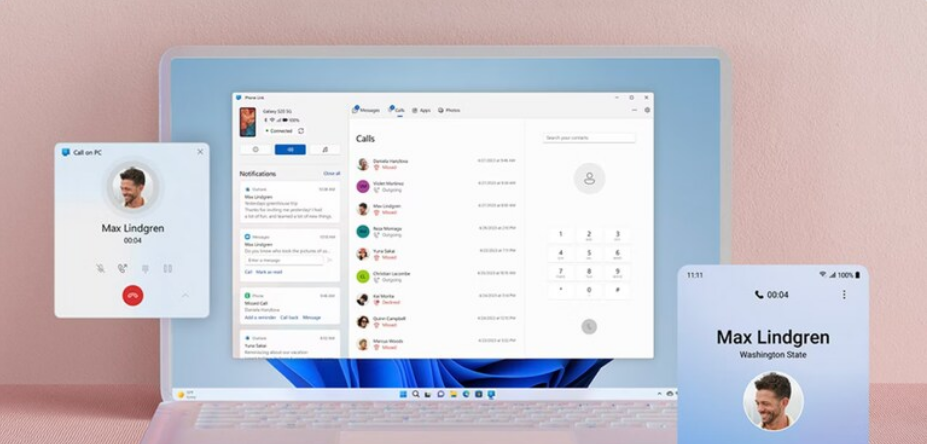
There are more situations than you might expect where making a phone call from your computer is genuinely useful. Your phone is charging in another room. You are already typing and do not want to switch devices. You want your calls to go through your computer's microphone and speakers rather than holding a phone to your ear. When you are travelling and want to make calls without using your SIM's minutes.
All of this is possible, and none of the methods require expensive software or complicated setup. Here are the three most practical ways to do it in 2026.
Method 1: Microsoft Phone Link for Android and iPhone
Phone Link is a free app built into Windows 11. It connects your phone to your PC over Bluetooth, letting you make and receive real cellular calls directly from your desktop. Your phone stays in your pocket and the call routes through your computer's microphone and speakers. The call uses your phone's mobile network, so it works for any number you can call normally.
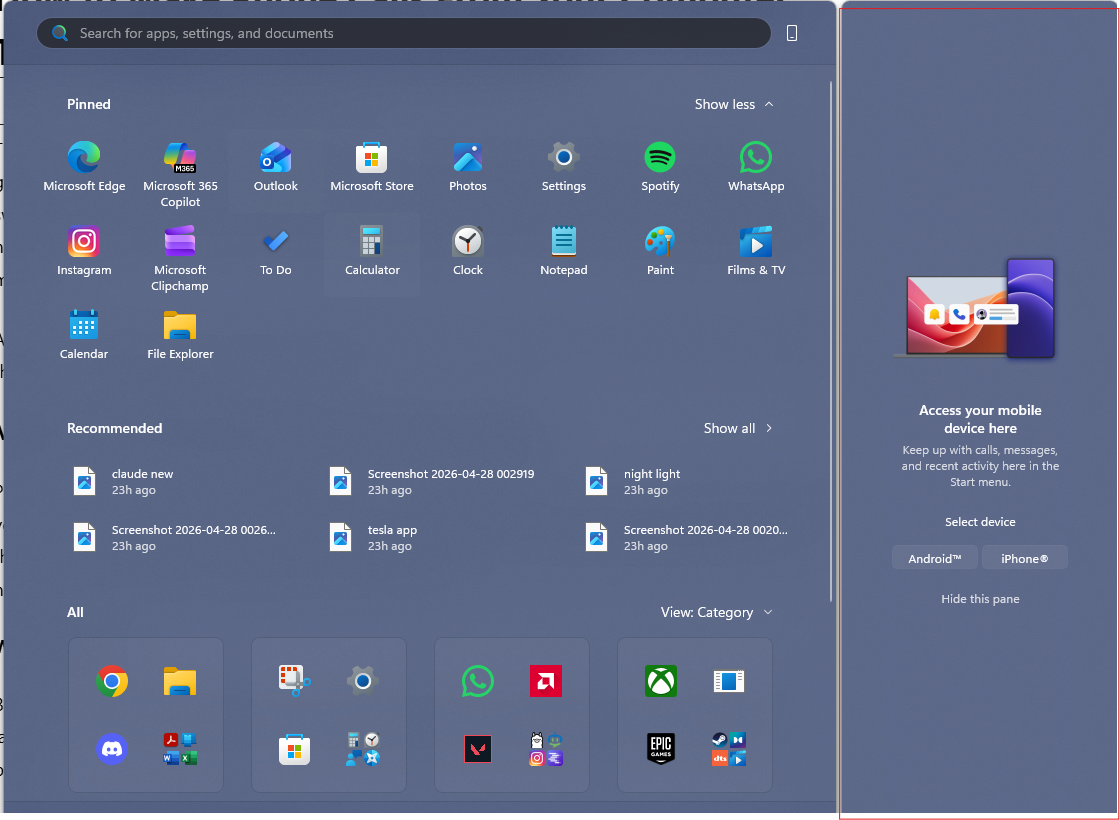
What You Need
Bluetooth must be enabled on both your PC and your phone. Your phone needs to run Android 7.0 or later, or iOS 15 or later. Both devices must be signed into the same Microsoft account for the initial pairing.
Step 1: Open Phone Link on Your PC
Press the Start button and search for Phone Link. Open it. If it is not installed, download it free from the Microsoft Store.
Step 2: Link Your Phone
On Android, download the Link to Windows app from the Google Play Store. Open it and scan the QR code shown on your PC screen. Follow the prompts to complete pairing.
On iPhone, Phone Link uses Bluetooth directly. Open Phone Link on your PC, select iPhone, and follow the on-screen instructions to pair via Bluetooth in your phone's settings.
Step 3: Allow Calls Permission
When prompted on your phone, allow Phone Link to access your calls and contacts. On Android this is a standard permission prompt. On iPhone it is handled through the Bluetooth pairing process. Without this permission, the calling feature does not work.
Step 4: Make a Call
In Phone Link, click the Calls tab at the top. A dial pad appears alongside your recent call history. Type a number into the dial pad or search your contacts by name. Click the call button. The call connects through your phone and the audio routes to your computer.
Incoming calls also appear on your PC as a notification, letting you answer or decline without picking up your phone.
Method 2: Google Voice for Internet Calls
Google Voice is a free service from Google that gives you a dedicated US phone number you can use to make and receive calls entirely over the internet. No phone required, no SIM card, no mobile network. Calls go through your browser or the Google Voice app using your Wi-Fi or internet connection.
This method is ideal for making calls when you do not have your phone nearby, when you want to avoid using your mobile minutes, or when you are outside your home country and want to call US numbers for free.

Step 1: Set Up a Google Voice Account
Go to voice.google.com in your browser. Sign in with your Google account. Follow the setup steps to choose a free phone number. Google Voice is available in the United States. Users in other countries can receive calls and use the service with limitations on outgoing calls.
Step 2: Make a Call From the Browser
Once set up, calls can be made directly in the browser. Click the dial pad icon on the left side of the Google Voice interface. Enter the number you want to call and click the call button. Your browser's microphone handles the audio. Allow microphone access when the browser prompts you.
Step 3: Adjust Audio Settings
Click the Settings gear icon in Google Voice and go to the Calls section. Make sure Calls in web is enabled. You can also configure which microphone and speaker your browser uses for calls here.
Google Voice calls to US phone numbers are free. Calls to international numbers are charged at low per-minute rates displayed in the settings.
Method 3: WhatsApp Desktop for Calls to WhatsApp Contacts
If the person you want to call uses WhatsApp, the WhatsApp desktop app lets you make voice and video calls directly from your PC. The call goes over internet data rather than the mobile network, so it works on any Wi-Fi connection regardless of your phone's signal strength.
Step 1: Install WhatsApp on Your PC
Go to whatsapp.com and download the WhatsApp desktop app for Windows. Install and open it.
Step 2: Link Your Account
Open WhatsApp on your phone. Go to Settings, then Linked Devices, then Link a Device. Scan the QR code shown in the desktop app. WhatsApp links the two devices and syncs your chats and contacts.
Step 3: Make a Call
Find the contact you want to call in the WhatsApp desktop app. Click their name to open the conversation. Click the phone icon for a voice call or the video camera icon for a video call. The call connects over the internet.
WhatsApp calls are free to any other WhatsApp user anywhere in the world. They require both you and the person you are calling to have WhatsApp installed.
Which Method Should You Use
Phone Link is the best option when you want to make real phone calls to any number using your existing phone plan. It works exactly like calling from your phone but with your computer's audio. The limitation is that your phone must be nearby with Bluetooth range.
Google Voice is the best option when you do not have your phone with you, when you are travelling abroad and want to call US numbers, or when you want a separate number for calls that does not expose your personal mobile number. It works entirely through a browser with no phone needed.
WhatsApp is the best option when the person you are calling also uses WhatsApp and you want free high-quality voice or video calls over internet without any mobile network involvement.
Frequently Asked Questions
Do I need my phone to be nearby to use Phone Link?
Yes. Phone Link routes calls through your phone's cellular connection. The phone needs to be within Bluetooth range, typically around ten metres, and must have Bluetooth enabled. The call audio is handled by your computer, but the actual cellular connection still relies on your phone being present and connected.
Can I use Google Voice outside the United States?
You can receive calls and use some features outside the US, but setting up a new Google Voice number requires a US-based account and a US phone number for verification. Existing Google Voice accounts can be accessed internationally through the browser, though outgoing calls to non-US numbers incur per-minute charges. Calls from non-US countries to US Google Voice numbers are free for the caller.
Is WhatsApp calling free internationally?
Yes. WhatsApp calls between WhatsApp users are free regardless of which country either person is in, as long as both devices have an active internet connection. WhatsApp uses data rather than your mobile calling minutes, so it does not incur international calling charges from your carrier.



Discussion (0)
Be the first to comment.