




If Microsoft apps keep asking you to sign in, your account likely isn’t properly linked. The most reliable fix is to link your Microsoft account using the official microsoft.com link, which creates a permanent connection across Windows, Xbox, and Microsoft services.
This guide walks you through the exact web-based steps, explains what linking actually changes, and shows how to confirm everything worked once you finish.
Table of contents
How to link your Microsoft account using microsoft.com
This method uses only a web browser and works on Windows, macOS, mobile, and tablets.
Step 1: Open the Microsoft account sign-in page
- Open a web browser.
- Go to microsoft.com and click the profile icon in the top right corner.
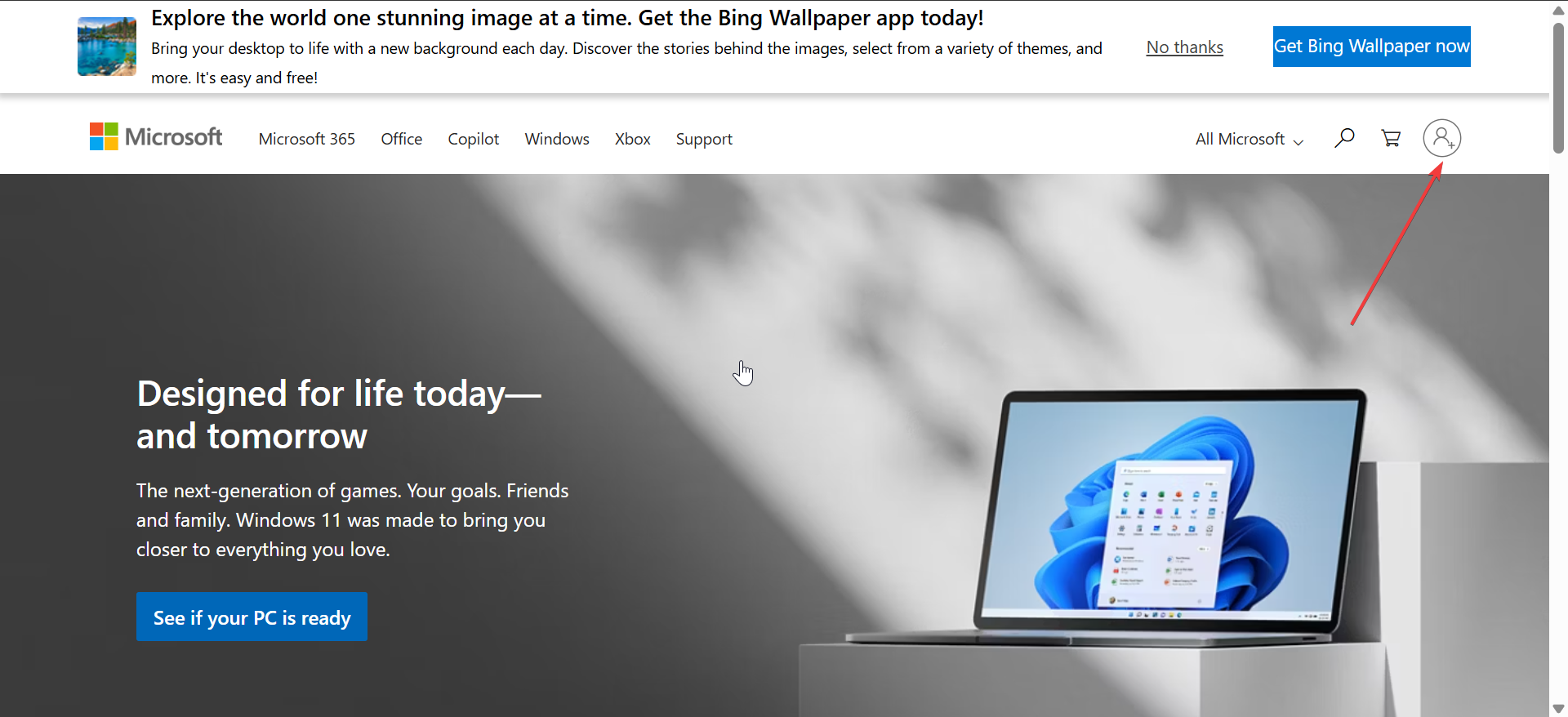

- This will take you to the sign in page.
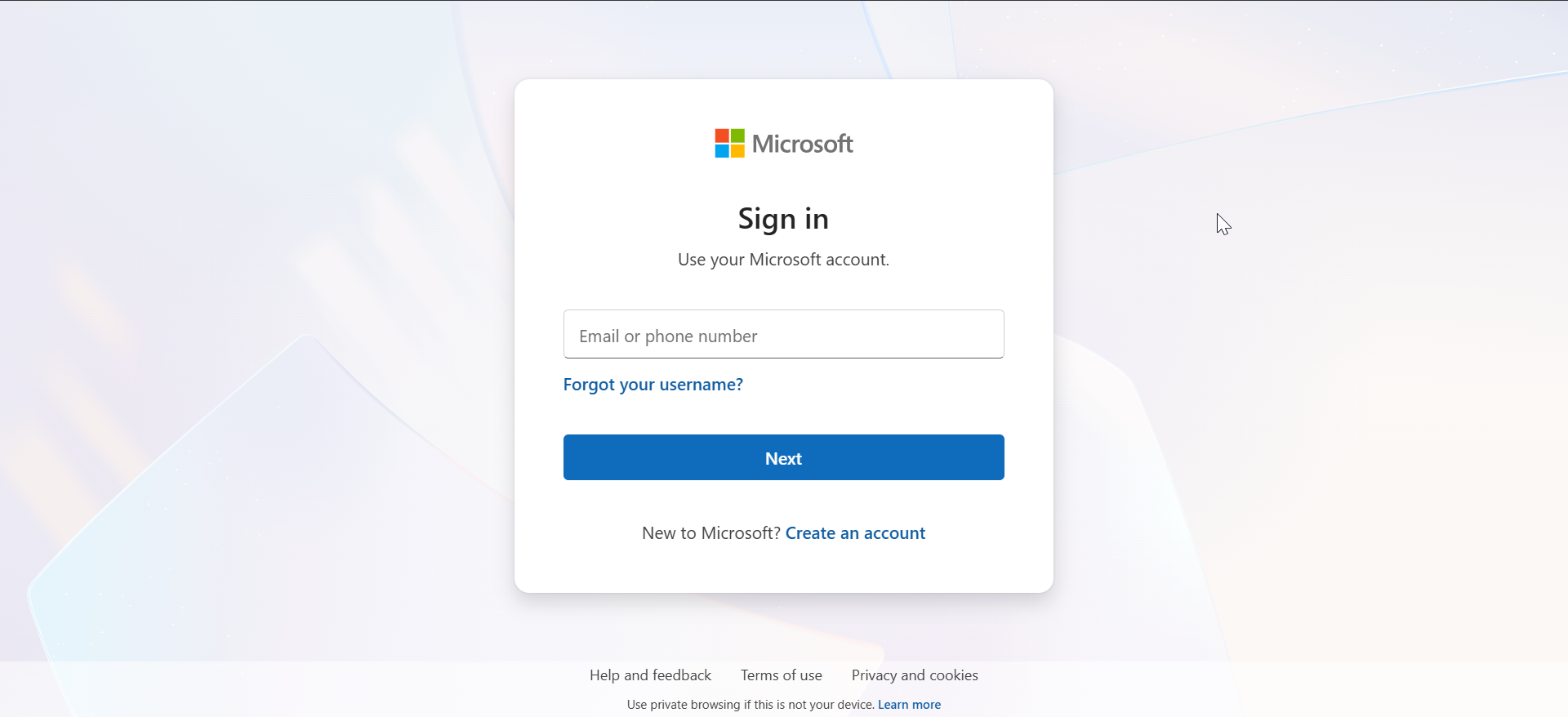
Step 2: Sign in with the account you want to link
- Enter the email address for the Microsoft account you want to use. Ensure to use the account that holds your subscriptions or purchases.

- Next, complete any verification Microsoft asks.

- Avoid switching accounts during setup to prevent duplicate profiles.
Step 3: Confirm account association
- Wait for the Microsoft account dashboard to load after sign-in.
- Check that your name, email, and security details appear correctly.

- If your profile and services show on the dashboard, the link is complete.
How linking affects Windows, Xbox, and Microsoft services
Linking your account unlocks full access across devices and platforms. Microsoft uses this connection to sync data and manage licenses.
Linking to a Windows local account
After linking on microsoft.com, sign in your Microsoft account on Windows. Ensure it is the same linked account and Windows can then sync settings, themes, and preferences.

This approach usually upgrades a local profile into a connected experience without losing files.
Linking for Xbox, Office, and OneDrive
Xbox profiles rely on your linked Microsoft account for purchases and cloud saves. Microsoft 365 apps and OneDrive use the same account to unlock subscriptions and cloud access.
If you sign into each service with the same account, your licenses and synced content should follow you.
Common problems when linking a Microsoft account
- Account already linked to another profile: Some services allow only one primary association at a time. If another profile already uses the account, sign out on that device or service and try again.
- Wrong email or alias used: Aliases can look like separate emails, but they still point to the same account. Confirm the primary alias in your Microsoft account settings before you link anything.
- Family or work account restrictions: Work or school accounts can block linking to personal services, depending on your organization’s policies. Microsoft Family settings can also limit certain changes for child accounts.
How to verify your Microsoft account is linked
Open your Microsoft account dashboard and review the Devices and Services areas. If your subscriptions and connected devices appear there, linking worked.
You can also check recent sign-in activity to confirm successful access on the services you care about.
Safety and privacy tips before linking
- Turn on two-step verification before you link services.
- Review your recovery email and phone number for accuracy.
- Avoid linking accounts on shared or public devices.
- Sign out when you finish, especially on a device you do not own.
FAQs
Can I unlink my Microsoft account later? Yes, but unlinking can remove access to synced settings and subscriptions, depending on the service.
Does linking merge two Microsoft accounts? No. Microsoft does not merge accounts during linking, and you choose one account to use across services.
Do I need Windows to link my account? No. The microsoft.com method works in a browser without Windows access.
Summary
- Open microsoft.com and sign in with the Microsoft account you want to use.
- Complete verification and confirm your account dashboard loads correctly.
- Sign into Windows, Xbox, or apps with the same account to activate sync.
- Verify linked services from the Microsoft account dashboard.
Linking through microsoft.com gives you the cleanest and most reliable setup. Review your security settings and confirm sync on the services you use most.


Discussion (0)
Be the first to comment.