




If you want early access to new features, you can join the Windows Insider Program and test upcoming versions of Windows before they are officially released.
This program is ideal for enthusiasts, developers, and users who like trying new features early, but it does come with some risks.
What Is Windows Insider Program?
The Windows Insider Program is a Microsoft initiative that allows users to test preview builds of Windows.
By joining, you can:
- Access new features before release
- Try experimental updates
- Provide feedback to Microsoft
- Stay ahead of regular users
It gives you a preview of what’s coming next in Windows.
Things to Know Before Joining
Before you join the Windows Insider Program, keep these points in mind:
- Preview builds may have bugs
- System stability can be affected
- Some features may not work properly
- It is not recommended for critical work PCs
It is best to use a secondary device if possible.
Requirements to Join Windows Insider Program
Make sure you have:
- A Microsoft account
- Windows 10 or Windows 11 installed
- Administrator access
- Internet connection
Your device should also meet Windows requirements.
How to Join Windows Insider Program
Follow these steps to get started.
1: Open Settings
- Press Windows + I
- Go to Windows Update
2: Open Windows Insider Program
- Click Windows Insider Program
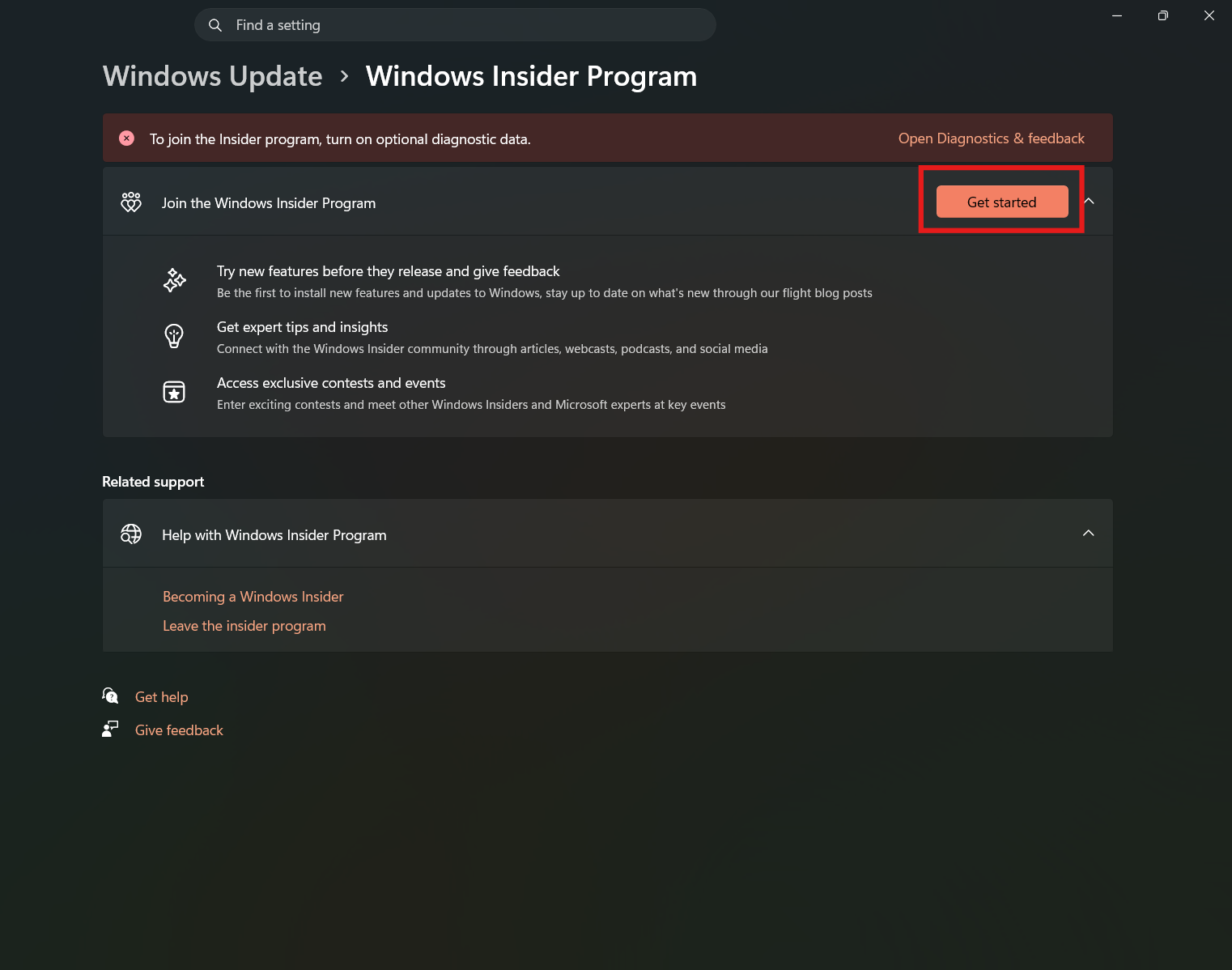
3: Get Started
- Click Get started
- Sign in with your Microsoft account
4: Choose Insider Channel
You will be asked to select a channel.
- Canary Channel – Very early builds, less stable
- Dev Channel – Latest features, unstable
- Beta Channel – More stable, near release
- Release Preview – Most stable
Choose based on your comfort level.
5: Restart Your PC
- Restart your computer
- Go to Windows Update
- Click Check for updates
You will start receiving Insider builds.
Which Insider Channel Should You Choose?
- Choose Release Preview for stability
- Choose Beta for testing near-final features
- Choose Dev or Canary for latest experimental features
Most users should go with Beta or Release Preview.
How to Leave Windows Insider Program
If you want to stop receiving preview builds:
- Go to Settings > Windows Update > Windows Insider Program
- Select Stop getting preview builds
You may need to reinstall Windows to fully exit certain channels.
Risks of Using Insider Builds
While exciting, Insider builds can cause:
- System crashes
- App compatibility issues
- Performance problems
Always back up your data before joining.
Final Thoughts
Learning how to join Windows Insider Program lets you explore upcoming features before everyone else. It is a great way to stay updated and experiment with new Windows capabilities.
However, because these builds are not fully stable, it is important to use them carefully and ideally on a non-primary device.
FAQs
What is Windows Insider Program?
It allows users to test early versions of Windows.
Is it safe to join?
Yes, but preview builds may have bugs.
Can I leave the Insider Program?
Yes, but some cases may require reinstalling Windows.
Which channel is best for beginners?
The Release Preview channel is the safest option.

Discussion (0)
Be the first to comment.