




Installing Windows XP still matters when you run legacy software, connect to older hardware, or build a retro PC. You avoid many issues when you prepare your hardware, choose the right install method, and set up XP drivers correctly. This guide shows modern ways to install Windows XP and explains how to fix the common errors you will likely encounter.
Table of contents
- What you need before installing Windows XP
- How to prepare your PC for the XP installation
- Install Windows XP from a CD
- Install Windows XP from a USB drive
- Install Windows XP in a virtual machine
- Activate and secure Windows XP after installation
- When to use XP for legacy apps or retro gaming
- Fix common Windows XP installation errors
- Tips
- FAQs
- Summary
What you need before installing Windows XP
You avoid installation issues when you gather the right tools first. You need a valid product key, a Windows XP ISO or CD, and hardware that supports XP.
Supported hardware and system requirements
Windows XP needs a basic CPU, 1 GB RAM for comfortable use, and at least 10 GB of storage. Older hardware works best because XP expects IDE-based drives and legacy BIOS settings.
Choosing between CD, USB, or virtual machine installation
Pick a CD install for older desktops, a USB install when your PC lacks an optical drive, and a virtual machine install when you want a safe environment for outdated apps.
How to prepare your PC for the XP installation
You improve your success rate when you configure your BIOS or UEFI correctly. Windows XP needs legacy boot settings to load its installer.
Change the boot order in BIOS or UEFI
Enter the firmware menu and move the CD or DVD drive or USB drive to the top of the boot list. Save your change and restart your PC to start the installer.
Configure SATA mode for XP compatibility
Switch to IDE or legacy mode so Windows XP detects your drive. AHCI mode triggers setup crashes with error 0x7B, so IDE mode lets setup continue without issues.
Install Windows XP from a CD
This method works best on older hardware that still reads discs.
Boot from the disc
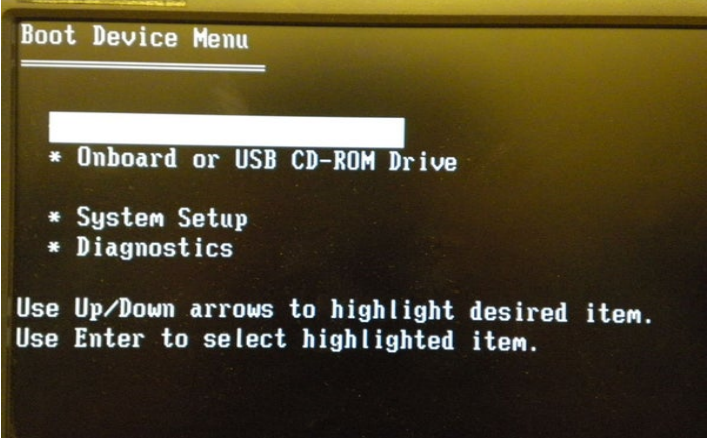
Insert your Windows XP CD and restart your PC. Press the key that loads the boot menu and select the optical drive.
Partition and format the drive
Choose the target drive and create a partition if needed. Format it as NTFS so Windows XP installs correctly and stores files efficiently.

Complete the XP setup wizard
Setup copies files, restarts, and loads the graphical wizard. Enter your product key, pick regional settings, and create your user account.

Install Windows XP from a USB drive
This method helps when your laptop or desktop no longer includes a disc drive.
Create a bootable XP USB
Use a USB creation tool that supports Windows XP installers. Load your ISO, write it to the USB, and verify that the tool includes the XP boot loader files.
Start the installation from USB
Restart your PC and boot from the USB drive. The process mirrors the CD install and takes roughly the same time.
Install Windows XP in a virtual machine
You can set up Windows XP on a virtual machine safely without exposing your main system or network.
Set up a VirtualBox or VMware VM
Create a virtual machine with 1 GB RAM, a 20 GB virtual disk, and IDE-based storage. Load your Windows XP ISO as the virtual optical disk.

Run the XP installer and complete setup
Start the virtual machine and follow the familiar XP setup sequence. Install Windows XP on the virtual disk and complete the wizard after the reboot.
Install guest additions or VMware tools
Run Guest Additions or VMware Tools to improve display resolution, mouse support, and networking.
Activate and secure Windows XP after installation
You complete the process when you activate Windows XP and install drivers. Windows XP no longer receives security updates, so handle it carefully.
Enter your XP product key and activate
Open the activation tool and enter your key to unlock all features. Windows XP still activates in many cases, especially with OEM keys.
Install essential drivers
Download chipset, video, audio, and network drivers for your exact hardware. These drivers improve performance and stability.
Apply security measures on an unsupported OS
Use Windows XP offline when possible. Enable the firewall, remove unnecessary services, and run it inside a virtual machine when you need safer isolation.
When to use XP for legacy apps or retro gaming
Windows XP still solves specific problems when you maintain older hardware or software.
Best use cases for XP today
Run industrial software, older business apps, or classic games that rely on Windows XP era APIs and drivers.
When XP is not recommended
Skip Windows XP when you handle sensitive data or require modern security standards. Modern systems block many Windows XP-era protocols.
Fix common Windows XP installation errors
- Setup did not find any hard disk drives: Switch to IDE mode in your BIOS or load SATA drivers during setup. This change resolves the installer’s inability to detect newer drives.
- NTLDR is missing: Check your boot device order and ensure your Windows XP media loads first. Rebuild the boot sector if a previous install corrupted it.
- Blue screen 0x7B during setup: This error appears when Windows XP uses the wrong storage driver. Switch to IDE mode or integrate SATA drivers into your XP media.
Tips
- Keep a second PC nearby to download missing drivers.
- Run Windows XP offline when you work with old apps or drivers you no longer trust.
- Use virtualization when you want maximum security.
- Verify your ISO file integrity to avoid setup errors.
- Store your Windows XP product key safely for future reinstalls.
FAQs
How long does it take to install Windows XP? Most installs finish in 20 to 40 minutes, depending on drive speed and hardware age.
Can I still activate Windows XP? Many users still activate Windows XP with OEM keys, but results vary depending on edition and hardware.
Does Windows XP support modern hardware? Windows XP struggles with new chipsets, storage controllers, and GPUs. Only older hardware works reliably.
Is Windows XP safe to use online? No. Windows XP no longer receives security updates, so you should run it offline or inside a virtual machine.
Summary
- Gather your Windows XP media, product key, and compatible hardware.
- Configure your BIOS or UEFI for CD, USB, or virtual machine installation.
- Install Windows XP using CD, USB, or a virtual machine.
- Fix common errors like disk detection issues and 0x7B crashes.
- Activate Windows XP, install drivers, and secure the system for safe use.
You now understand how to install Windows XP on older PCs, modern systems, and virtual machines. Stick with offline or virtual machine use for better safety, and pick the install method that matches your hardware and goal.
If you plan to run Windows XP long term, secure your environment and keep the system isolated from sensitive tasks. Treat Windows XP as a specialized tool for legacy apps instead of a daily driver.


Discussion (0)
Be the first to comment.