




If you want to check your laptop battery condition, you can easily get a battery health report on Windows 11 using a built-in command. This report shows battery capacity, usage history, and overall health.
It is especially useful if your battery drains quickly or you want to check long-term performance.
What Is a Battery Health Report?
A battery report is a detailed file generated by Windows that includes:
- Design capacity (original battery capacity)
- Full charge capacity (current capacity)
- Battery usage history
- Charge cycles and performance
It helps you understand how much your battery has degraded over time.
How to Generate Battery Report in Windows 11
Follow these steps.
1: Open Command Prompt as Administrator
- Press Windows + S
- Type Command Prompt
- Click Run as administrator
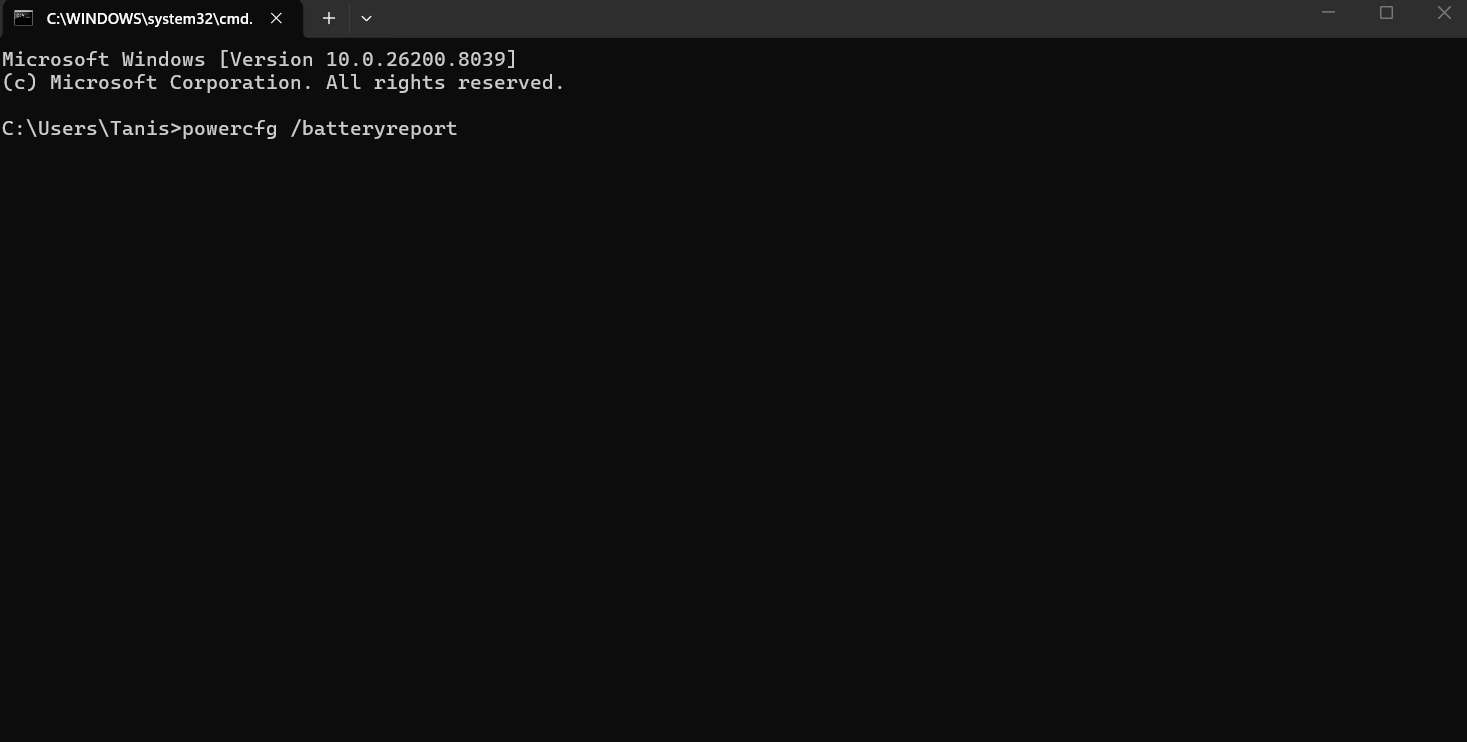
2: Run Battery Report Command
Type the following command and press Enter:
powercfg /batteryreport
3: Locate the Report File
After running the command, you will see a message with the file location.
Usually, it is saved as:
C:\Users\YourUsername\battery-report.html
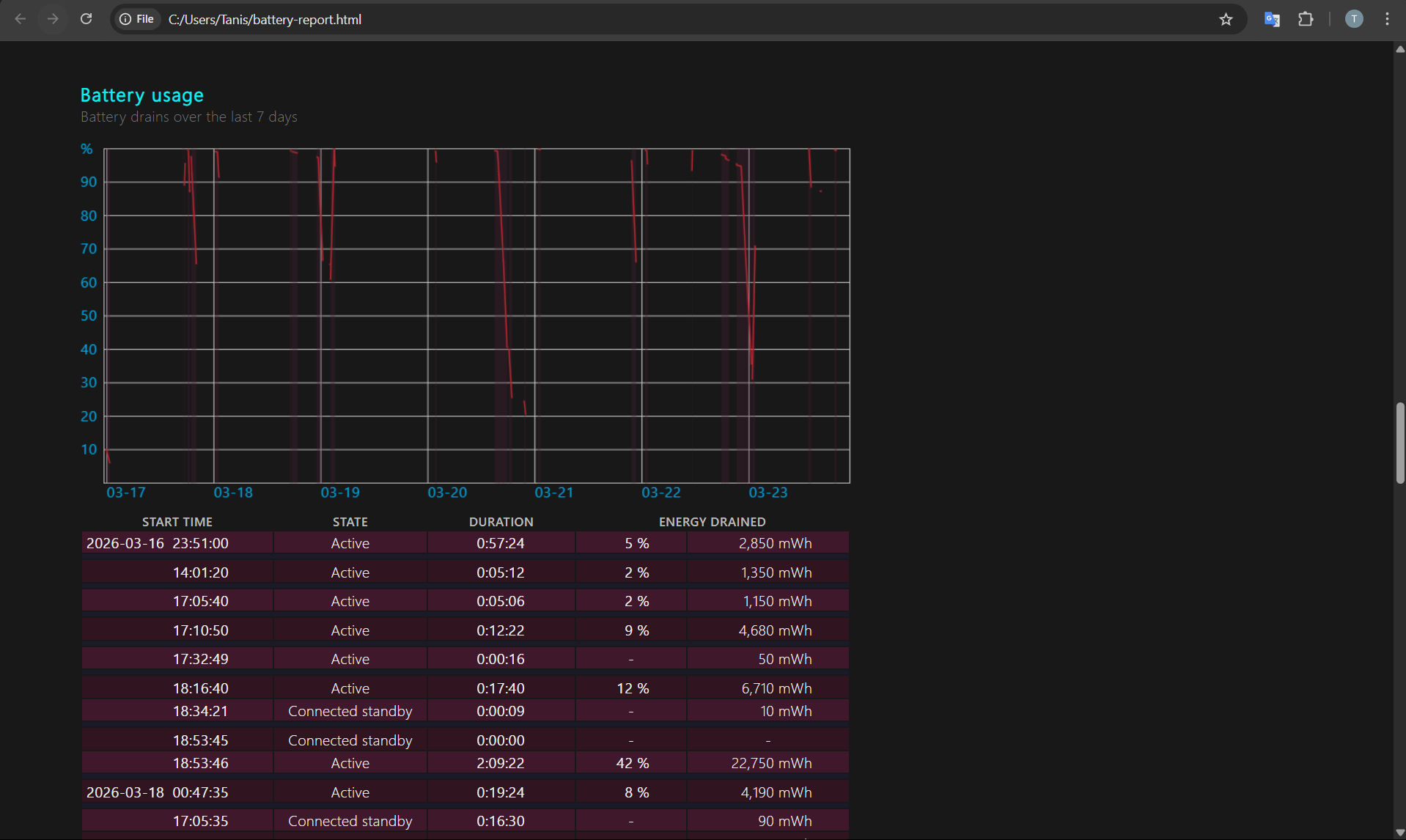
4: Open the Report
- Go to the file location
- Double-click the file
- It will open in your browser
How to Read Battery Health
The most important section is:
Installed Batteries
Look for:
- Design Capacity
- Full Charge Capacity
Example:
- Design Capacity: 50,000 mWh
- Full Charge Capacity: 40,000 mWh
This means your battery health is around 80%.
What Is Good Battery Health?
- 90–100% → Excellent
- 70–89% → Normal usage
- Below 70% → Battery is worn out
Lower capacity means faster battery drain.
Other Useful Sections
The report also includes:
- Recent usage – How battery is used
- Battery usage – Charge vs discharge
- Usage history – Long-term trends
- Battery life estimates – Expected runtime
These help diagnose issues.
Tips to Maintain Battery Health
- Avoid keeping battery at 0% or 100% for long
- Use original charger
- Avoid overheating
- Enable battery saver mode
- Keep charge between 20%–80% when possible
Common Issues
Command not working:
- Make sure Command Prompt is run as admin
Report not opening:
- Check correct file location
- Open using a browser
Final Thoughts
Learning how to get battery health report on Windows 11 is one of the easiest ways to monitor your laptop’s battery condition. The built-in report provides detailed insights without needing any third-party software.
It is a simple command, but very useful for maintaining your device over time.
FAQs
How do I check battery health in Windows?
Use the command powercfg /batteryreport.
What is a good battery health percentage?
Above 80% is generally considered good.
Do I need any software for this?
No. It is built into Windows.

Discussion (0)
Be the first to comment.