




If you encounter the Chromewebdata error in Google Chrome, it usually means that the browser failed to load a webpage properly due to corrupted cache data, browser extensions, or temporary profile issues. The error often appears when Chrome cannot access or process stored browsing data.
Although the issue can look confusing, it is usually easy to fix by clearing browser data, disabling problematic extensions, or resetting Chrome settings. This guide explains how to fix the Chromewebdata error step by step.
What Is the Chromewebdata Error?
The Chromewebdata error occurs when Google Chrome tries to load a webpage but fails due to corrupted or incomplete browser data. The page may display an error message or appear blank with the text “chromewebdata”.
This problem typically happens when:
- Cached data becomes corrupted
- Browser extensions interfere with page loading
- Temporary browser files cause conflicts
- Chrome settings are misconfigured
Fixing the underlying browser data usually resolves the issue.
Restart Google Chrome
Sometimes the error is temporary and can be fixed by restarting the browser.
Steps:
- Close Google Chrome completely.
- Wait a few seconds.
- Open Chrome again.
- Reload the webpage.
This simple step may resolve temporary browser glitches.
Clear Chrome Cache and Browsing Data
Corrupted cache files are one of the most common causes of the Chromewebdata error.
1: Open Chrome Settings
- Open Google Chrome.
- Click the three-dot menu in the top-right corner.
- Select Settings.
2: Clear Browsing Data
- Go to Privacy and security.
- Click Clear browsing data.
3: Remove Cached Data
- Select Cached images and files.
- Choose a time range such as All time.
- Click Clear data.
Restart Chrome after clearing the cache.
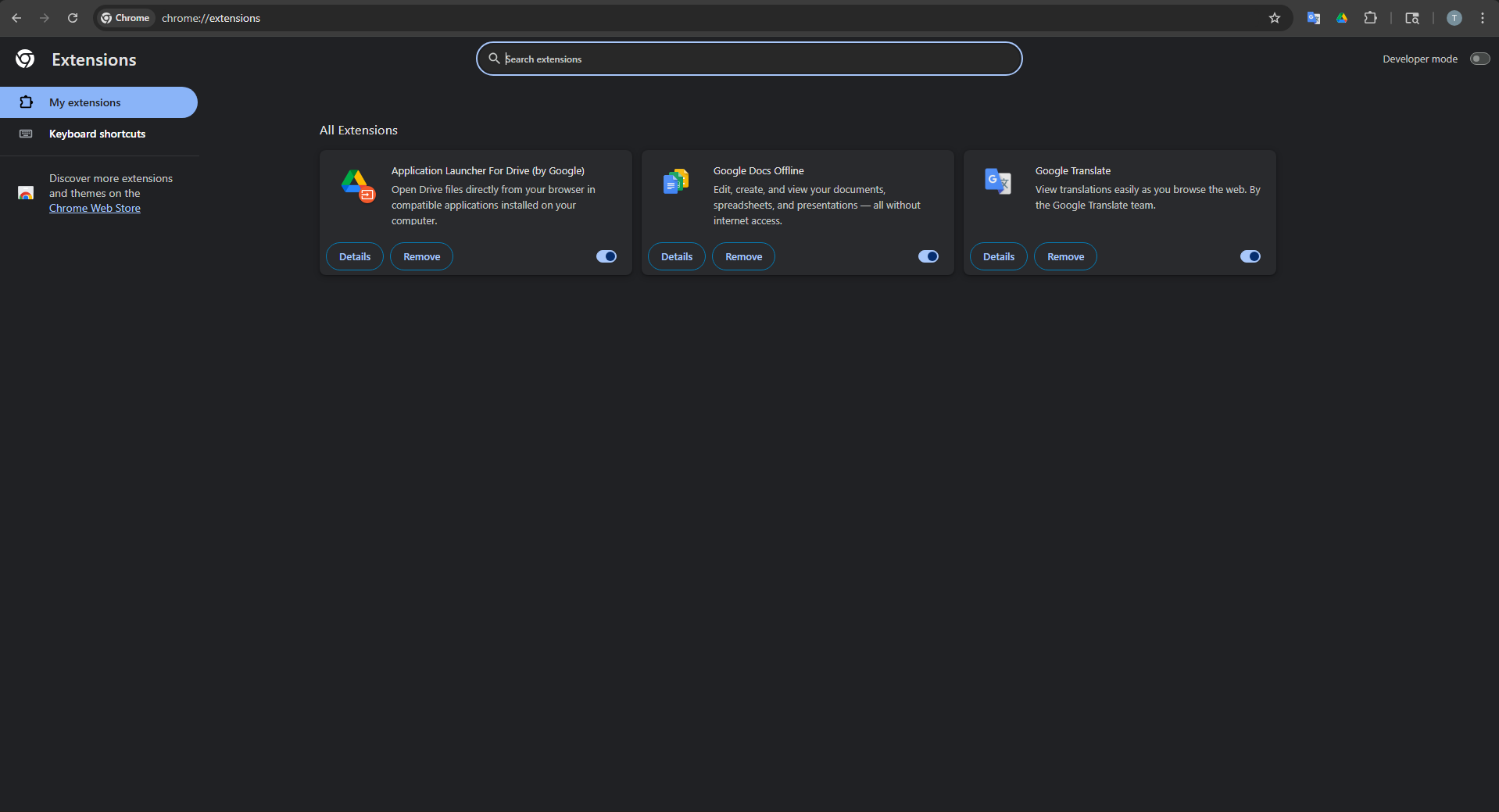
Disable Chrome Extensions
Some extensions may interfere with webpage loading.
Steps:
- Open Chrome.
- Type chrome://extensions in the address bar.
- Press Enter.
- Disable extensions one by one.
After disabling extensions, reload the page to see if the error disappears.
Update Google Chrome
Running an outdated version of Chrome can cause compatibility issues.
Steps:
- Open Chrome.
- Click the three-dot menu.
- Select Help > About Google Chrome.
- Chrome will check for updates automatically.
Install any available updates and restart the browser.
Reset Chrome Settings
If the problem continues, resetting Chrome may help.
Steps:
- Open Chrome Settings.
- Go to Reset settings.
- Click Restore settings to their original defaults.
- Confirm the reset.
This removes problematic configurations without deleting your bookmarks.
Create a New Chrome Profile
Profile corruption can sometimes cause the Chromewebdata error.
Steps:
- Open Chrome.
- Click your profile icon in the top-right corner.
- Select Add new profile.
- Sign in with your Google account.
A new profile can resolve browser data conflicts.
Reinstall Google Chrome
If none of the above solutions work, reinstalling Chrome may fix the issue.
Steps:
- Uninstall Google Chrome from Settings > Apps.
- Restart your computer.
- Download the latest version of Chrome from the official website.
- Install the browser again.
This ensures all browser files are refreshed.
Final Thoughts
The Chromewebdata error in Google Chrome is usually caused by corrupted cache files, problematic extensions, or outdated browser versions. Clearing browsing data, disabling extensions, and updating Chrome are the most effective ways to resolve the issue.
If the problem persists, resetting Chrome or reinstalling the browser can restore normal functionality.
FAQs
What causes the Chromewebdata error?
It is usually caused by corrupted browser cache, extensions, or profile issues.
Is the Chromewebdata error harmful?
No. It is typically a browser loading issue and does not affect your system.
Can clearing cache fix the Chromewebdata error?
Yes. Clearing cached data often resolves the issue.
Should I reinstall Chrome to fix the error?
Reinstalling Chrome may help if other troubleshooting steps do not work.


Discussion (0)
Be the first to comment.