




Input lag is one of those things you don’t always notice immediately, but once you do, it’s hard to ignore. If your actions feel slightly delayed in games, AMD’s Radeon Anti-Lag is designed to reduce that gap.
Available through AMD Software: Adrenalin Edition, this feature helps improve responsiveness by syncing how your CPU and GPU handle frames.
What Radeon Anti-Lag Actually Does
Radeon Anti-Lag reduces the delay between:
- Your input (mouse/keyboard)
- The frame being processed and displayed
It works by limiting how far ahead the CPU gets compared to the GPU, which reduces buffering and improves responsiveness.
This is most noticeable in:
- Competitive games (FPS, esports)
- Situations where frame rates fluctuate
- GPU-bound scenarios
It does not increase FPS. It improves how responsive the game feels.
How to Enable Radeon Anti-Lag
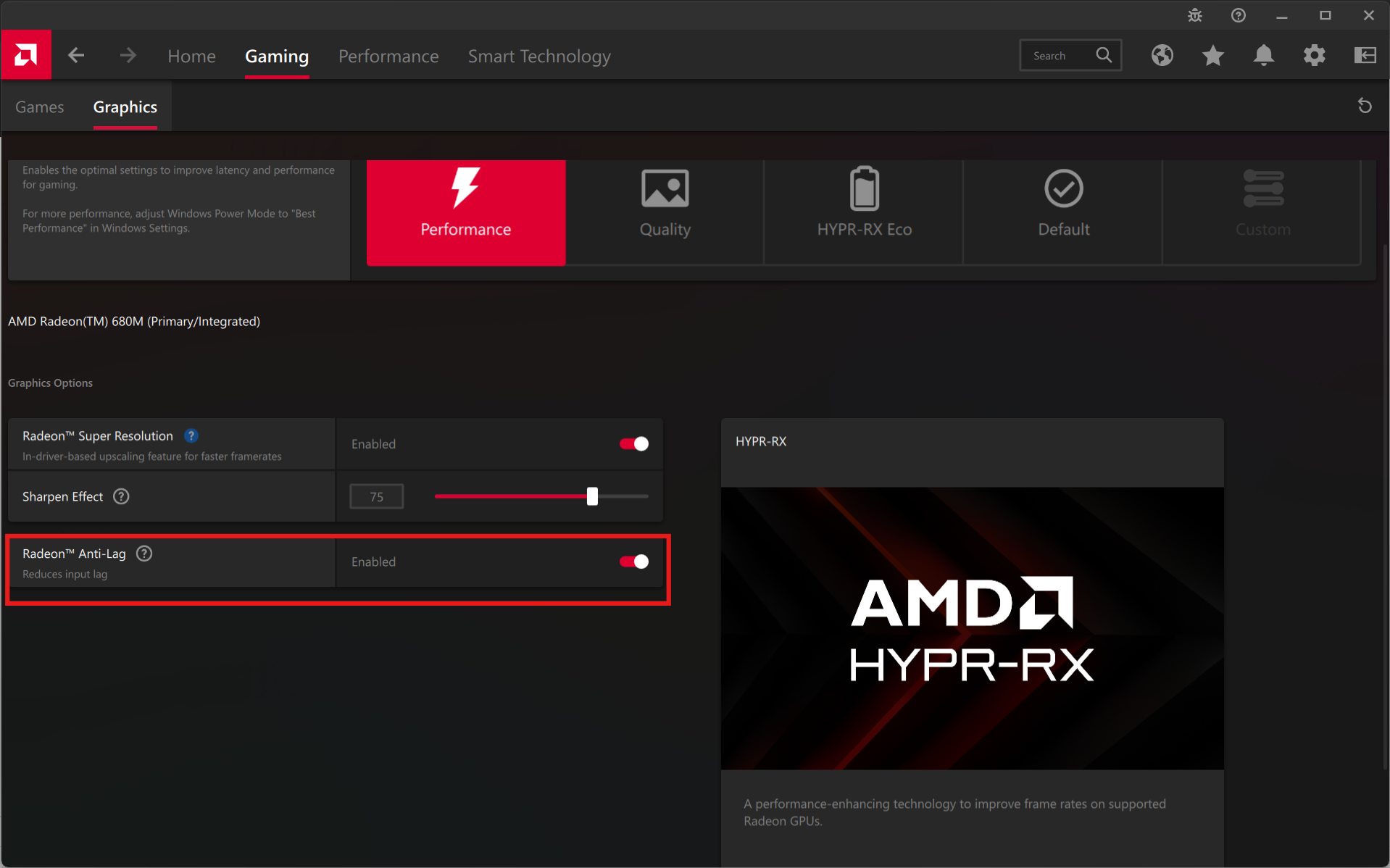
Method 1: From AMD Software (Global Setting)
- Open AMD Software: Adrenalin Edition
- Go to Gaming
- Click on Graphics
- Find Radeon Anti-Lag
- Toggle it ON
This enables it for all supported games.
Method 2: Per-Game Settings (Recommended)
For better control:
- Open AMD Software
- Go to Gaming
- Select a specific game
- Enable Radeon Anti-Lag
This lets you use it only where it actually helps.
When You Should Use Radeon Anti-Lag
It works best in:
- Competitive shooters (CS, Valorant, etc.)
- Fast-paced multiplayer games
- Systems where GPU usage is high
In these scenarios, you may notice:
- Faster response to inputs
- Slightly smoother aiming
- Reduced “heavy” feeling controls
When It Doesn’t Help Much
Radeon Anti-Lag is not always beneficial.
You may not notice a difference if:
- Your system is CPU-bound
- You already have very high FPS
- You’re playing slower-paced games
In some cases, it can even:
- Slightly reduce performance
- Cause minor instability in older titles
Anti-Lag vs Other Technologies
It helps to understand where it fits.
- Radeon Anti-Lag → Reduces input delay
- V-Sync → Prevents screen tearing (can increase lag)
- FreeSync → Smooths visuals without adding lag
Anti-Lag is about responsiveness, not visuals.
Real-World Insight
In practice, Radeon Anti-Lag is not a dramatic upgrade. It is a subtle improvement.
You’ll notice it more if:
- You are sensitive to input delay
- You play competitive games regularly
For casual gaming, the difference may be minimal.
Should You Enable It?
Enable it if:
- You play competitive or fast-paced games
- Your GPU is often at high usage
- You want better responsiveness
Leave it off if:
- You don’t notice input lag
- You prioritize maximum FPS stability
- You play slower or single-player games
Final Thoughts
Radeon Anti-Lag is a simple feature that targets a specific problem. It doesn’t try to boost performance or visuals. It focuses on making your inputs feel more immediate.
Used in the right scenarios, it improves responsiveness without requiring any complex setup.
FAQs
What does Radeon Anti-Lag do?
It reduces input lag by syncing CPU and GPU workloads.
Does it increase FPS?
No, it improves responsiveness, not frame rate.
Should I enable it for all games?
Not necessarily. It’s best for competitive games.
Can it cause issues?
Rarely, but some older games may not respond well.
Is it better than V-Sync?
They serve different purposes. Anti-Lag reduces delay, V-Sync prevents tearing.



Discussion (0)
Be the first to comment.