




If you use Claude heavily, you have probably hit a usage limit at least once. The conversation just stops, and you have to wait for your session or weekly limit to reset before you can continue. For anyone using Claude for work, writing, or research, that interruption at a critical moment is genuinely frustrating. The Auto-reload feature inside Claude's Extra usage settings solves this problem. It keeps your balance topped up automatically so you can keep working without interruption. This guide explains what Extra usage is, what Auto-reload does, and exactly how to enable it.
What Is Extra Usage on Claude?
Extra usage is an add-on feature that lets you continue using Claude even after you have hit your plan's included usage limits. It works like a prepaid balance that Claude draws from when your standard session or weekly limits are exhausted.
As you can see in the Usage settings, your plan usage has two limits. The current session limit resets every few hours, and the weekly limit resets once a week. When either of those runs out, Claude stops responding until the reset. Extra usage steps in at that point and lets you carry on without waiting.
Extra usage is billed separately from your plan subscription. You spend from your current balance, and that balance resets on the first of each month. A monthly spend limit controls how much can be drawn from your balance in a given month, which prevents unexpected charges. You can adjust that limit at any time from the same settings page.
What Is Auto-Reload?
Auto-reload is a setting that automatically replenishes your Extra usage balance when it runs low. Without it, you need to manually buy extra usage each time your balance drops, which means you could still hit a wall if you run out while working and forget to top up.
With Auto-reload turned on, Claude monitors your balance and reloads it automatically when needed. You stay within the monthly spend limit you have set, so there are no surprises on your billing. It is the difference between having to manage your balance manually and having Claude handle it quietly in the background.
Looking at the screenshot, the current balance shows $18.51 with Auto-reload currently turned off. Enabling it means that balance will reload automatically rather than requiring you to remember to buy more manually each time.
How to Enable Auto-Reload for Extra Usage on Claude
Enabling Auto-reload takes less than a minute. Here is exactly how to do it.
- Go to claude.ai and sign in to your account. Click your profile picture or initials in the top right corner and select Settings from the dropdown menu.
- In the left sidebar of the Settings panel, click on Usage. This is where all your plan usage limits and Extra usage controls live.
- Scroll down to the Extra usage section. You will see your current balance, your monthly spend limit, and the Auto-reload option displayed as a clickable link next to your current balance.
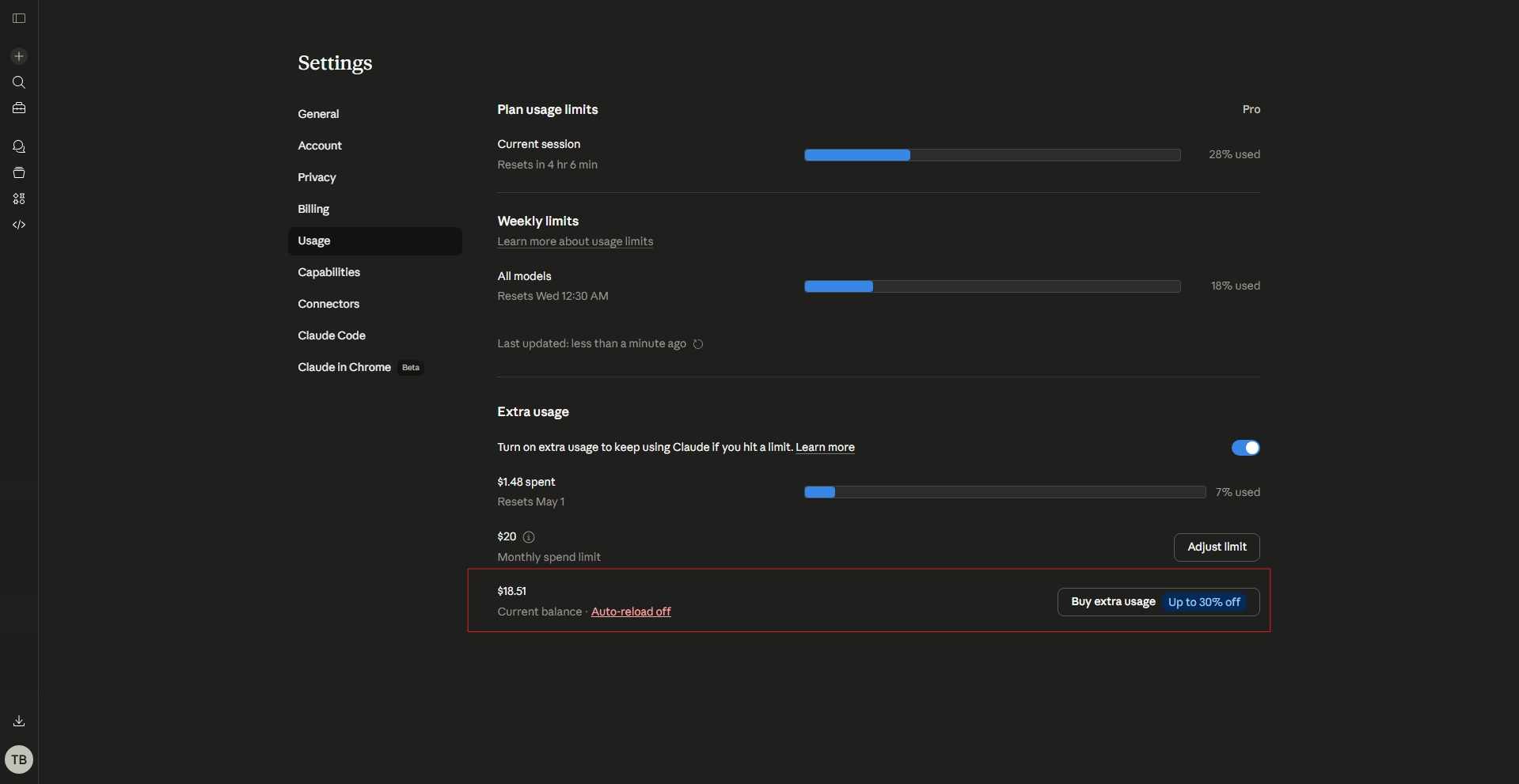
- Click Auto-reload off. This opens the Auto-reload settings where you can turn the feature on and configure how it works.
- Toggle Auto-reload on and set your preferred reload amount and the balance threshold at which you want it to trigger. Click Save or Confirm to apply the setting.
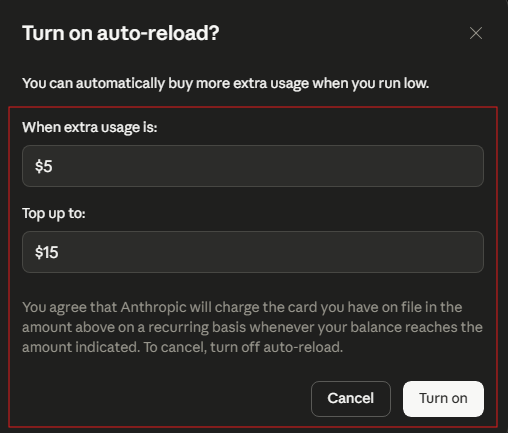
Once enabled, Claude will automatically reload your Extra usage balance according to the settings you chose. You will not need to revisit this page unless you want to change the reload amount or turn the feature off.
How to Adjust Your Monthly Spend Limit
The monthly spend limit sits directly above the Auto-reload setting in the Usage page. It controls the maximum amount that can be spent on Extra usage in a single calendar month, giving you a hard ceiling on what you can be charged beyond your plan subscription.
To change it, click the Adjust limit button on the right side of the monthly spend limit row. Enter the amount you are comfortable spending per month and save the change. Setting a limit that reflects your actual usage pattern means you benefit from Auto-reload without worrying about runaway charges.
The spend limit resets on the first of each month alongside your Extra usage balance. If you use less than your limit in a given month, the unused portion does not carry over.
How to Buy Extra Usage Manually
If you prefer not to use Auto-reload, you can top up your balance manually at any time by clicking the Buy extra usage button on the right side of the Extra usage section. Claude currently offers a discount of up to 30 percent when purchasing extra usage, which makes buying in larger amounts more cost effective if you know you will need it.
Manual purchases add to your current balance immediately. They count toward your monthly spend limit the same way auto-reloaded amounts do.
Who Should Enable Auto-Reload
Auto-reload is most useful for anyone who uses Claude consistently throughout the day and cannot afford to be interrupted mid-task. Writers working on long documents, developers using Claude for code reviews, researchers running multiple queries in sequence, and anyone doing deep work with Claude regularly will find it removes friction from their workflow.
If you use Claude casually and do not hit limits often, manually topping up when needed is perfectly fine and keeps you in tighter control of what you spend. The monthly spend limit means even with Auto-reload on, you are never charged more than you have explicitly approved.
Final Thoughts
Auto-reload is a small setting that makes a meaningful practical difference if Claude is part of your daily workflow. Once it is enabled and your monthly spend limit is set to a number you are comfortable with, you can work through Claude without thinking about usage limits at all. The setup takes under a minute and the peace of mind it provides during intensive work sessions is worth it.
Frequently Asked Questions
What is Extra usage on Claude?
Extra usage is an optional add-on that lets you continue using Claude after your plan's included session and weekly limits run out. It draws from a prepaid balance that resets on the first of each month and is controlled by a monthly spend limit you set yourself.
What does Auto-reload do on Claude?
Auto-reload automatically replenishes your Extra usage balance when it drops below a set threshold, so you never run out mid-conversation. Without it, you need to manually buy extra usage each time your balance runs low.
Is there a spending limit for Auto-reload?
Yes. The monthly spend limit in the Extra usage section controls the maximum that can be charged to your account through Extra usage in any given month. Auto-reload respects this limit, so you will not be charged beyond what you have approved.
Where do I find the Auto-reload setting on Claude?
Go to claude.ai, open Settings, and click on Usage in the left sidebar. Scroll down to the Extra usage section and you will see the Auto-reload option next to your current balance. Click it to open the Auto-reload settings and turn it on.
Can I turn off Auto-reload after enabling it?
Yes. Go back to Settings, click Usage, and find the Auto-reload option in the Extra usage section. Toggle it off at any time. Your balance will remain as-is but will no longer reload automatically.



Discussion (0)
Be the first to comment.