




You can save an entire website on your device and access it without an Internet connection. This helps when you travel, archive research, or store pages that might change or disappear.
Several tools handle offline website downloads on Windows, macOS, Linux, Android, and iOS. The right tool depends on your device and how much control you need. In this guide, we have explained the steps to follow and the top tools that can help you get your favorite sites for offline viewing.
But before you start, note that some websites allow offline downloads, while others block automated crawlers. Check if the content is public and requires no login. Also, you should throttle your download speed to avoid putting unnecessary load on a server.
1) Download a website on Windows
Windows offers the broadest set of tools. Start with the simplest GUI option and move to command-line tools if you need more control.
Use HTTrack (easiest method)
HTTrack downloads full sites and stores them in a local folder. Its wizard interface guides you through setup.
- Open HTTrack and select Next.
- Enter a project name, choose a folder, and click Next.
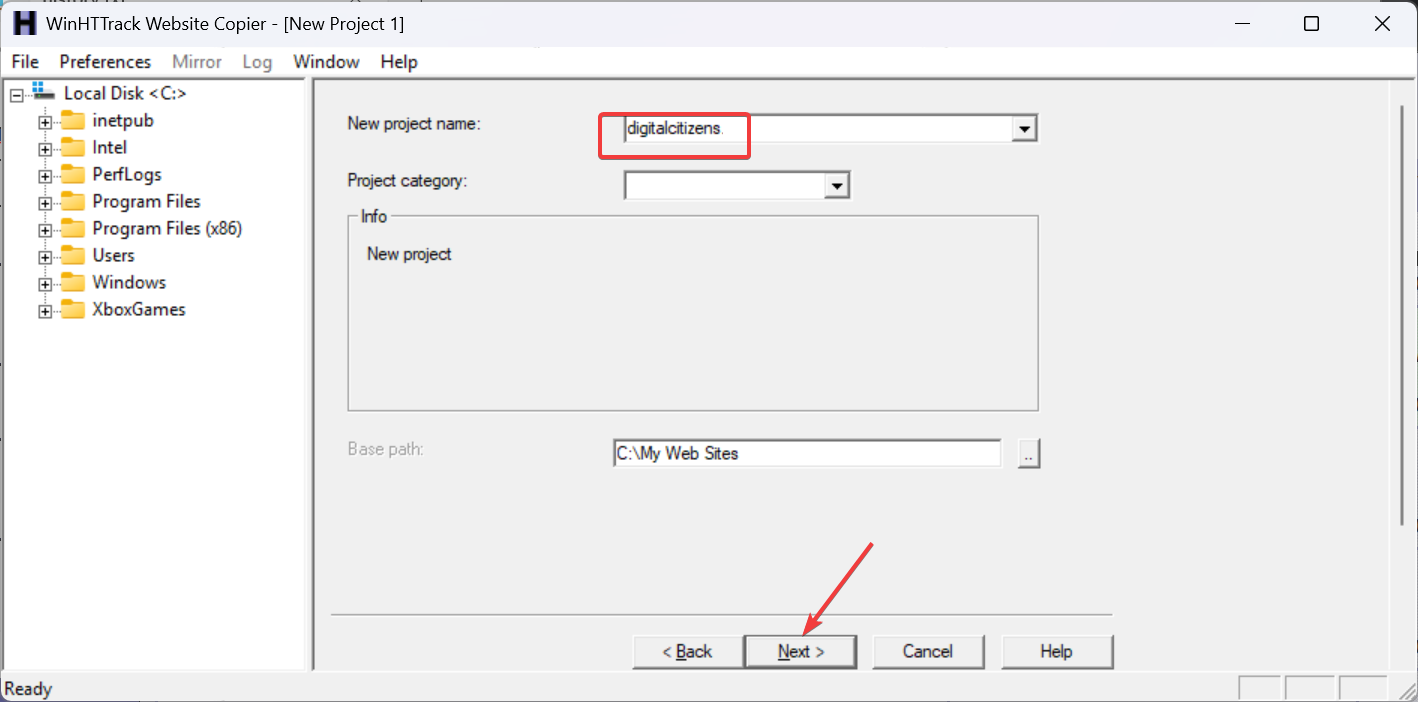

- Paste the website URL and select Next.

- Click Finish to start the download.
Use Cyotek WebCopy
WebCopy scans websites and captures static content. It works best for simple sites with predictable structures.
- Open WebCopy and paste the website URL.
- Select Copy Website.
- Adjust rules if you want to include or exclude specific folders.
- Wait for the scan to complete.
Use Wget in PowerShell
Wget downloads entire sites using advanced flags. This method works well for technical users who want full control.
- Install Wget on your PC.
- Open PowerShell.
- Run
wget --mirror --convert-links --page-requisites --no-parent https://example.com.
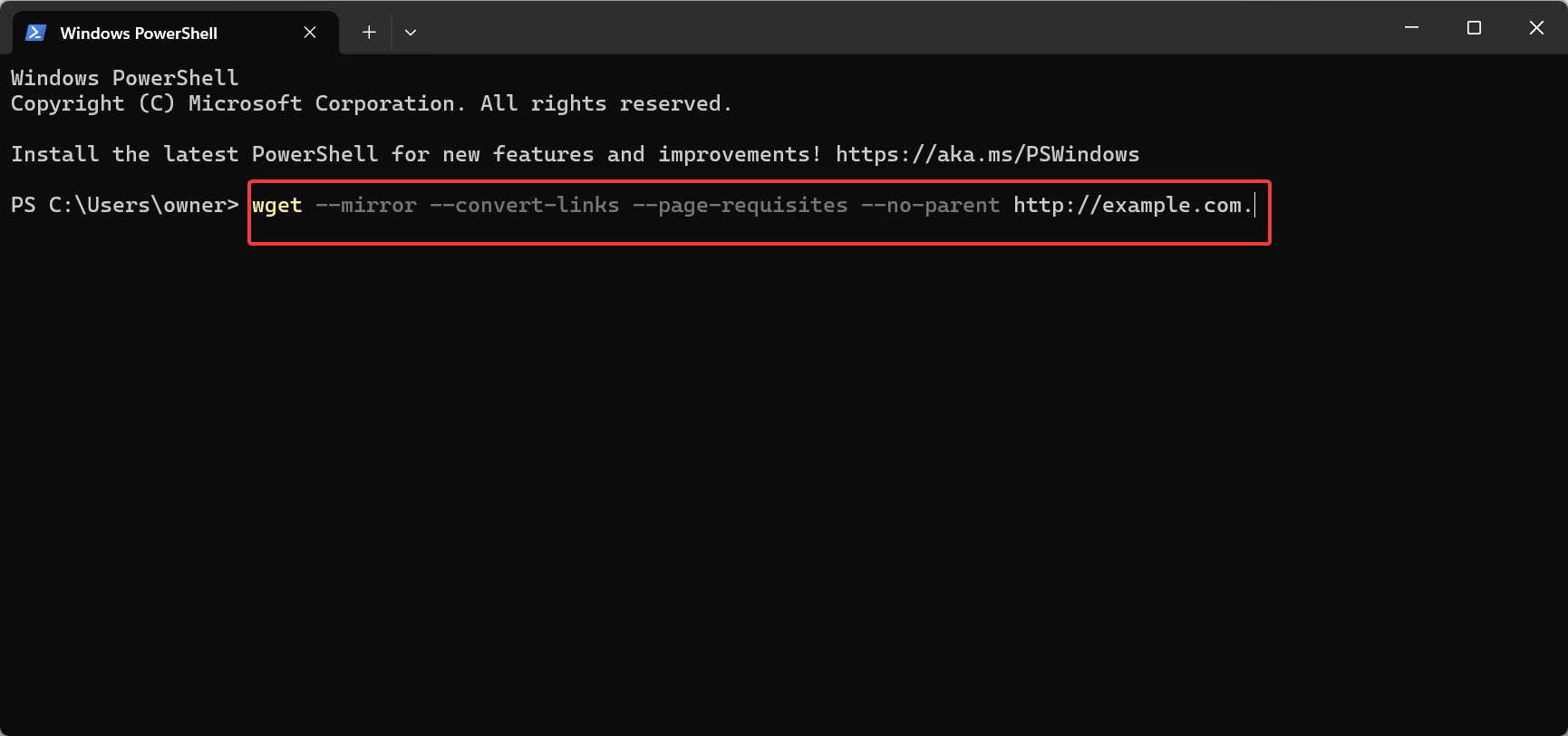

- Check the output folder for the offline copy.
2) Download a website on macOS
macOS supports both GUI apps and command-line utilities. Choose the option that matches your comfort level.
Use SiteSucker (best GUI option)
SiteSucker pulls full sites with minimal setup. It handles images, scripts, and folders without extra configuration.
- Open SiteSucker.
- Paste the website URL.


- Select Download.
- Wait for the process to finish.
Use Wget via Homebrew
Wget provides precise control through terminal commands. This solution suits advanced users.
- Install Homebrew.
- Run brew install wget.
- Mirror the site with the standard Wget flags.
- View the offline version in the output folder.
3) Download a website on Linux
Most Linux distributions include Wget or allow quick installation of HTTrack. Both perform well for large downloads.
Use Wget for full mirroring
Wget is the preferred Linux tool for offline site access. It handles deep folder structures reliably.
- Open your terminal.
- Run wget --mirror --convert-links --page-requisites --no-parent [URL].
- Wait for the download to complete.
- Open the index file in your browser.
Use HTTrack Linux packages
HTTrack provides both a CLI and a browser-like GUI. You can pick the method you prefer.
- Install the httrack package.
- Launch webhttrack if you want a GUI.
- Enter the website URL.
- Start the mirroring process.
4) Download a website on Android
Android apps can capture static sites for offline reading. These work well for simple blog-style sites. One effective one to use is the Offline Browser app.
It creates local copies of sites with custom rules. You can use it following the steps below:
- Download and open the app from the Google Play Store.
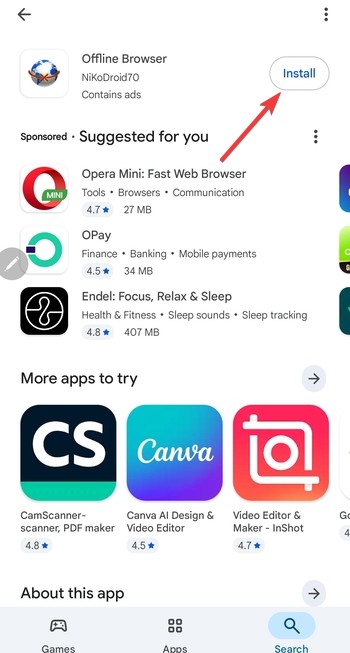

- Enter the site URL.
- Select Download.


- Access the saved copy in the project list.
5) Download a website on iPhone or iPad
iOS options are limited, but you can reliably use SiteSucker for iOS for full-site downloads, following the steps below:
- Purchase SiteSucker from the App Store and open the app.


- Enter the website URL.
- Tap Download.
- View the content in the saved folder.
6) Browser-based options for saving websites
Browsers can save small sites or individual sections. This works best when you do not need a full copy.
Use Firefox “Save Page As” complete mode
Firefox saves pages along with their assets. This handles single pages well.
- Open Firefox.
- Right-click and select Save Page As.
- Choose Web Page, complete.
- Save the file.
Use Chrome extensions for offline capture
Some extensions capture entire sections of sites. These work well for reference-style pages.
- Install your preferred extension.
- Open the page you want to save.
- Start the capture process.
- Save the generated file.
7) How to handle login-protected or dynamic websites
Most tools cannot download dynamic or authenticated content. Login forms and dashboards often require server-side processing.
In these cases, you can save static pages or export content manually. Screenshots or PDFs sometimes achieve a better result.
Common problems and how to fix them
- Missing images or CSS: Missing assets often come from blocked paths. Enable link conversion or adjust base path settings.
- Infinite crawling or duplicate pages: Loops usually occur when a site links repeatedly to the same structure. Set strict URL filters to prevent repetition.
- Extremely slow downloads: Slow speeds come from throttling or server limits. Reduce your crawl depth or skip large file types.
- Parts of the site do not load offline: Dynamic site elements need server-side support. Save these sections as PDFs if you just need the text.
Tips for better offline website downloads
- Limit your crawl depth to keep downloads manageable.
- Exclude video and audio files to save storage.
- Download at night if you expect large projects.
- Use filters to target only the content you need.
- Always store offline copies in separate folders.
FAQs
What is the best tool for beginners? HTTrack and SiteSucker offer the simplest interfaces.
Can you download dynamic sites? Most tools cannot capture interactive elements or logins.
Why are some pages missing offline? Scripts and server-dependent content do not load locally.
Is it legal to download full websites? Only public, open-access content should be downloaded offline.
Summary
- Choose the right tool for your platform.
- Use GUI apps like HTTrack and SiteSucker for easy workflows.
- Use Wget for advanced control and full mirroring.
- Apply crawl limits and filters to speed up downloads.
- Fix missing elements or loops with simple rule adjustments.
Offline downloads work best for static pages, research sites, and archives. With the right tool and a few settings, you can create a complete local copy of almost any public website.


Discussion (0)
Be the first to comment.