



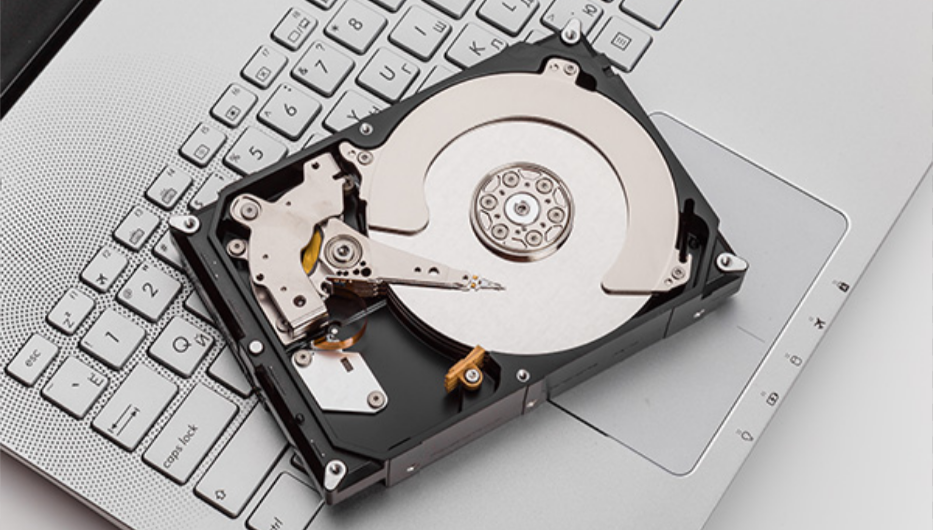
Power settings in Windows 11 are often left untouched, which is fine until something feels off. Maybe your system pauses for a second when accessing files, or you notice your drive spinning up after being idle.
That behavior is controlled by a setting most people never look at: “Turn off hard disk after.”
It sounds simple, but understanding when to change it makes a noticeable difference, especially depending on whether you use an HDD or SSD.
What This Setting Actually Does
The setting defines how long Windows waits before powering down your storage drive when it’s not in use.
- After the specified idle time, the drive is turned off
- When accessed again, it powers back on
This is primarily designed for:
- Power saving
- Reducing wear on traditional hard drives
But it also introduces a trade-off.
Why You Might Notice It
When the drive turns off:
- The next access can feel slightly delayed
- You may hear the drive spin up (on HDDs)
- Background tasks may pause briefly
If you’ve ever clicked a file and felt a short delay before it opened, this setting may be the reason.
How to Change Hard Disk Idle Time
The setting is not in the modern Settings app. It’s still part of the advanced power options.
Step-by-Step
- Open Control Panel
- Go to Hardware and Sound > Power Options
- Click Change plan settings next to your active plan
- Click Change advanced power settings
- Expand:
- Hard disk
- Turn off hard disk after
- Set the time (in minutes)
- Click Apply and OK
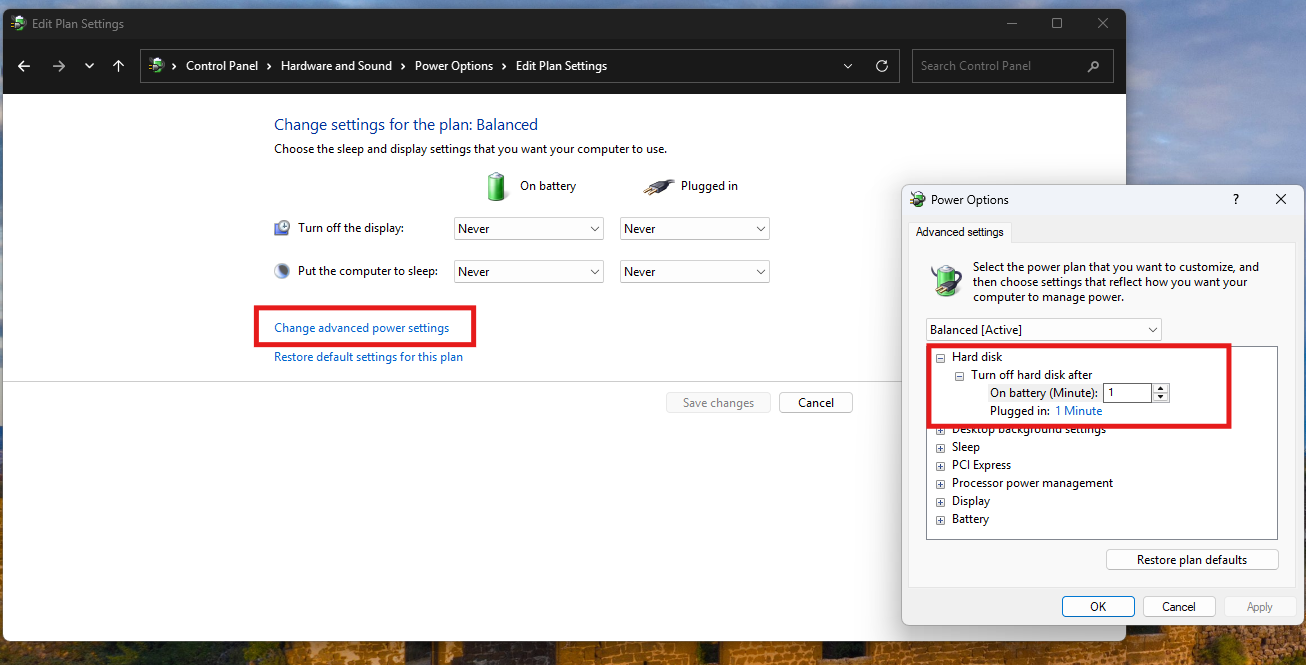
You can set different values for:
- On battery
- Plugged in
What Value Should You Use
This depends entirely on your storage type and usage.
If You Use an HDD (Hard Disk Drive)
- Default values like 10–20 minutes are reasonable
- Helps reduce power consumption
- Slight delay when waking is expected
If you notice frequent spin-ups, increasing the time can improve responsiveness.
If You Use an SSD
This setting is mostly irrelevant.
- SSDs don’t spin
- No mechanical delay
- Power savings are minimal
In many cases, users set this to:
- 0 (Never turn off)
This avoids unnecessary power state changes.
Real-World Insight
This setting matters less today than it did years ago.
Why:
- Most systems now use SSDs
- Power efficiency has improved
- Background tasks are more common
For HDD users, it still has practical impact. For SSD users, it’s mostly something you can ignore or disable.
When You Should Change It
Adjust the setting if you:
- Notice delays when accessing files after idle time
- Hear frequent drive spin-ups (HDD users)
- Want smoother responsiveness over power savings
When You Should Leave It Alone
Keep the default if:
- You’re using a laptop and want better battery life
- You don’t notice any delays
- Your system behavior feels normal
A Small but Important Detail
Setting the value to 0 means:
- The drive will never turn off automatically
This is often misunderstood as “disabled,” but it simply means the idle timer is removed.
Limitations to Be Aware Of
- This setting only applies to internal drives managed by Windows
- External drives may behave differently
- Some modern SSDs ignore this setting entirely
Final Thoughts
The “Turn off hard disk after” setting in Windows 11 is a small control with situational impact.
For HDD users, it’s a balance between power saving and responsiveness.
For SSD users, it’s largely optional.
The key is not to change it blindly, but to adjust it based on how your system actually behaves.
FAQs
What does turning off the hard disk do
It powers down the drive after a period of inactivity.
Should I disable this setting
Only if you experience delays or use an SSD.
Is this useful for SSDs
Not really, SSDs don’t benefit much from it.
Why does my drive take time to respond
It may be spinning back up after being turned off.
What does setting it to 0 mean
It disables automatic turn-off completely.



Discussion (0)
Be the first to comment.