




If your PC is connected to multiple networks at the same time, like Ethernet and Wi-Fi, Windows 11 has to decide which one to use.
Most of the time, it gets it right. But not always.
You might notice:
- Your system sticking to Wi-Fi even when Ethernet is connected
- Slower speeds than expected
- Apps behaving inconsistently across networks
That’s where network adapter priority comes in.
What Network Priority Actually Means
Every network adapter on your system is assigned a priority.
Windows uses this to decide:
- Which connection handles internet traffic
- Which network is preferred when multiple are available
Lower metric value = higher priority.
So if two connections are active:
- The one with the better priority gets used first
Why You Might Want to Change It
This is not something you tweak casually. It becomes relevant when behavior doesn’t match your expectations.
Common Scenarios
- You want Ethernet to always take priority over Wi-Fi
- You’re using VPN or virtual adapters that interfere with routing
- You have multiple network interfaces for different tasks
In these cases, adjusting priority can clean up inconsistent behavior.
How Windows Decides by Default
By default, Windows assigns priority automatically.
It considers:
- Link speed
- Network type
- Adapter configuration
In theory, this works well. In practice, it can misjudge situations, especially with:
- Virtual adapters
- Custom setups
- Mixed network environments
How to Change Network Adapter Priority
You can manually control priority by adjusting the interface metric.
Step-by-step
- Open Control Panel
- Go to Network and Internet > Network and Sharing Center
- Click Change adapter settings
- Right-click your network adapter → Properties
- Select:
- Internet Protocol Version 4 (IPv4)
- Click Properties > Advanced
- Uncheck Automatic metric
- Enter a value:
- Lower number = higher priority
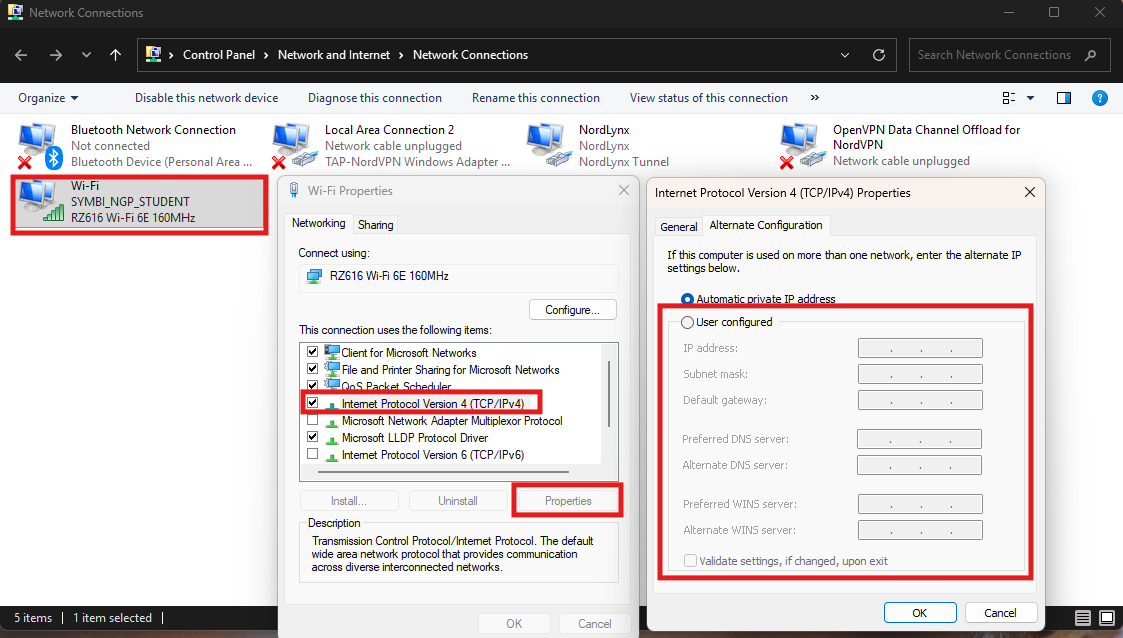
Repeat for other adapters if needed.
What Values Should You Use
There’s no strict rule, but a simple approach works.
Example Setup
- Ethernet → 10
- Wi-Fi → 20
- Virtual adapters → 30+
This ensures:
- Wired connection is always preferred
- Wireless acts as fallback
What You’ll Notice After Changing It
Once set correctly:
- Windows consistently uses your preferred network
- Fewer unexpected switches
- More predictable performance
It doesn’t increase speed directly. It removes confusion in how connections are chosen.
Real-World Insight
Most people assume Windows automatically prioritizes Ethernet over Wi-Fi.
Usually it does. But when it doesn’t, the behavior feels random.
Manually setting priority removes that uncertainty.
It’s especially useful if you:
- Frequently switch between networks
- Use docking stations
- Work with VPNs or multiple adapters
When You Should Leave It Alone
If your system behaves normally:
- Ethernet connects and works as expected
- Wi-Fi acts as fallback
- No routing issues
Then there’s no need to change anything.
Manual tuning only helps when there’s a clear problem.
Common Mistakes to Avoid
- Setting all adapters to the same metric
- Using extremely low values for everything
- Forgetting to adjust both IPv4 and IPv6 if needed
These can create more confusion instead of fixing it.
Final Thoughts
Changing network adapter priority in Windows 11 is not about optimization. It’s about making network behavior predictable.
When everything works, you don’t notice it.
When it doesn’t, this is one of the simplest fixes that actually makes a difference.
Set it once, and you won’t have to think about it again.
FAQs
What is network adapter priority
It determines which network connection Windows uses first.
How do I make Ethernet priority over Wi-Fi
Set a lower metric value for Ethernet.
Does this increase internet speed
No, it improves connection selection, not speed.
Should I change IPv6 settings too
Only if you use IPv6 actively.
What is the best metric value



Discussion (0)
Be the first to comment.