




If you are trying to decide between Hibernate vs Sleep in Windows 11, understanding how each power mode works can help you choose the best option. Both modes allow your computer to save power while preserving your work, but they function in different ways.
Sleep mode keeps your session in memory for quick resume, while Hibernate saves your session to the hard drive and completely powers off the system. This guide explains the differences between Hibernate and Sleep in Windows 11 and when you should use each one.
What Is Sleep Mode in Windows 11?
Sleep mode is a power-saving state where your computer stops most processes but keeps the current session stored in RAM. This allows the system to resume quickly when you wake it.
When your PC enters Sleep mode:
- The screen turns off
- Most hardware components stop running
- Your open apps and documents remain in memory
- The system uses a small amount of power
Sleep mode is designed for short breaks when you plan to return to your computer quickly.
What Is Hibernate Mode in Windows 11?
Hibernate mode saves your current session to the hard drive and completely powers down the computer. When you turn the system back on, Windows restores your previous session.
In Hibernate mode:
- All open programs and files are saved to disk
- The computer shuts down completely
- No power is consumed while the system is off
- The system resumes your work when restarted
Hibernate is useful when you want to stop using the computer for a longer period.
Key Differences Between Hibernate and Sleep
Understanding the differences between Hibernate vs Sleep in Windows 11 can help you choose the right option.
Sleep mode:
- Uses a small amount of power
- Resumes almost instantly
- Best for short breaks
Hibernate mode:
- Uses no power
- Takes slightly longer to resume
- Best for longer periods of inactivity
Both modes preserve your open work.
When to Use Sleep Mode
Sleep mode is ideal in situations where you plan to return to your computer soon.
You may want to use Sleep mode when:
- Taking a short break
- Moving away from your desk temporarily
- Using a desktop PC connected to constant power
Because the system stays partially active, it resumes quickly.
When to Use Hibernate Mode
Hibernate mode is better for longer breaks when you want to save power.
Consider using Hibernate when:
- You will not use the computer for several hours
- Your laptop battery is low
- You want to completely shut down the system while keeping your work
Hibernate is especially useful for laptops.
How to Enable Hibernate in Windows 11
Hibernate may not always appear in the power menu by default.
Follow these steps to enable it.
Step 1: Open Power Options
- Open Control Panel.
- Click Power Options.
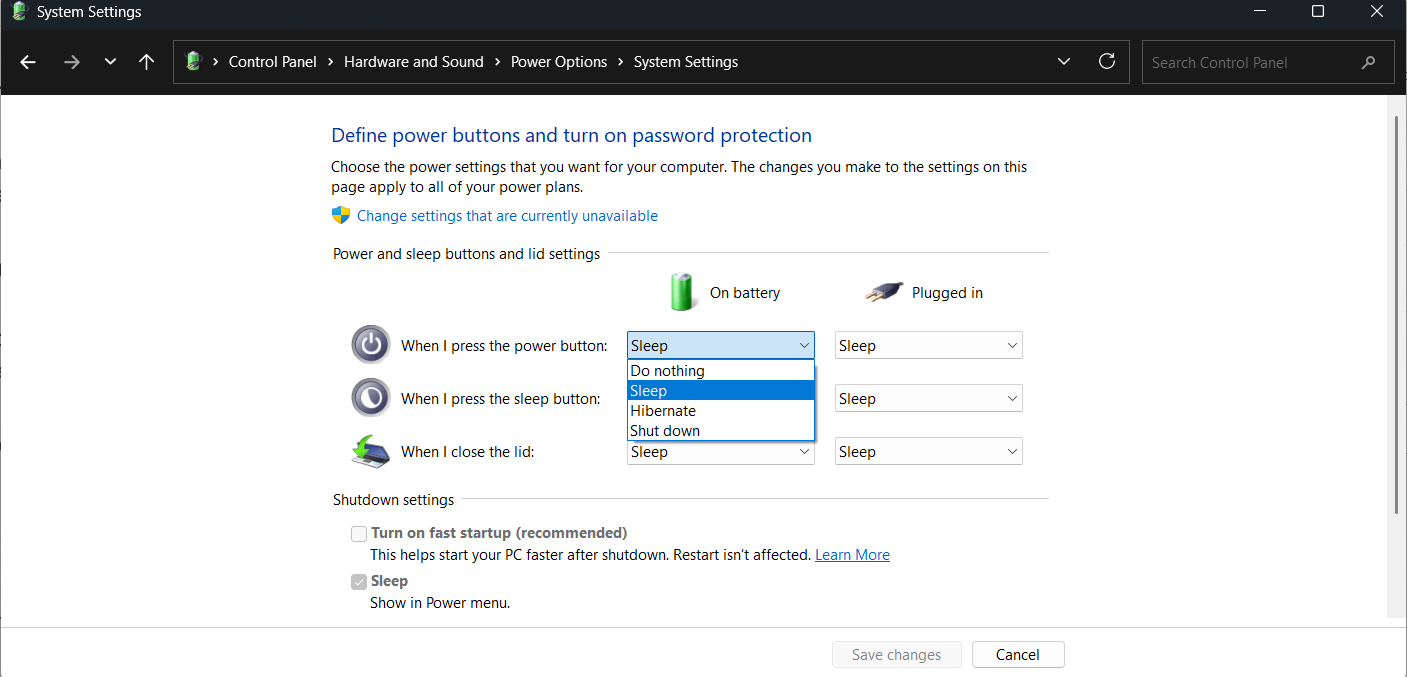
Step 2: Change Power Button Settings
- Click Choose what the power buttons do.
- Select Change settings that are currently unavailable.
Step 3: Enable Hibernate
- Check the Hibernate option under shutdown settings.
- Click Save changes.
Hibernate will now appear in the power menu.
How to Put Your PC to Sleep
You can easily activate Sleep mode in Windows 11.
Steps:
- Click the Start menu.
- Select the Power button.
- Click Sleep.
Your system will enter Sleep mode immediately.
Final Thoughts
Choosing between Hibernate vs Sleep in Windows 11 depends on how long you plan to step away from your computer. Sleep mode provides quick access when returning shortly, while Hibernate completely powers down the system while saving your session.
Using the right power mode can help improve energy efficiency and protect your work while your computer is not in use.
FAQs
What is the difference between Hibernate and Sleep?
Sleep stores your session in RAM, while Hibernate saves it to the hard drive and powers off the system.
Does Hibernate use power?
No. Hibernate uses no power because the system shuts down completely.
Which is faster, Sleep or Hibernate?
Sleep resumes faster because the session remains stored in memory.
Should I use Hibernate on a laptop?
Yes. Hibernate can help conserve battery when you will not use the laptop for a long time.
Discussion (0)
Be the first to comment.