



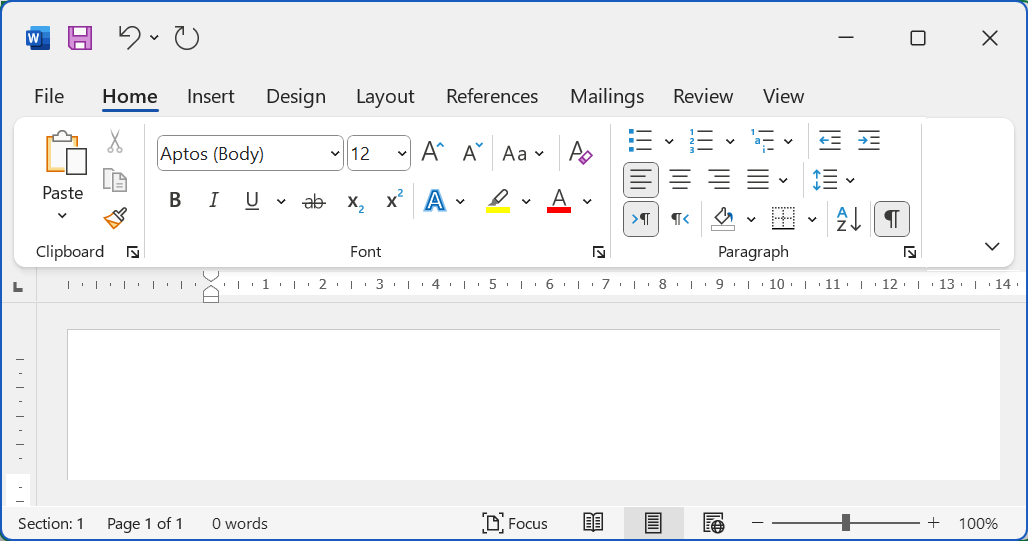
If Microsoft Word shows the error “Word cannot open the existing file (Normal.dotm)”, it usually means the default Word template file is corrupted or inaccessible.
Normal.dotm is the global template Word uses to store default formatting, macros, and settings. When this file becomes damaged, Word may fail to start properly.
This guide explains how to fix the Normal.dotm error safely.
What Is Normal.dotm
Normal.dotm is the default template file used by Microsoft Word. It stores:
- Default font settings
- Styles
- Macros
- Custom toolbar settings
- Page layout preferences
Every new document you create is based on this template.
Why the Normal.dotm Error Happens
Common causes include:
- Corrupted template file
- Improper shutdown of Word
- Faulty add-ins
- Antivirus interference
- Permission issues
The good news is that the issue is usually easy to fix.
Method 1: Delete or Rename Normal.dotm
This is the most effective solution.
- Close Microsoft Word
- Press Windows + R
- Type:
%appdata%\Microsoft\Templates
- Press Enter
- Locate Normal.dotm
- Right-click it
- Select Rename
- Rename it to Normal.old
Now reopen Word. It will automatically create a new Normal.dotm file.
Renaming instead of deleting allows you to restore it if needed.
Method 2: Check for Add-ins Issues
Sometimes add-ins cause the problem.
- Press Windows + R
- Type:
winword /safe
- Press Enter
If Word opens normally in Safe Mode:
- Go to File > Options > Add-ins
- Disable suspicious add-ins
- Restart Word
Method 3: Repair Microsoft Office
If the problem continues:
- Open Settings
- Go to Apps
- Select Installed apps
- Find Microsoft Office
- Click Modify
- Choose Quick Repair
- If needed, select Online Repair
This repairs damaged Office files.
Method 4: Check File Permissions
Ensure you have access to the Templates folder.
- Navigate to:
C:\Users\YourUsername\AppData\Roaming\Microsoft\Templates
- Right-click the folder
- Select Properties
- Check Security tab
- Confirm your account has full control
Permission issues can prevent Word from accessing Normal.dotm.
Does This Delete My Documents
No. Renaming or recreating Normal.dotm does not affect your saved Word documents. It only resets default template settings.
You may lose custom styles or macros stored in the template.
Final Thoughts
The “Word cannot open the existing file Normal.dotm” error usually occurs due to a corrupted template file. Renaming or recreating the Normal.dotm file resolves the issue in most cases. If the problem persists, repairing Microsoft Office or disabling add-ins can fix it.
The solution works for both Windows 10 and Windows 11.
FAQs
Is Normal.dotm important
Yes, it stores default Word settings and formatting.
Will deleting Normal.dotm delete my files
No, it only resets Word’s default template.
Why does Word recreate Normal.dotm
Word automatically generates a new default template if missing.
Does this fix work in Windows 11
Yes, it works in both Windows 10 and Windows 11.
What if the error still appears
Try repairing Office or checking add-ins.


Discussion (0)
Be the first to comment.