



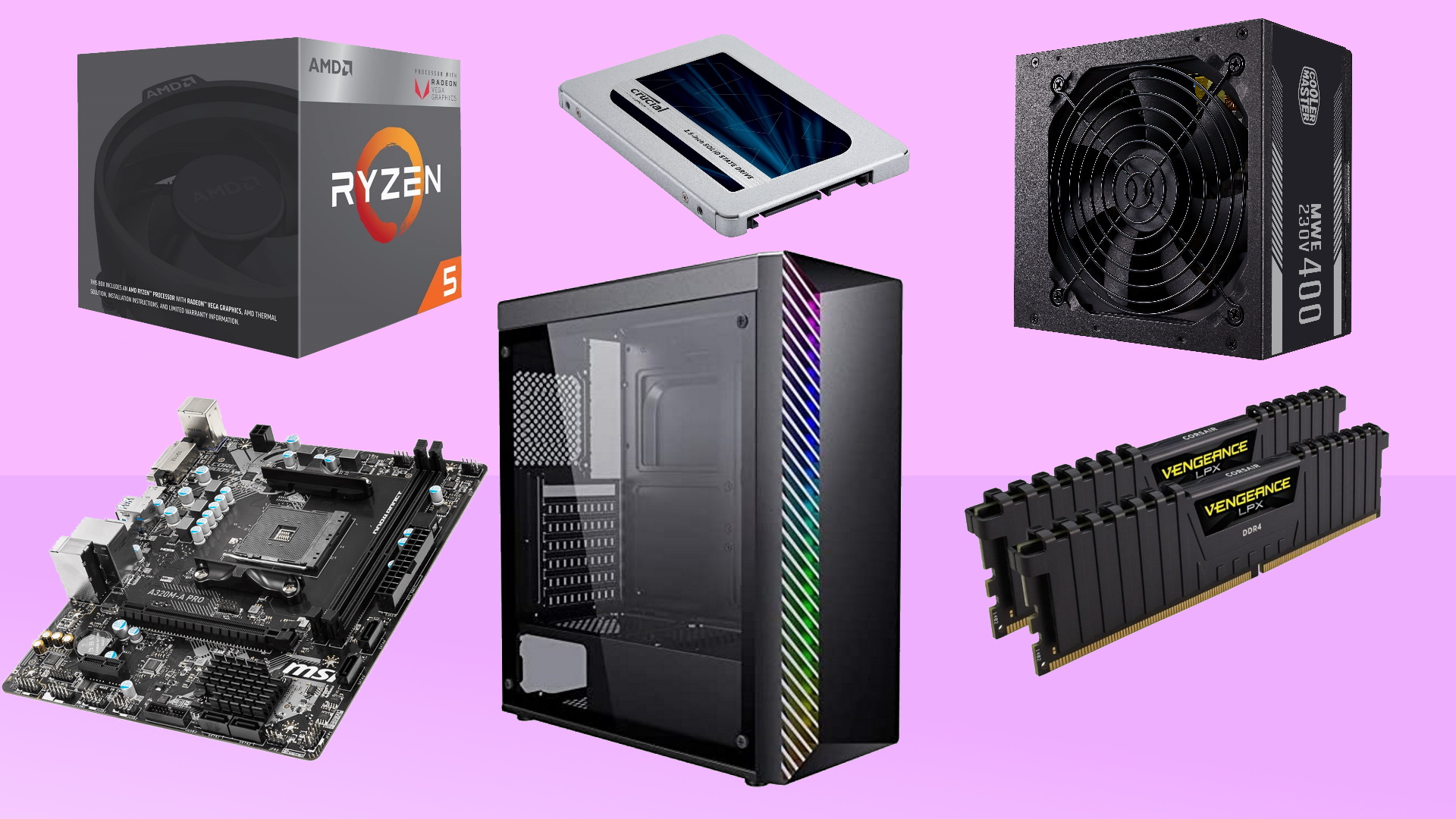
You do not always need a new processor or graphics card to make your PC feel faster. In many cases, poor cooling, slow storage, dust buildup, and unnecessary background software can reduce performance long before the hardware becomes outdated.
A budget of $50 will not transform an entry level computer into a high end gaming system, but it can still deliver useful improvements. The best choice depends on what is slowing your PC down. A system running from a mechanical hard drive may benefit most from an SSD, while an older gaming PC with high temperatures may need cleaning, new thermal paste, or better airflow.
Before spending money, check temperatures, storage usage, startup applications, and memory settings. This will help you focus on the part of the system that actually needs attention.
Check for software problems before buying hardware
Software optimisation costs nothing and should usually be the first step. Open Task Manager and review the programs that automatically start with Windows. Applications that you rarely use can increase boot times and consume memory in the background.
Removing unused programs can also free storage space. A nearly full system drive may feel less responsive, particularly when Windows needs space for temporary files, updates, and virtual memory.
Graphics drivers should be updated when new games have problems or when an update includes support for a title you want to play. Chipset and other system drivers may also be worth checking, although Windows handles many routine driver updates automatically.
You should also confirm that your memory is running at its intended speed. Compatible systems may support XMP or EXPO profiles, which can be enabled through the motherboard firmware. This can improve memory performance without purchasing new hardware, although settings should only be changed when the motherboard and memory kit support them.
| Improvement | Typical cost | Best suited to |
|---|---|---|
| Software optimisation | Free | Slow startup and excessive background activity |
| Internal cleaning | $10 to $20 | Dusty systems with rising temperatures |
| New thermal paste | $5 to $15 | Older CPUs experiencing thermal throttling |
| Additional case fans | $10 to $40 | Cases with weak airflow |
| Small SATA SSD | $20 to $50 | PCs still running Windows from a hard drive |
Cleaning the PC can restore lost cooling performance
Dust collects on intake filters, fans, heatsinks, and ventilation openings. As airflow becomes restricted, temperatures rise and cooling fans must work harder.
Higher temperatures can cause the processor or graphics card to reduce clock speeds to protect itself. This behaviour is called thermal throttling, and it can lead to inconsistent frame rates, slower rendering, and louder fan noise.
Turn the computer off, disconnect it from power, and move it to a well ventilated area before cleaning. Hold fans in place while removing dust so they do not spin at excessive speeds.
Compressed air can be useful, but the can should remain upright to reduce the risk of releasing liquid propellant. A reusable electric duster may offer better long term value if you clean several computers or plan to maintain the system regularly.
Avoid using a household vacuum directly on sensitive components because static electricity may damage hardware.
Fresh thermal paste may help an older processor
Thermal paste fills microscopic gaps between the processor and its cooler, helping heat move away from the chip. Over time, the material can dry out or become less effective.
Replacing it may reduce temperatures on an older system, especially if the cooler has not been removed or serviced for several years. Lower temperatures can help the processor maintain its boost clocks for longer workloads.
Before replacing the paste, use a monitoring program to check CPU temperatures and determine whether thermal throttling is occurring. If temperatures are already normal, applying new paste may produce little or no measurable performance improvement.
The process requires removing the CPU cooler, cleaning away the old material, applying fresh paste, and reinstalling the cooler evenly. Anyone unfamiliar with PC hardware should seek assistance rather than risk damaging the processor socket or cooler mounting system.
Better airflow can improve sustained performance
Adding or replacing case fans can help if the system has limited airflow. A basic arrangement usually brings cool air through the front or bottom of the case and removes warm air through the rear or top.
More fans do not automatically provide better cooling. Their position, direction, speed, and the design of the case all matter. Incorrectly installed fans can create turbulence or move warm air back through the system.
It is also worth checking the computer’s location. A PC placed against a wall, inside a closed cabinet, near a radiator, or in direct sunlight may run hotter even when its internal fans are working correctly.
Good airflow can benefit both the CPU and graphics card while reducing the need for fans to operate at high speeds.
An SSD provides the largest upgrade for hard drive based systems
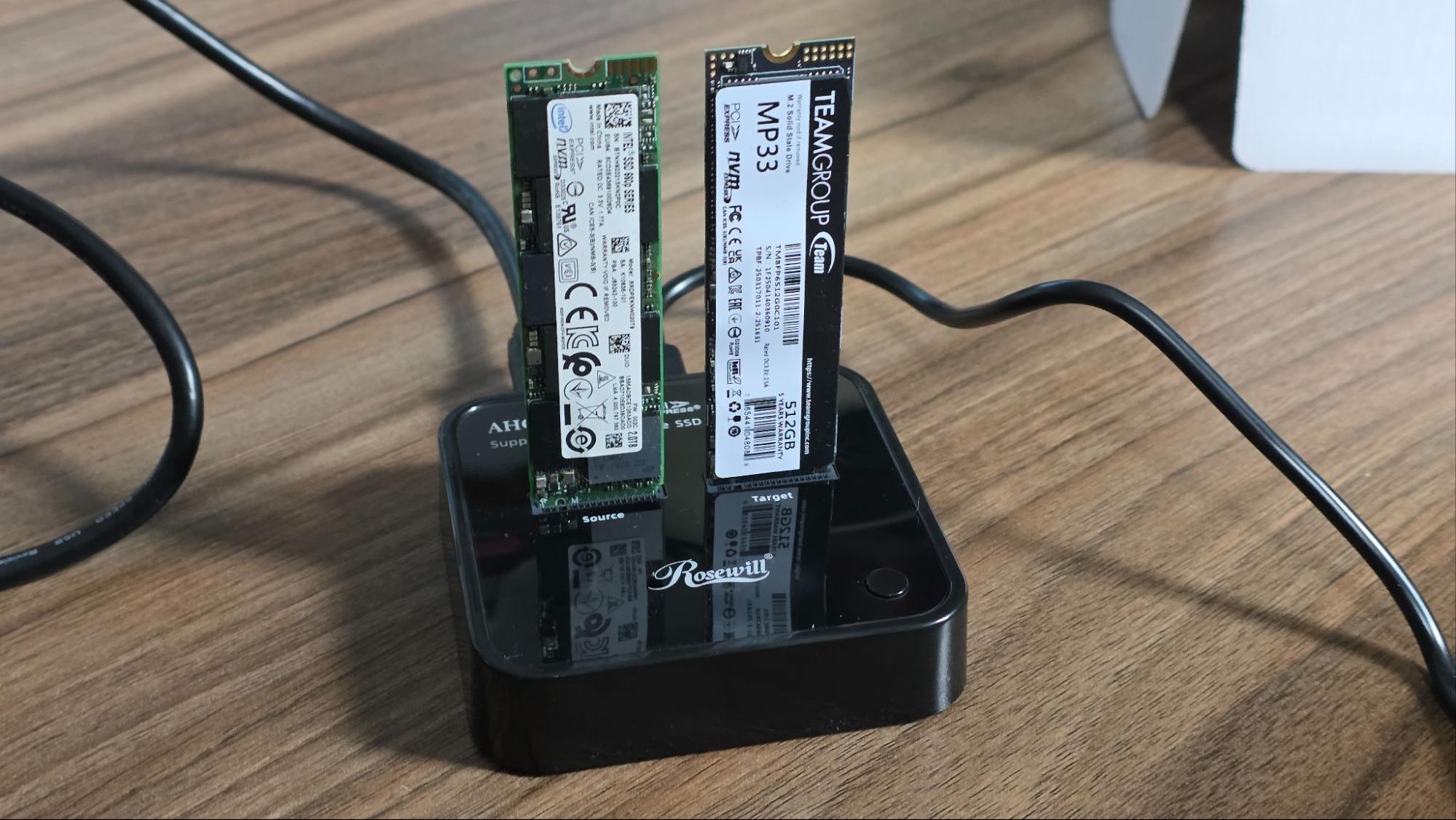
If Windows is still installed on a mechanical hard drive, moving the operating system to an SSD can make the computer feel significantly more responsive.
An SSD can reduce boot times, open programs faster, improve file transfers, and shorten loading screens in many games. It will not greatly increase graphics performance or frame rates, but the improvement to everyday use is often easy to notice.
Storage prices may limit what you can buy for $50. A smaller 256GB drive can hold Windows and several essential applications, but it may not provide enough space for a large game library.
The original hard drive can remain installed for documents, photos, videos, and less frequently used games. Before buying an SSD, confirm whether your computer supports a 2.5 inch SATA drive, an M.2 SATA model, or a faster NVMe drive.
Balanced power settings are suitable for most PCs
Windows includes several power plans, but High Performance is not always the best option. It may keep the processor at higher frequencies for longer, increasing power use, temperatures, and fan noise without providing a noticeable improvement in many tasks.
The Balanced plan is suitable for most desktop computers. It allows the processor to increase performance when needed and reduce power use during lighter workloads.
A $50 budget is best spent after identifying the actual limitation. Start with free software checks and cleaning, then consider thermal paste or additional fans if temperatures remain high. For any PC still using a hard drive as its main storage device, an SSD is likely to provide the most noticeable improvement.

Discussion (0)
Be the first to comment.