



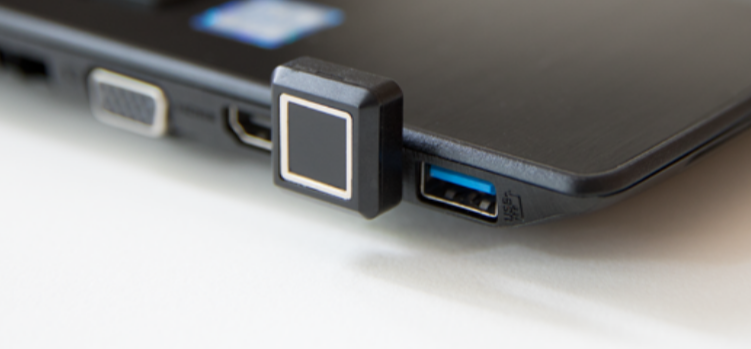
Typing passwords every time you unlock your PC feels outdated, especially when faster and more secure options exist. Fingerprint login is one of the simplest upgrades you can make, and it’s not limited to laptops with built-in sensors.
With an external fingerprint reader, you can bring the same convenience to almost any desktop or older laptop running Windows 11.
But before you buy one or set it up, it’s worth understanding how it actually works and whether it fits your workflow.
What External Fingerprint Login Actually Is
External fingerprint login is part of Windows Hello, Microsoft’s biometric authentication system.
Instead of entering a password, you:
- Place your finger on a sensor
- Windows verifies your identity
- You’re logged in instantly
With an external reader, this sensor connects via USB and works just like a built-in one.
What You Need Before You Start
Not every fingerprint reader will work properly. Compatibility matters.
Basic Requirements
- A Windows Hello–compatible fingerprint scanner
- Windows 11 (fully updated)
- A PIN set up on your account
The PIN is important because Windows Hello uses it as a fallback and as part of its security model.
How to Set Up an External Fingerprint Reader
Once you have a compatible device, setup is straightforward.
Step 1: Connect the Fingerprint Reader
- Plug the device into your PC
- Windows will usually install drivers automatically
If not, install drivers from the manufacturer.
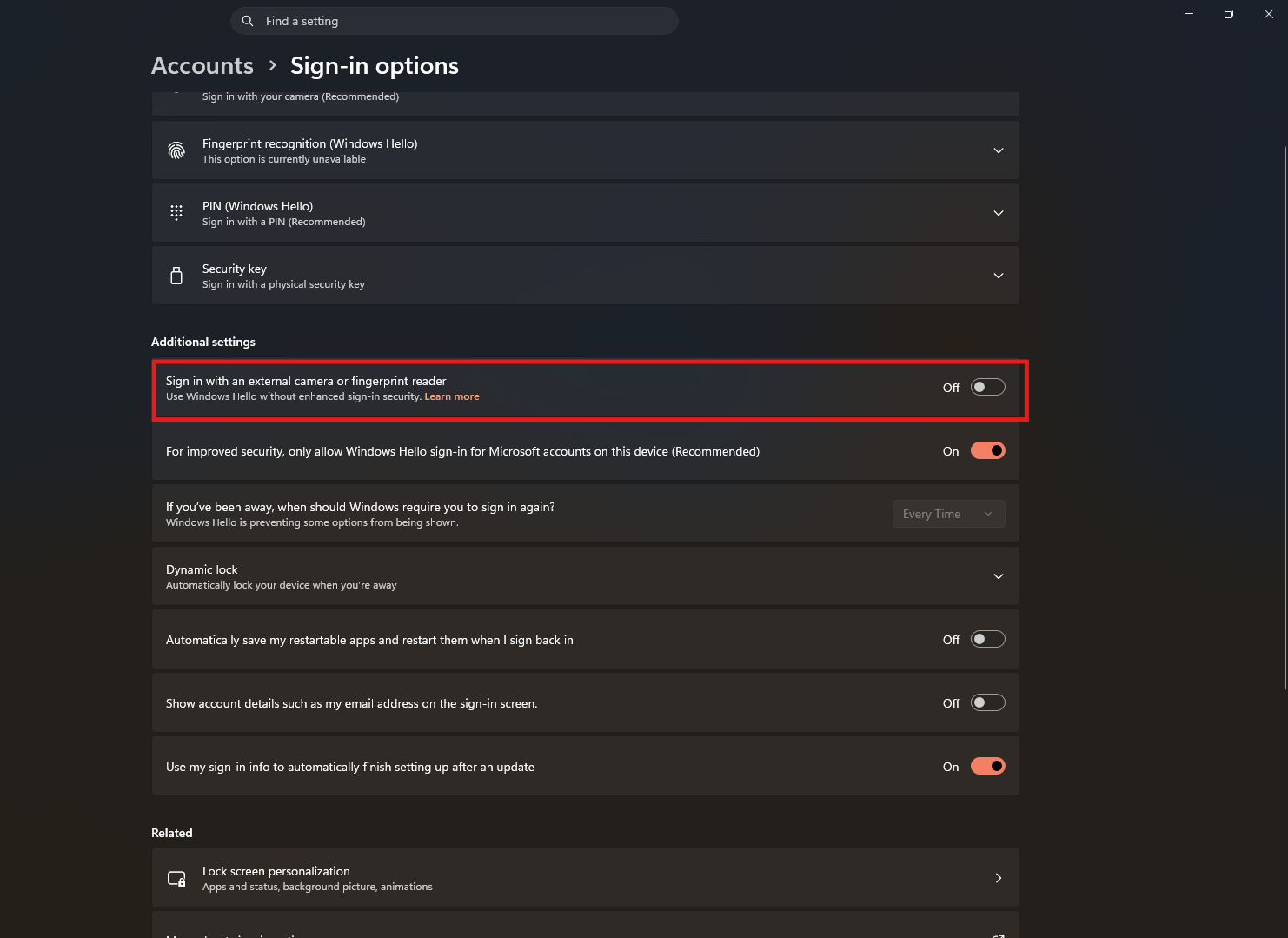
Step 2: Set Up Windows Hello Fingerprint
- Open Settings
- Go to Accounts > Sign-in options
- Under Fingerprint recognition (Windows Hello)
- Click Set up
You’ll be asked to:
- Enter your PIN
- Scan your fingerprint multiple times
This helps Windows capture a complete fingerprint profile.
Step 3: Test It
- Lock your PC (Windows + L)
- Use your fingerprint to sign in
If set up correctly, login should feel almost instant.
What It Feels Like in Daily Use
This is where fingerprint login makes the most difference.
Instead of:
- Typing a password
- Or even entering a PIN
You just:
- Tap the sensor
- And you’re in
It’s fast enough that you stop thinking about it entirely, which is exactly the point.
Where External Fingerprint Login Works Best
Fingerprint login is most useful when:
You Use a Desktop Without Biometrics
Desktops don’t come with built-in fingerprint sensors. An external reader fills that gap cleanly.
You Unlock Your PC Frequently
If you:
- Lock your PC often
- Step away regularly
Fingerprint login saves time every single time you return.
You Want Better Security Without Complexity
It’s more secure than simple passwords and easier than managing long, complex ones.
Where It Falls Short
Fingerprint login is convenient, but not perfect.
It’s Not Always Instant
- Sometimes it takes a second to recognize
- Poor finger placement can cause retries
It Depends on Hardware Quality
Cheaper scanners:
- May be slower
- Less accurate
This is one area where quality matters.
You Still Need a Backup Method
- PIN or password is always required as fallback
- Fingerprint is an addition, not a replacement
Security Perspective (What Actually Matters)
Fingerprint login is not just about convenience.
- Your fingerprint data is stored securely on your device
- It is not uploaded or shared externally
- Authentication happens locally
This makes it both fast and relatively secure.
However, like any biometric system:
- It should not be your only layer of security
- Always keep a strong PIN or password
Real-World Insight
Most people who switch to fingerprint login don’t go back.
Not because it’s revolutionary, but because it removes a small, repeated friction point.
That’s the real benefit:
- Less effort
- Faster access
- Same or better security
Over time, that adds up.
Should You Get an External Fingerprint Reader
It makes sense if:
- You use a desktop regularly
- Your laptop lacks a fingerprint sensor
- You want faster login without extra steps
It may not be necessary if:
- You’re comfortable with PIN login
- You rarely lock your system
- You already use facial recognition
Final Thoughts
External fingerprint login in Windows 11 is one of those upgrades that feels minor until you start using it.
It doesn’t change how your system works. It just removes friction from something you do every day.
And that’s often where the best improvements come from.
FAQs
Do all fingerprint scanners work with Windows 11
No, they must support Windows Hello.
Is fingerprint login secure
Yes, data is stored locally and encrypted.
Do I still need a password
Yes, as a backup method.
Can I use multiple fingerprints
Yes, you can register multiple fingers.
Is it worth buying an external fingerprint reader
Yes, especially for desktops or older laptops.



Discussion (0)
Be the first to comment.