




For most of its existence, ChatGPT has been a one-on-one tool. You open it, ask something, get a response, and that is the full experience. It works well for individuals, but it creates friction the moment more than one person needs to be involved. Someone asks ChatGPT a question, copies the answer, pastes it into a group message, waits for feedback, goes back to ChatGPT, and the cycle repeats. It is clunky and slow. The ChatGPT group chat feature changes that entirely. It lets multiple people work with ChatGPT inside a single shared conversation at the same time. This guide explains what ChatGPT group chat is, how it works, how to set one up, and what you can realistically use it for.
What Is the ChatGPT Group Chat Feature?
ChatGPT group chat is a feature that lets you bring other people into a shared ChatGPT conversation. Everyone in the group can read the same messages, ask their own questions, contribute ideas, and interact with ChatGPT together in real time. ChatGPT participates as a member of the conversation, responding when it is useful and staying quiet when the group is just talking amongst themselves.
OpenAI launched the feature as a pilot in November 2025, starting with users in Japan, New Zealand, South Korea, and Taiwan. Within a week, due to strong early feedback, it expanded globally to all logged-in users on Free, Go, Plus, and Pro plans. It is available on both mobile and web.
The feature is powered by GPT-5.1 Auto, which automatically selects the best model to respond with based on the content of the prompt and the plans of the people in the group. Rate limits only apply when ChatGPT itself responds, not when group members are chatting with each other. This means people can have a normal conversation inside the group without hitting usage limits every time someone sends a message.
How ChatGPT Behaves in a Group Chat
ChatGPT does not respond to every single message in a group chat. This is one of the most important things to understand about how the feature works. It reads the flow of the conversation and decides on its own when to contribute and when to stay in the background.
If the group is debating something between themselves, ChatGPT will generally hold off. If someone asks a question or the conversation reaches a point where information or assistance is clearly needed, ChatGPT will step in. You can also call on it directly at any time by mentioning ChatGPT in your message, which will prompt it to respond immediately.
ChatGPT can also react to messages with emoji responses, making it feel less like a formal query tool and more like an actual participant in the conversation. It can also reference profile photos from group members when generating personalized images if someone asks for that within the chat.
Your personal ChatGPT memory is never shared with anyone in a group chat. The group chat is completely separate from your private conversations. Nothing from a group chat is used to personalize your individual ChatGPT experience, and nothing from your private chats carries into the group.
How to Start a ChatGPT Group Chat
Starting a group chat is straightforward. The process is slightly different depending on whether you are on mobile or web, but the core steps are the same.
Starting a Group Chat on Mobile
- Open the ChatGPT app on your iPhone or Android device. Make sure you are signed into your account.
- Open any existing conversation or start a new chat. In the top right corner of the screen, tap the people icon. This is the icon that looks like a silhouette or person with a plus symbol.
- Tap Start group chat. If you are starting from an existing conversation, ChatGPT will create a copy of that conversation as a new group chat. Your original conversation stays untouched and can still be found under Your Chats.
- You will now be in the group chat. To invite people, tap the people icon again and share the invite link. You can send the link through any messaging app, email, or however you normally communicate with the people you want to add.
Starting a Group Chat on Web
- Go to chatgpt.com and sign in to your account.
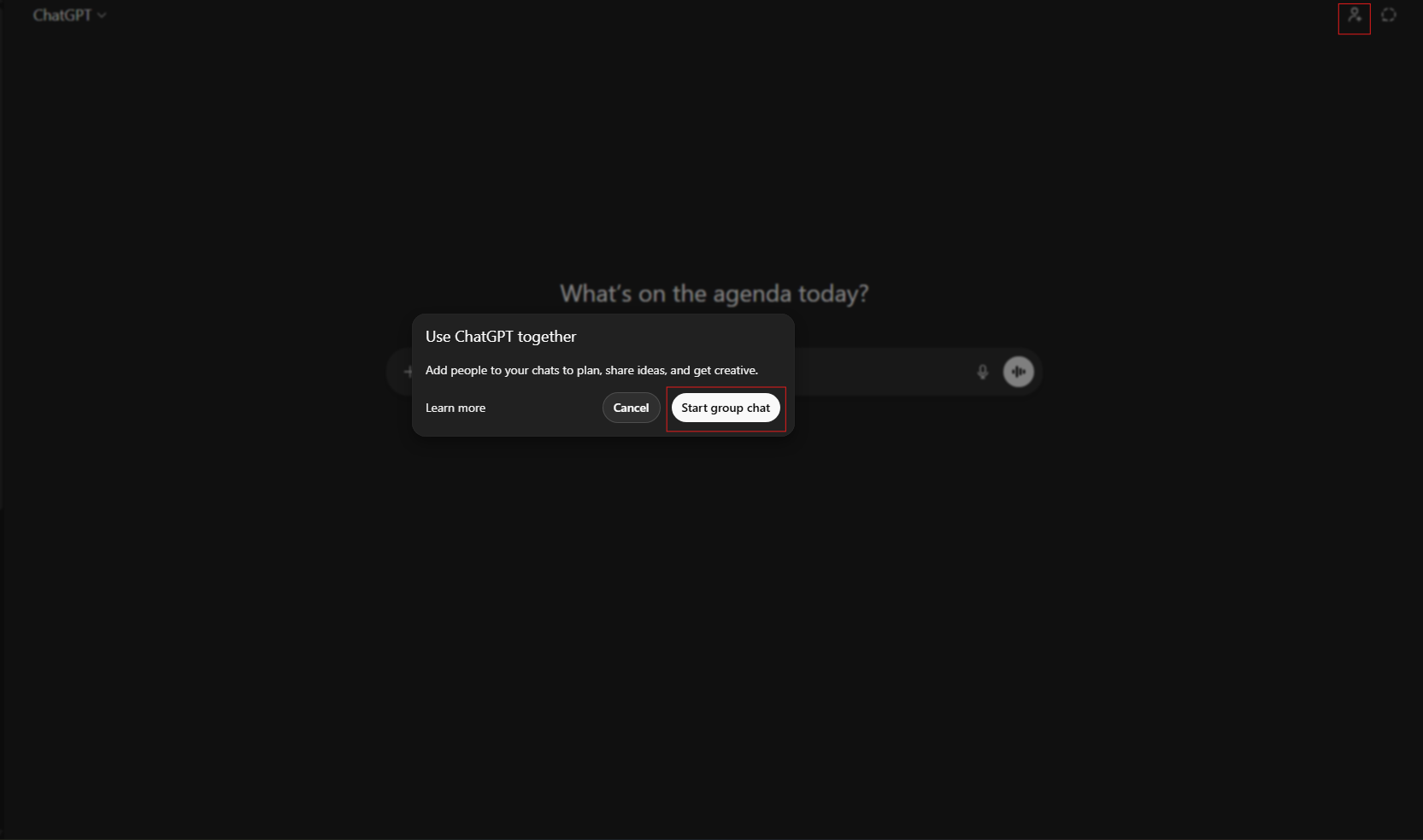
- Open a new conversation or any existing chat. Look for the people icon in the top right area of the chat interface and click it.
- Click Start group chat. As with mobile, starting from an existing chat creates a copy of it. Starting from a new chat gives you a blank group conversation.
- Share the invite link with the people you want to include. Anyone with the link can join, and any member of the group can share the link to add more people.
Setting Up Your Group Chat Profile
When you join or create your first group chat, ChatGPT will ask you to set up a short profile. This includes your name, a username, and a profile photo. This profile only applies to group chats and is separate from your main ChatGPT account settings. It is how other members of the group identify you in the conversation.
You can update your group profile at any time by tapping or clicking on the participants section inside any group chat.
How to Manage a ChatGPT Group Chat
Once a group chat is running, you have several management options available.
To access group settings on web, click the group chat name at the top of the page. On mobile, tap the pencil icon in the top right corner. From here you can name the group, add or remove participants, and mute notifications if the conversation gets busy.
Anyone in the group can add new members by sharing the invite link. However, only the group creator has certain elevated controls. Members can always see who is in the chat and can leave at any time.
Group chats appear in a dedicated Group Chats section in the ChatGPT sidebar, separate from your regular private conversations. This makes them easy to find and keeps your personal chats organized away from shared ones.
Setting Custom Instructions for a Group Chat
One of the more useful features inside ChatGPT group chats is the ability to set custom instructions that apply only to that specific group. This lets you shape how ChatGPT responds within the context of the group's purpose.
To access this, open the group chat, go to group settings, and select Customize ChatGPT. From there you can add instructions such as keeping responses concise and professional, focusing ChatGPT on a specific goal like planning a project, or specifying that ChatGPT should always summarize links before commenting on them.
These instructions are local to that group chat only. They do not affect your personal ChatGPT settings or any other conversations you have privately.
What You Can Use ChatGPT Group Chat For
The range of practical use cases for ChatGPT group chat is broader than it might first seem. Here are some of the most useful scenarios.
Trip planning with friends or family is one of the most natural fits. Instead of one person running queries and relaying information, everyone can be in the same conversation asking ChatGPT to compare destinations, check flight costs, build itineraries, and create packing lists together. Everyone sees the same information at the same time and can ask follow-up questions directly.
Group decisions that usually involve a lot of back-and-forth work well here too. Finding a restaurant that works for a group with different dietary requirements, choosing between multiple options for a shared purchase, or settling a friendly disagreement with an impartial reference are all things ChatGPT handles naturally in a group context.
Work and school collaboration is another strong use case. A small team can draft an outline together, research a topic, summarize articles for a shared proposal, or brainstorm names for a new feature. ChatGPT keeps everyone on the same page rather than having information scattered across individual queries.
Creative projects like designing a shared space, finding art for an apartment, or planning a garden renovation are easier when multiple people with different preferences can all interact with ChatGPT simultaneously rather than having one person act as the go-between.
Who Can Use ChatGPT Group Chat
ChatGPT group chat is available to all logged-in users on Free, Go, Plus, and Pro plans. You do not need a paid subscription to start or join a group chat, though the quality and rate limits of ChatGPT's responses will still follow your individual plan.
Up to 20 people can participate in a single group chat. In practice, smaller groups of around four to six people tend to work best. With twenty people active in the same conversation, contributions can become difficult to follow and the conversation can lose focus quickly.
For users under 18, ChatGPT automatically applies additional content protections when a minor is present in a group chat. These protections apply to the entire group, not just the minor, which means ChatGPT's responses become more conservative for everyone in that conversation when a younger user is participating. Parents and guardians can also disable group chat access entirely for a teen's account through parental controls.
What ChatGPT Group Chat Does Not Currently Support
Some standard ChatGPT features are not yet available inside group chats. Advanced data analysis, canvas mode, and certain file handling capabilities are not supported in the group chat environment at the time of writing. These remain available in your private ChatGPT conversations depending on your plan.
File uploads and image sharing within group chats may also have limitations depending on how the feature continues to develop. OpenAI has indicated it will continue refining and expanding group chat capabilities based on user feedback.
ChatGPT's memory system does not carry into group chats. Personal preferences, past conversation context, and anything ChatGPT has learned about you in private chats will not be available to it when it is participating in a group. This is a deliberate privacy decision, but it does mean ChatGPT starts fresh in every group context without knowing anything about individual participants beyond what is shared in that conversation.
Privacy in ChatGPT Group Chats
Privacy is worth understanding clearly before you use group chat for anything sensitive. Group chats are completely separate from your private ChatGPT conversations. Your personal memory is not shared with the group, and nothing from the group chat feeds back into your individual personalization.
However, everything you type in a group chat is visible to all participants. This is obvious but worth stating clearly. Anyone with the invite link can join the group, so be thoughtful about who you share it with and what information you put into the conversation.
Group chat data can be exported through ChatGPT's standard data export feature, available in your account settings.
Final Thoughts
The ChatGPT group chat feature is a meaningful shift in how AI assistants can fit into everyday collaboration. The one-on-one model worked well for individual productivity, but it always created a bottleneck the moment a group needed to be involved. Group chat removes that bottleneck by putting ChatGPT directly into the shared conversation rather than requiring one person to relay information to everyone else. It is not a replacement for dedicated team collaboration tools, but for casual group planning, quick decisions, and shared research, it is a genuinely useful addition that most users will find practical within the first session of trying it.
Frequently Asked Questions
Who can use the ChatGPT group chat feature? ChatGPT group chat is available to all logged-in users on Free, Go, Plus, and Pro plans globally. You do not need a paid subscription to start or join a group chat. Up to 20 people can participate in a single group chat.
Does ChatGPT respond to every message in a group chat? No. ChatGPT reads the flow of the conversation and decides when to respond based on context. It stays quiet when the group is just talking among themselves. You can always get a response from it by mentioning ChatGPT directly in your message.
Is my personal ChatGPT memory shared in group chats? No. Your personal ChatGPT memory is completely separate from group chats. Nothing from your private conversations carries into a group chat, and nothing from a group chat affects your personal ChatGPT settings or memory.
How do I add people to a ChatGPT group chat? Tap or click the people icon in the top right of any group chat to access the invite link. Share that link with anyone you want to add. Any member of the group can share the link to bring in additional participants.
Can I set different instructions for ChatGPT in different group chats? Yes. Each group chat supports its own custom instructions that are separate from your personal ChatGPT custom instructions. You can set the tone, goals, and preferences for how ChatGPT behaves within each specific group without affecting any other conversations.



Discussion (0)
Be the first to comment.